Working hours and automatic sign-out
Working hours control when a Live Chat queue accepts clients and when Druid signs helpdesk agents out automatically. You set a schedule on a queue and apply it to its agents. You can also give individual agents their own schedule.
Queue schedule and agent schedule
Queue and agent schedules do different things.
| Queue schedule | Agent schedule | |
|---|---|---|
| Purpose | Defines when the queue accepts clients. Also provides a default schedule for the queue's agents. | Defines when Druid can sign the agent out automatically. |
| Effect | The AI Agent doesn't place clients in the queue outside its working hours, even if some agents have a longer schedule. | Agents can stay signed in after their shift, for example to finish a long chat. Druid signs them out only when all the conditions below are met. |
| Default | 24/7 | 24/7, or inherited from the agent's queue |
Set working hours for a queue
- In the menu, select Solution Contents > Live Chat Queues.
- Next to the queue, select Actions > Edit.
- Select the Working hours tab.
- Select Scheduled.
- In Queue timezone, select the time zone. The default is the tenant time zone.
- Add the working hours for each day:
- Select the day of the week.
- Set the start and end time. The defaults are 08:00 AM and 05:00 PM.
- Select Add. The selected day moves to the next day automatically. To add two shifts on the same day, add the day twice with different times.
- Optional: add holidays. In Legal holidays, select the date, enter a description, and select Add. Then select Is Active for each holiday that applies to this queue, or select the Is Active column header to select them all.
- Select Save & Close.
- If a Warning dialog lists agents with other working hours, select the agents who should get this queue's schedule, and then select Continue.
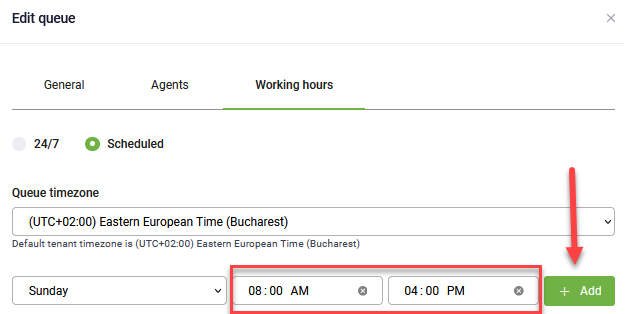
The queue's schedule applies to all its agents, except agents who belong to other queues or have their own schedule. The Agents tab shows each agent's schedule in the Custom working hours column, for example 24/7.
Handle clients outside working hours
Outside the queue's working hours, ConnectToHelpdeskAgent returns false in @InternalActionResult and sets [[HelpdeskClient]].IsOutsideWorkingHours to true. Handle this in your flow, for example:
If @InternalActionResult == false.toString()
  and [[HelpdeskClient]].IsOutsideWorkingHours == true
then send: "Our agents are available Monday to Friday, 08:00–17:00."
If clients are already waiting when the working hours end, Druid stops allocating them automatically. Agents can still pick them up manually.
Set working hours for a helpdesk agent
Set an agent schedule only for exceptions, such as part-time or night-shift agents.
- In the menu, select Solution Contents > Live Chat Agents.
- Next to the agent, select Actions > Edit.
- Select the Working hours tab, and then select Scheduled.
- Do one of the following: - To use a queue's schedule, select the queue in Inherit working hours from. - To set the agent's own schedule, select Custom working hours. Then set Queue timezone, the working hours, and the legal holidays as for a queue.
- Select Save & Close.
- If the agent is in a queue with its own schedule, a warning appears. To keep the agent's own schedule, select Continue without selecting the agent. To apply the queue's schedule, select the agent, and then select Continue.
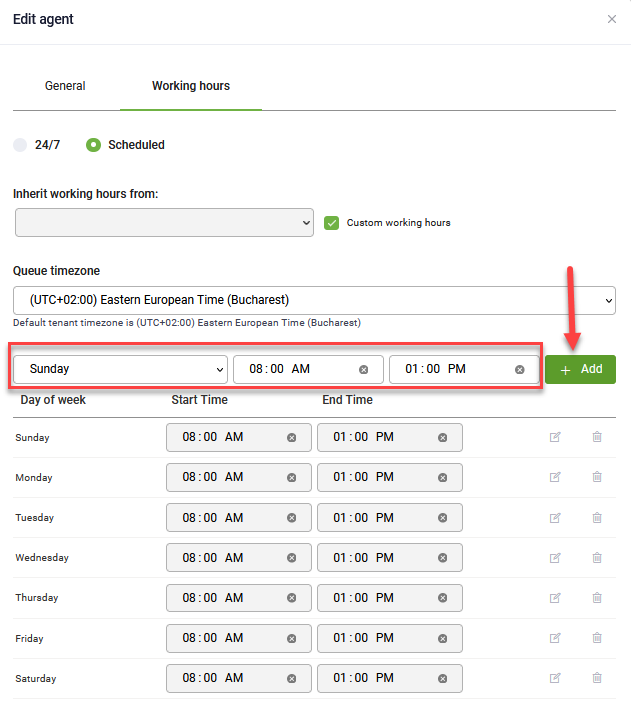
If the agent isn't in a queue yet, Inherit working hours from is empty.
Automatic sign-out
Druid runs a job every hour that signs out agents who meet all these conditions:
- The agent's working hours have ended.
- The agent has no ongoing live chats.
- The agent's last live chat activity (connect or disconnect) is more than 15 minutes old.
Because the job runs hourly, an agent can stay signed in up to an hour after meeting the conditions.
For each agent signed out automatically, Druid:
- Logs the
AgentSignedOutAutomaticallyevent in the conversation history. - Sets
[[HelpdeskAgent]].StatustoSignedOutAutomatically. - Sets
[[HelpdeskAgent]].SignOutTimeto the sign-out date and time. - Triggers the
SignOutHelpDeskAgentflow.
Use these fields in SignOutHelpDeskAgent to report sign-outs to other systems, such as a CRM.
SignOutHelpDeskAgent, place integrations before any step that waits for input (Prompt, Choice, Hero). Otherwise the integrations don't run. Related Topics