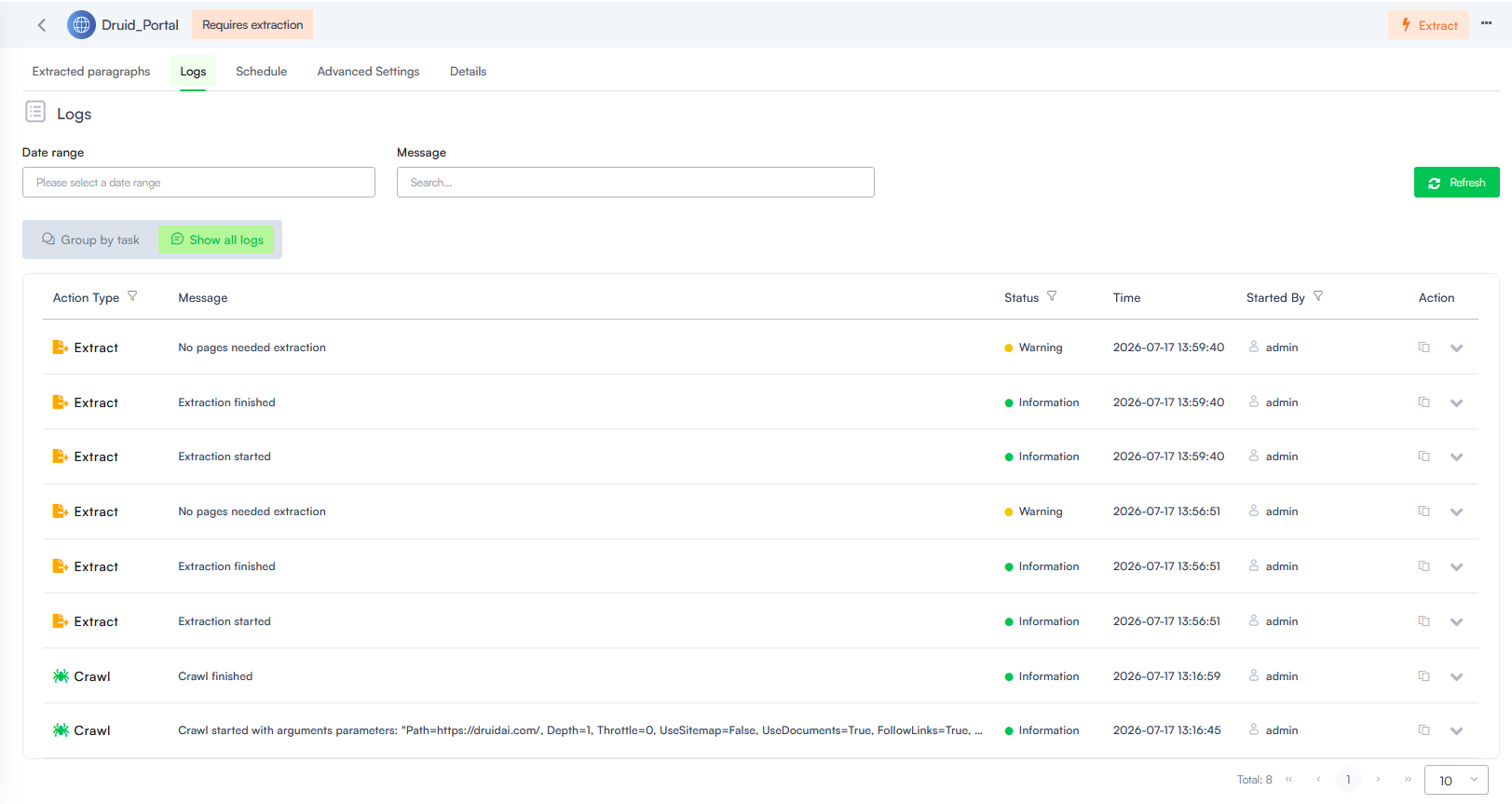
Unstructured Data Source Logs
This section explains how to access the logs for an unstructured data source in Druid. These logs provide valuable insights into the status of crawling, data extraction and data source training, allowing you to ensure your Knowledge Base is populated with high-quality content.
Access unstructured data source logs
To access the logs of an unstructured data source, go to the Knowledge Base and click on the desired unstructured data source. The data source displays by default on the Extracted paragraphs tab. Click on the Logs tab.
The Logs page displays the list of actions performed on the data source, their status (information / success, error, etc.), and the completion time for each action.
The filtering options in the log view allow you narrow down the messages you see based on specific criteria:
- Message: Search for log entries that contain a specific message or keyword.
- Date range: Filter logs by a specific time period.
- Group by task or Show all logs.
- User name: Search by full or partial user names.
- Action Type: Filters logs by the type of action performed, such as: Crawl, Extract, Train, or All.
- Status: Filters logs by the status of the action, such as Information, Warning, Error, or All.