Knowledge Base
The Knowledge Base serves as the central intelligence hub for your AI ecosystem. It is the foundational layer where raw organizational data is transformed into structured, accessible information that powers your AI Agents. By bridging the gap between static documents and conversational interfaces, the Knowledge Base enables Retrieval-Augmented Generation (RAG) ensuring that every user interaction is grounded in your specific data.
Key Capabilities
- RAG-Driven Intelligence. Leverage Retrieval-Augmented Generation to provide AI Agents with the exact context needed from your private documents to answer complex queries.
- Data Integration. Seamlessly ingest information from diverse sources, including document uploads, web crawling, and third-party integrations.
- Contextual Retrieval. Uses advanced indexing to ensure AI Agents retrieve the most relevant "knowledge chunks" during active conversations.
- Knowledge Maintenance. Manage the information lifecycle through automated sync schedules, manual overrides, and version control.
In this guide, you’ll learn how to access the Knowledge Base, how to add and manage data sources, and how to effectively configure the Knowledge Base to improve your AI Agents ability to handle user queries.
Accessing the Knowledge Base
To access the Knowledge Base, select the desired AI Agent and solution and from the NLU menu, click Knowledge Base.
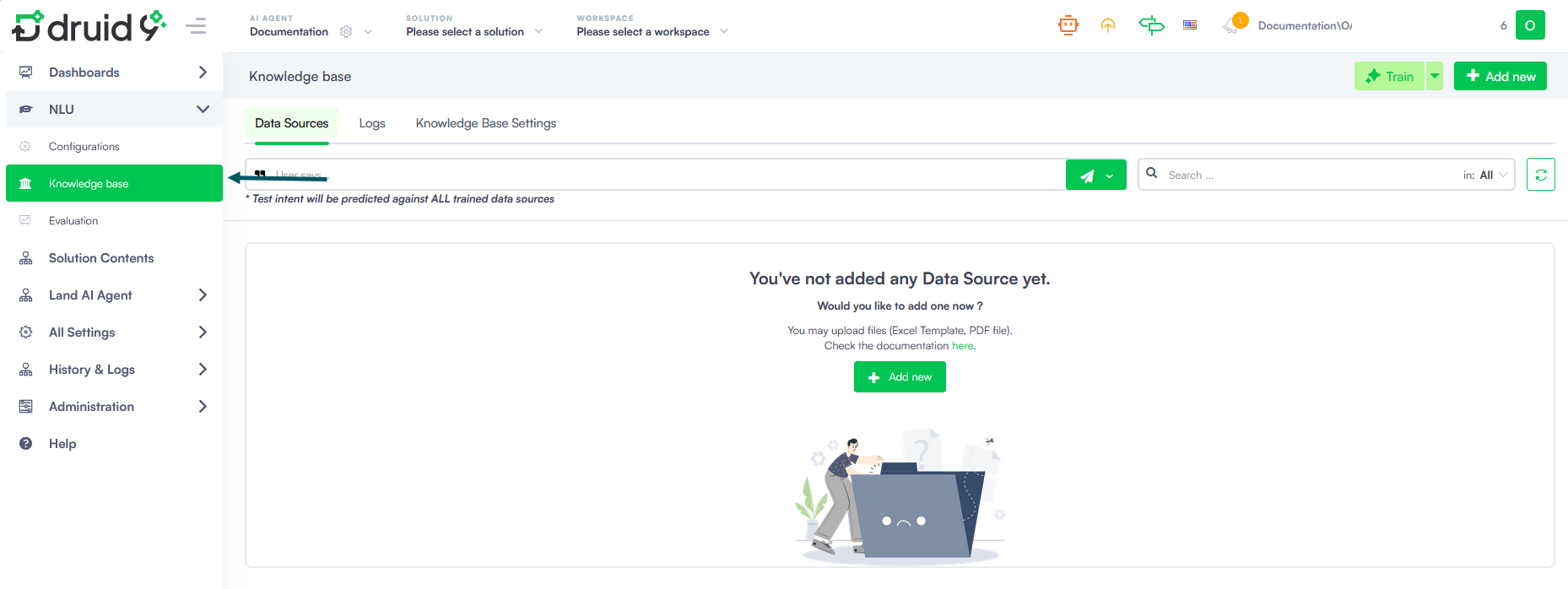
When you access the Knowledge Base for the first time, the page is empty. To ingest your data, add as many data sources as you want, extract the data and train the KB.
Adding data sources
Druid allows you to aggregate knowledge from multiple enterprise silos:
- Unstructured Files: PDF, DOCX, and TXT files (Ideal for manuals and policies).
- Structured Data: Excel and CSV files (Best for tabular or FAQ-style data).
- Web Crawling: Direct URL ingestion for public-facing help centers or blogs.
- Connectors: Native integration across various enterprise data sources, including SharePoint, OneDrive, Google Drive, and more.
Use the Knowledge Base
By default, if the NLP model cannot match the user's input to any existing flow, it will trigger the Intent not found flow (if configured on your AI Agent).
To enhance your AI Agent ability to handle such cases, Druid provides a variety of Knowledge Base solution templates, including solutions powered by generative AI. These templates help deliver more complete and natural answers when flow-based logic isn’t enough. For more details, explore the available KB solutions in the Solution Library.
Configure KB Settings
Druid provides General settings to quickly set up core KB behavior, and Advanced settings to fine-tune how content is extracted, chunked, embedded, scored, and retrieved. Use General settings for embeddings, search thresholds, and KB usage in conversations; use Advanced settings for file extractors, content chunkers, score calculators, embedding, HTML settings, and related options.
Training or retraining the Knowledge Base
When managing your Knowledge Base, you can choose between Train and Retrain actions, depending on your needs:
- Train - This option trains only the data sources that require training (e.g., newly added or updated sources that haven’t been trained yet). It's the default option when you're adding new content or making updates that trigger a training need.
- Retrain - Use this option to retrain all already-trained data sources and train once any that require training. This is especially useful after making changes to the Knowledge Base’s general settings (e.g., Embeddings model, Embeddings provider, or Search inside answers).
At the data source level, you can retrain an individual source after modifying its Trainable Elements, even if its training status doesn’t change. You also have the option to Retrain all data sources directly from a data source.
Testing the Knowledge Base performance
Testing the performance of your Knowledge Base is important because it ensures that the Knowledge Base is delivering accurate and relevant responses, helping to identify and address any issues to improve overall performance.
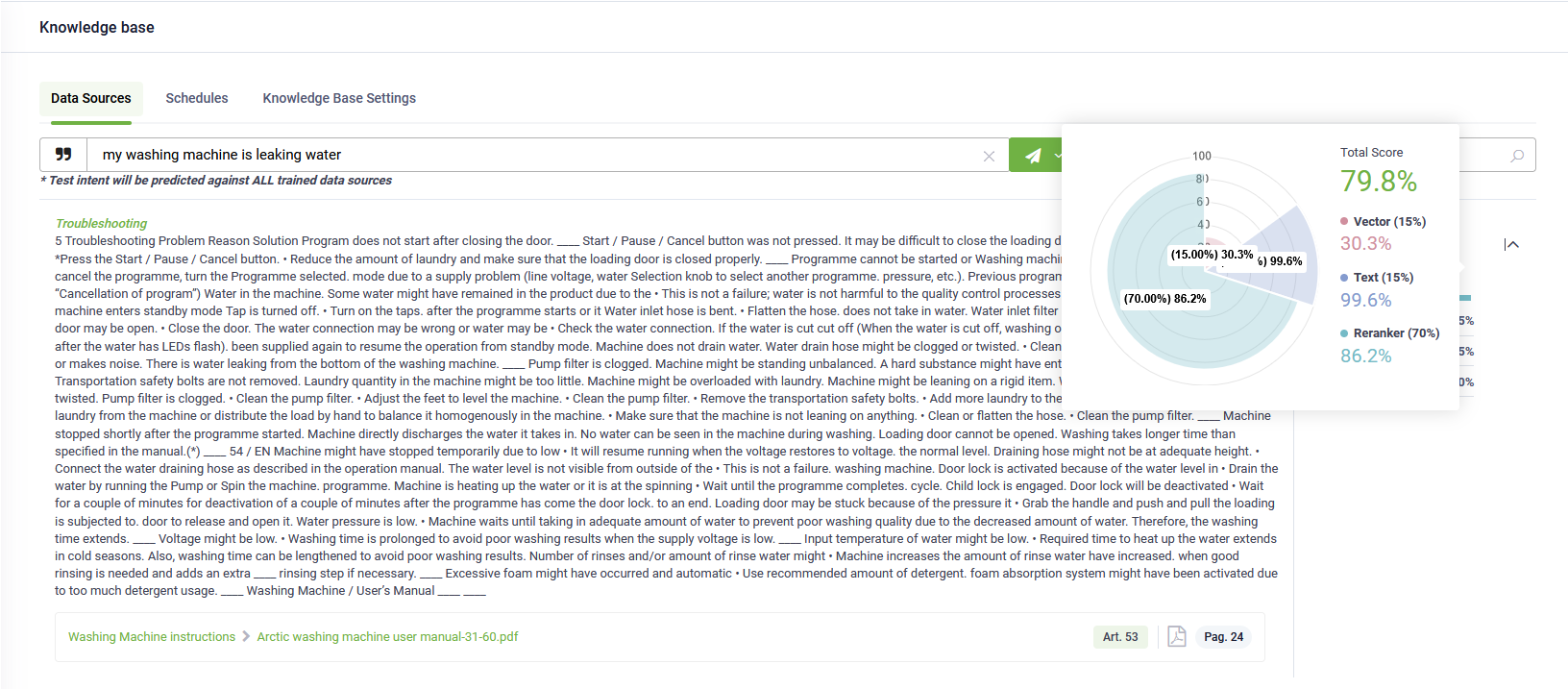
To test the performance of your knowledge base, on the Knowledge Base page, enter a question in the User Says area and select the language. The model will search across all the data sources in the Knowledge Base and list the articles with a matching score higher than 0.5, along with the data source where each article was found. If you have changed the threshold ([[Intent]].KBQnAItems[0].Score) in the solution configuration, only the articles meeting that threshold will be listed.
If you selected a score calculator strategy from the KB settings, for each result, you will see the total matching score and the weights of the algorithms used.
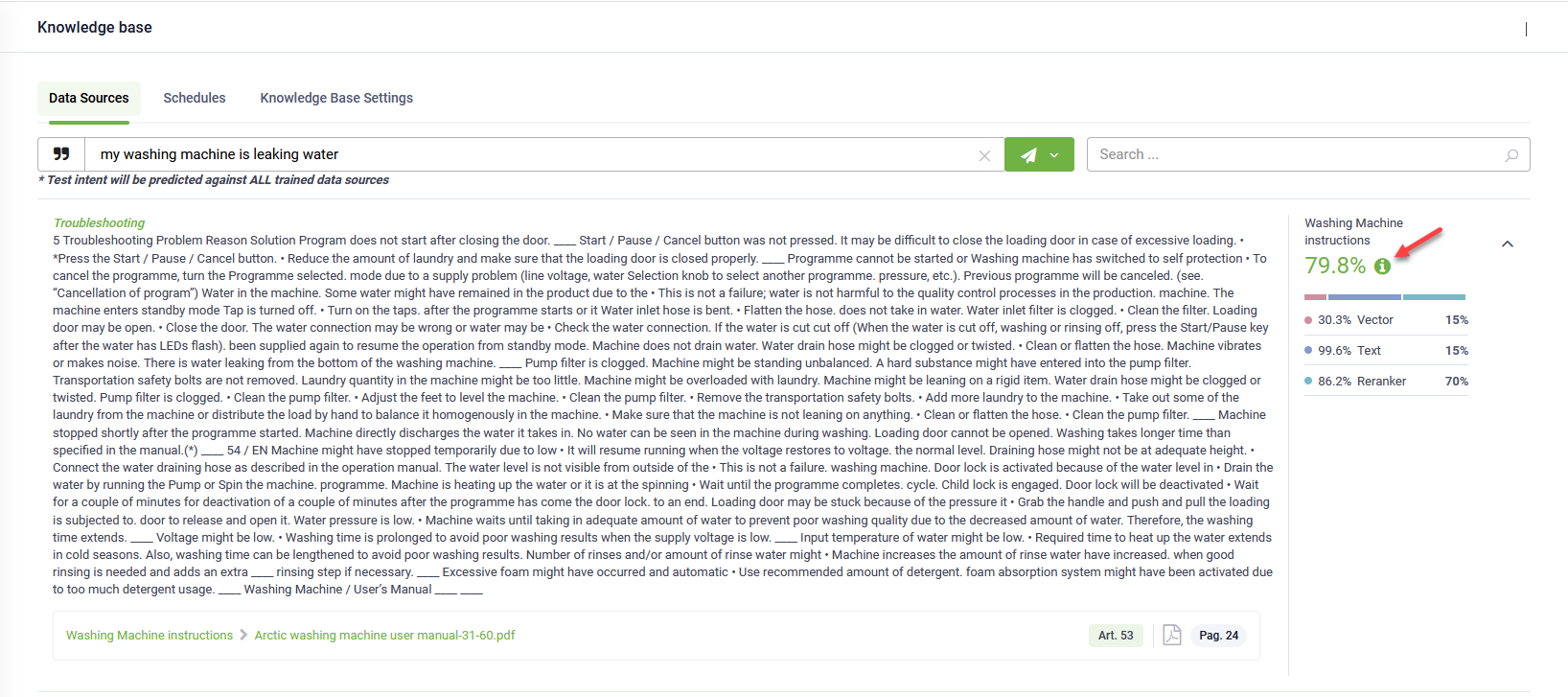
You can view the graphical representation of these weights by clicking the Info icon.