webRTC
The webRTC channel enables natural, bi-directional voice interactions directly within web pages, allowing users to talk with AI Agents using spoken language.
Unlike client-side voice-assisted chat interactions, which only provide local speech-to-text dictation comparable to a mobile voice keyboard, Druid webRTC provides real-time spoken conversations using the complete Druid voice technology stack. Audio responses are delivered via server-side Text-to-Speech (TTS).
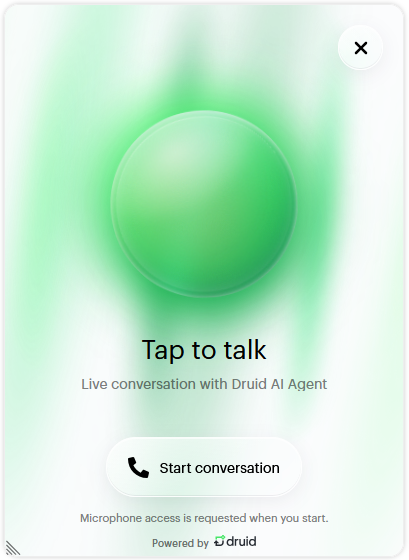
To provide users with Druid’s high-quality voice experience, authors configure the webRTC inside the Druid Portal and deploy the AI Agent using the standard webchat snippet code.
Configure webRTC
To enable and configure voice interactions:
- In the Druid Portal, navigate to the AI Agent settings.
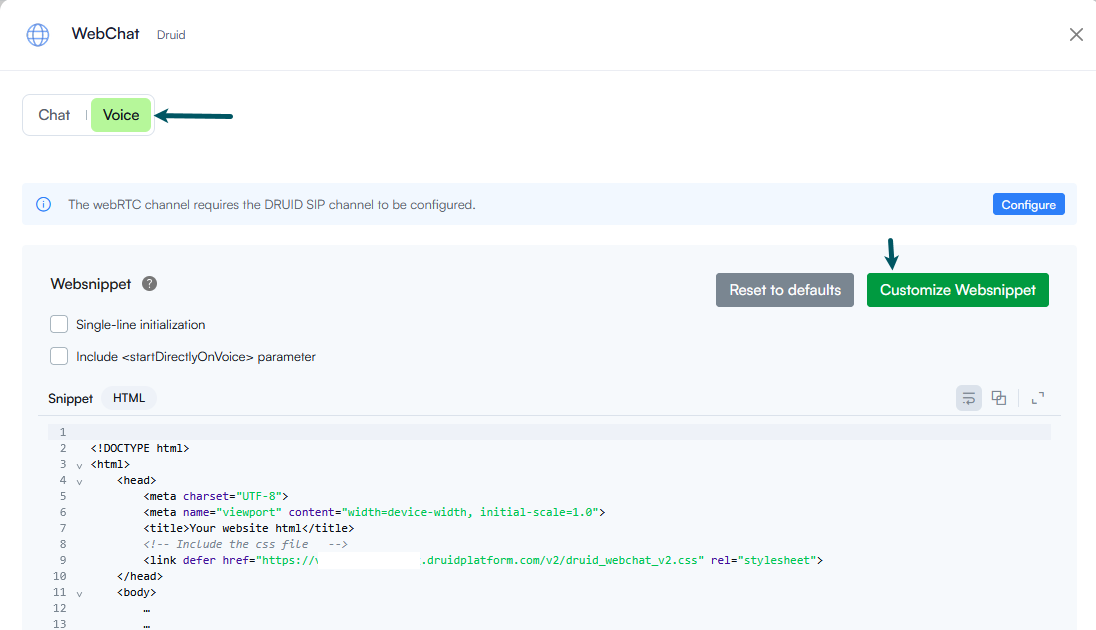
- Click the Channels tab.
- Search for webchat and click on the channel card.
- In the modal, click the Voice tab, then click on Customize webchat.
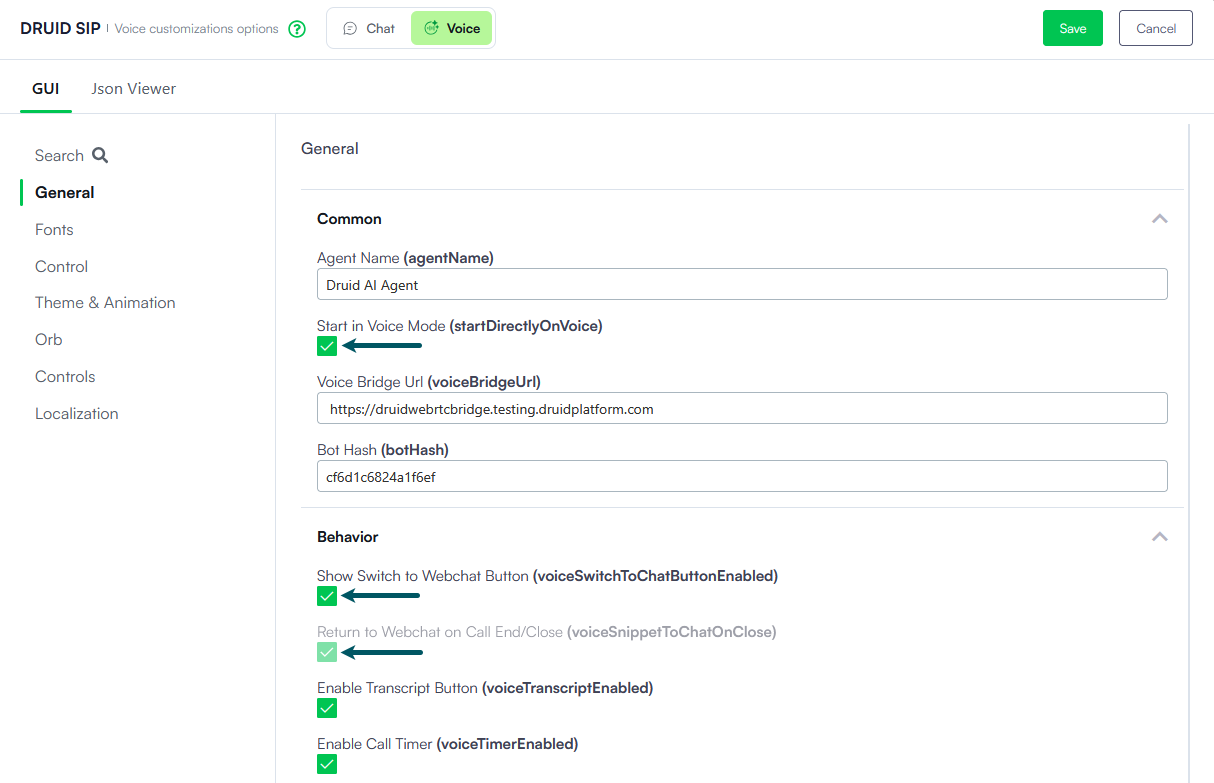
- In the voice customization panel, customize the styling and behavior parameters for webRTC according to your requirements.
- Start in Voice Mode (useVoiceChat). Enables voice-only deployments. When selected, the AI Agent launches directly in voice mode, disabling initial text typing.
- Show Switch to Webchat Button (voiceSwitchToChatButtonEnabled). Enables hybrid voice and text experiences, allowing users to switch from voice to text messages.
- Return to Webchat on Call End/Close (voiceSnippetToChatOnClose). When selected, closing the voice interface or ending a call automatically returns the user to the standard typing web chat.
- Save the modal, then save the AI Agent configuration.
The voice customization panel appears.
webRTC Parameters Reference
When customizing the webRTC channel, the following parameters can be configured across different categories and sub-categories:
General
| Sub-category | UI Field Name | Parameter Code Name | Description |
|---|---|---|---|
|
Common |
Agent Name |
agentName |
Specifies the display name of the AI Agent during voice conversations. |
|
Common |
Start in Voice Mode |
useVoiceChat |
When enabled, launches the snippet directly in voice interaction mode instead of standard text chat. |
|
Common |
Voice Bridge URL |
voiceBridgeUrl |
Specifies the SIP/Voice bridge endpoint used to connect the client voice session. The URL format is: https://druidwebrtcbridge.<tenant name>.druidplatform.com |
|
Common |
Bot Hash |
botHash |
Unique identifier hash assigned to the AI Agent voice instance. While this will be automatically prefilled in a future release, you currently need to contact Druid Support to obtain your bot hash. |
|
Behavior |
Show Switch to Webchat Button |
voiceSwitchToChatButtonEnabled |
Enables hybrid voice and text experiences, allowing users to switch from voice to text messages. Enabling this setting makes Return to Webchat on Call End/Close non-editable. |
|
Behavior |
Return to Webchat on Call End/Close |
voiceSnippetToChatOnClose |
When enabled, automatically returns the user to the standard typing web chat experience when a voice call ends or the snippet is closed, allowing users to seamlessly switch between voice and text modes. |
|
Behavior |
Enable Transcript Button |
voiceTranscriptEnabled |
Displays a button allowing users to view the live text transcript during a voice call. |
|
Behavior |
Enable Call Timer |
voiceTimerEnabled |
Displays an active call timer during the voice conversation. |
|
Behavior |
Microphone Volume (0-1) |
voiceMicVolume |
Controls the microphone input sensitivity level. |
|
Behavior |
Bot Volume (0-1) |
voiceBotVolume |
Controls the playback volume level for the AI Agent voice. |
Fonts
| UI Field Name | Parameter Code Name | Description |
|---|---|---|
|
Font Size Small |
fontSizeSmall |
Sets the size for small interface text elements (e.g., secondary captions or hints). |
|
Font Size Medium |
fontSizeMedium |
Sets the base font size for standard interface labels and buttons. |
|
Font Size Large |
fontSizeLarge |
Sets the font size for primary titles and status captions. |
Theme & Animation
| Sub-category | UI Field Name | Parameter Code Name | Description |
|---|---|---|---|
|
Common |
Theme |
theme |
Defines the overall layout theme for the voice UI. |
|
Common |
Tone (surface darkness, 0-100) |
tone |
Adjusts the surface darkness/luminance level. |
|
Colors |
Primary Color |
primary |
Base primary theme color (HEX code and opacity percentage). |
|
Colors |
Secondary Color |
secondary |
Secondary theme color used for highlights (HEX code and opacity percentage). |
|
Colors |
Accent Color |
accent |
Accent color used across interactive call elements (HEX code and opacity percentage). |
|
Gradient & Animation |
Animation |
animation |
Select the background visual animation style (e.g., aurora). |
|
Gradient & Animation |
Gradient Angle (degrees) |
angle |
Sets the direction angle in degrees for the background gradient. |
|
Gradient & Animation |
Secondary Color Stop (0-100) |
stop |
Defines the position stop percentage for the secondary color gradient. |
|
Gradient & Animation |
Intensity (0-100) |
intensity |
Controls the opacity and vibrancy intensity of the animation. |
|
Gradient & Animation |
Ambient Background (0-100) |
background |
Sets the opacity level for the ambient background layer. |
|
Gradient & Animation |
Ambient Spread (0-100) |
spread |
Defines the spread radius percentage for ambient lighting effects. |
|
Gradient & Animation |
Ambient Blur (px) |
blur |
Sets the blur radius in pixels for ambient visual effects. |
|
Gradient & Animation |
Ambient Glow (0-100) |
glow |
Sets the intensity of the ambient glow effect. |
Orb
These are colors for the blob orbital in the voice snippet.
| Sub-category | UI Field Name | Parameter Code Name | Description |
|---|---|---|---|
|
Colors |
Blob Color 1 |
voiceOrbColor1 |
Primary color layer and opacity percentage for the orbital sphere. |
|
Colors |
Blob Color 2 |
voiceOrbColor2 |
Secondary color blend for the orbital sphere. |
|
Colors |
Blob Color 3 |
voiceOrbColor3 |
Tertiary color blend for the orbital sphere. |
|
Colors |
Blob Color 4 |
voiceOrbColor4 |
Quaternary color blend for the orbital sphere. |
|
Colors |
Blob Color 5 |
voiceOrbColor5 |
Quintary color blend for the orbital sphere. |
Controls
| Sub-category | UI Field Name | Parameter Code Name | Description |
|---|---|---|---|
|
Layout |
Button Size (px) |
controlButtonSize |
Sets the diameter size in pixels for control action buttons. |
|
Layout |
Buttons Gap (px) |
controlButtonsGap |
Sets the spacing gap in pixels between control buttons. |
|
Layout |
Padding Top and Bottom (px) |
controlPaddingTopBottom |
Sets top and bottom padding for the controls section. |
|
Layout |
Backdrop Blur (px) |
controlButtonBackdropBlur |
Defines the backdrop blur intensity in pixels applied behind control buttons. |
|
Colors |
Background Color |
controlButtonBackgroundColor |
Default background color for call control buttons. |
|
Colors |
Background Color On Hover |
controlButtonBackgroundColorOnHover |
Button background color when hovered over. |
|
Colors |
Icon Color |
controlButtonIconColor |
Default icon color inside control buttons. |
|
Colors |
Border Color |
controlButtonBorderColor |
Border color for control buttons. |
|
Colors |
Active Background Color |
controlButtonActiveBackgroundColor |
Background color for active/pressed control buttons. |
|
Colors |
Active Icon Color |
controlButtonActiveIconColor |
Icon color for active/pressed control buttons. |
|
Colors |
Hangup Pill Text/Icon Color |
controlHangupButtonColor |
Text and icon color for the hangup action button. |
|
Colors |
Hangup Button Background Color |
hangupButtonBackgroundColor |
Background color for the end call/hangup button. |
|
Colors |
Hangup Button Icon Color |
hangupButtonIconColor |
Icon color for the end call/hangup button. |
|
Icons |
Hangup icon |
v2_hangup_icon |
Custom icon for ending the call. Only .svg file format (svg code) is supported. |
|
Icons |
Microphone icon |
v2_microphone_icon |
Custom icon for active microphone state. Only .svg file format (svg code) is supported. |
|
Icons |
Microphone muted icon |
v2_microphone_muted_icon |
Custom icon for muted microphone state. Only .svg file format (svg code) is supported. |
|
Icons |
Show transcript icon |
v2_transcript_icon |
Custom icon for toggling live transcript view. Only .svg file format (svg code) is supported. |
|
Icons |
Show orb icon |
v2_orb_icon |
Custom icon for toggling orb animation view. Only .svg file format (svg code) is supported. |
Localization
JSON structure defining UI captions, labels, and status messages per locale (e.g., en-US).