ElevenLabs Voices
You can explore and create ElevenLabs voices directly in the Druid Portal to easily manage your ElevenLabs speech resources.
For both ElevenLabs resources, STT and TTS, you can do the following in the Druid Portall after adding ElevenLabs resources:
- Explore the list of voices saved in your ElevenLabs account, customize existing profiles, and create brand new custom voices
- Configure voice parameters and behaviors based on preferences.
- Test voices and resource configurations before using them in speech resources.
- View speech resource usage.
Access ElevenLabs voices
To access and manage ElevenLabs voice options in your portal workspace:
- Navigate to Administration > Speech Resources.
- Locate your ElevenLabs resource and click the Preview icon in the Actions column.
- Use the top navigation tabs to switch between Voices, Configurations, Playground, and Metrics.
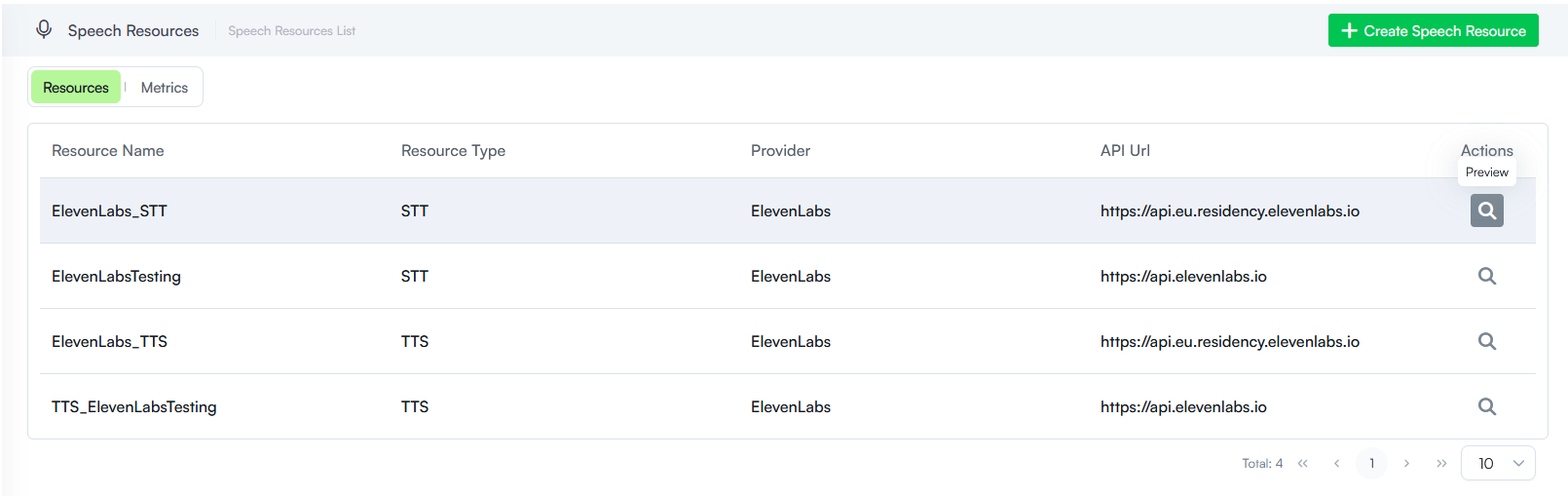
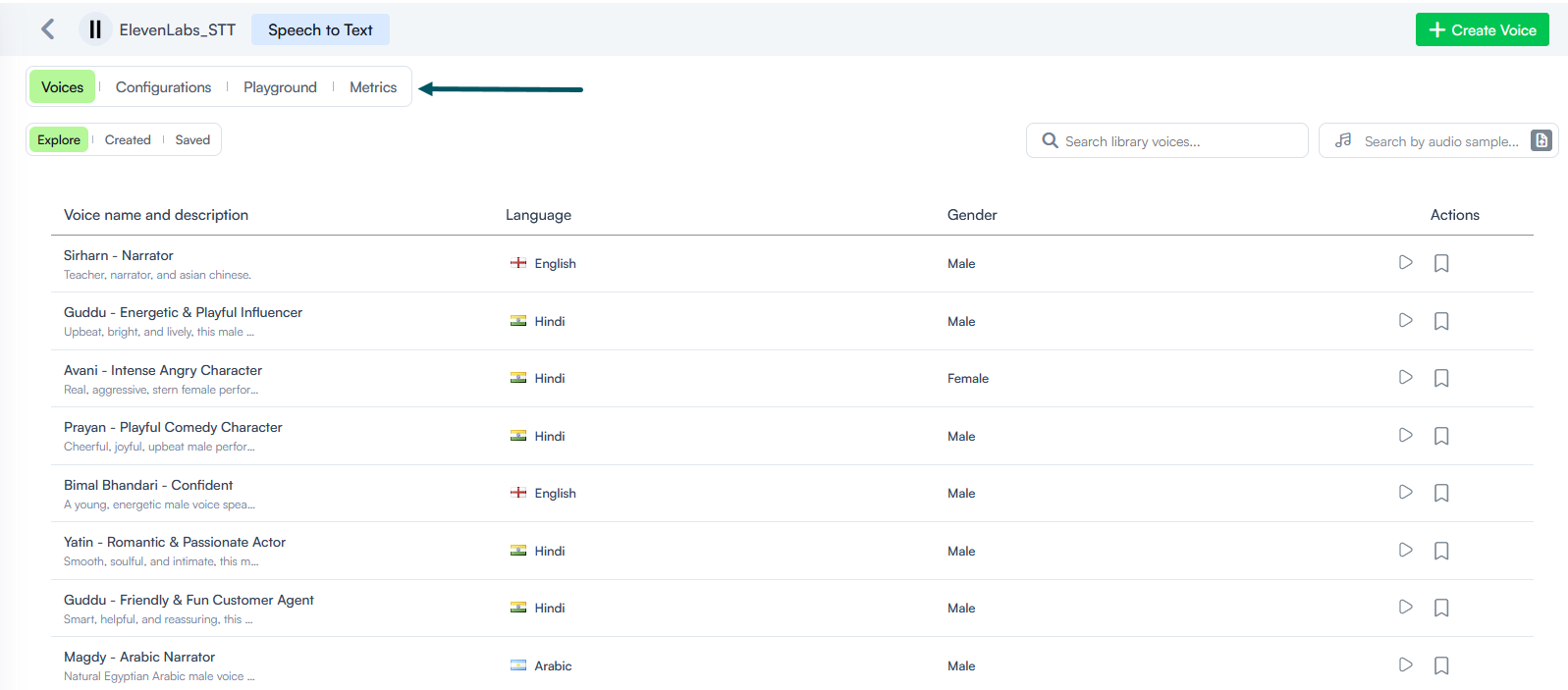
When you preview ElevenLabs resources in the Druid Portal, the Voices displays by default with the Explore tab selected.
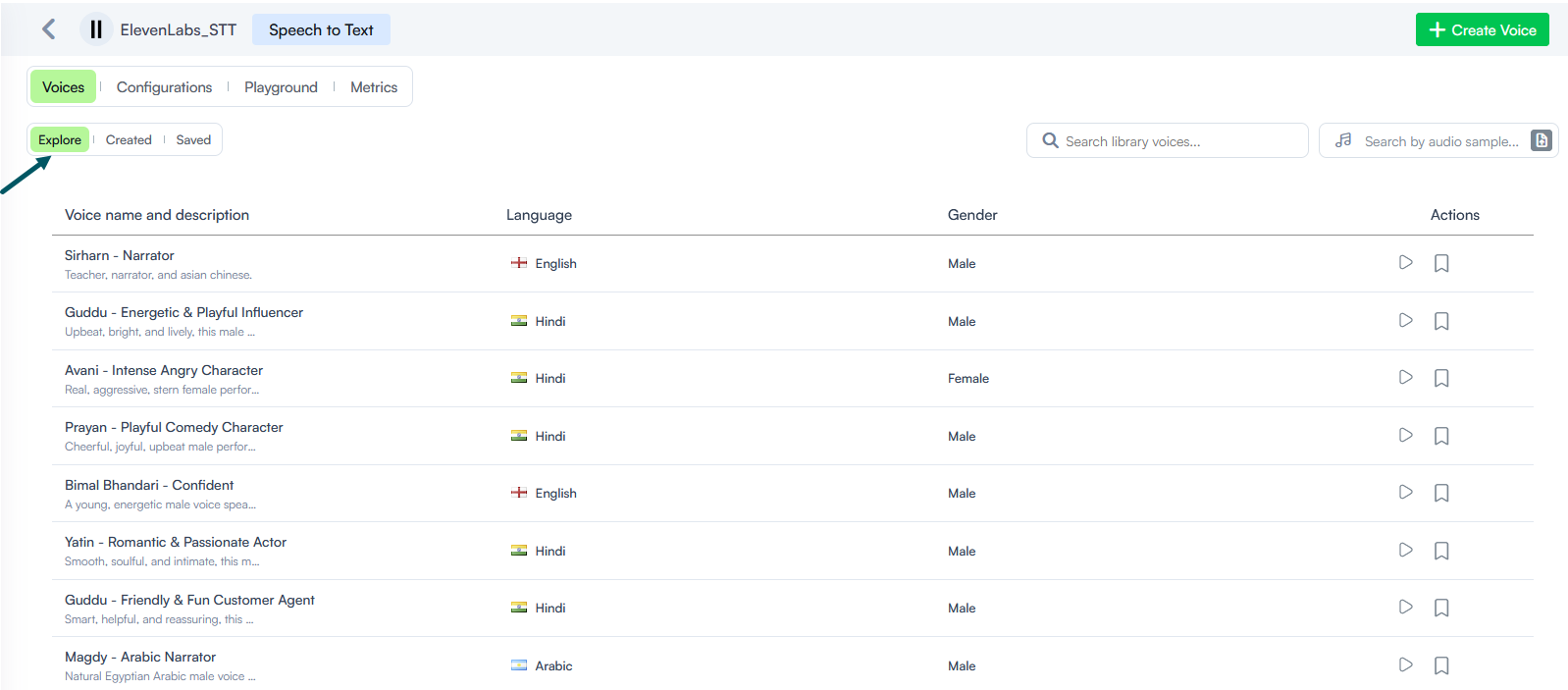
The Voices page contains three primary tabs:
- Explore. Displays the complete public ElevenLabs Voices Library.
- Created. Lists all custom voices you have generated within the Druid Portal.
- Saved. Displays voices saved in your ElevenLabs account under My Voices, plus any voices saved from the Explore tab (in the Actions column).
Filtering voices
You can browse and locate voices in the Voices Library using multiple methods:
- Text Search: Use the search bar to filter voices by name, description keyword, language, or gender.
- Audio Sample Search: Drag and drop or upload an audio file to search for original matching voices and similar acoustic profiles.
Click the Play icon in the Actions column to preview any voice before saving or using it.