Sakari SMS
Enable customers to start and conduct conversations with AI Agents through standard SMS text messaging via Sakari.
Prerequisites
Before configuring the Sakari SMS channel, ensure the following requirements are met:
- A paid Sakari account with an active sender (phone number) configured. For more information on how to add a sender, see the Sakari Support Center.
-
An active, published AI Agent built within the Druid Portal.
Integration procedure
To integrate an AI Agent with Sakari SMS, follow these steps:
Step 1. Get Sakari account API details
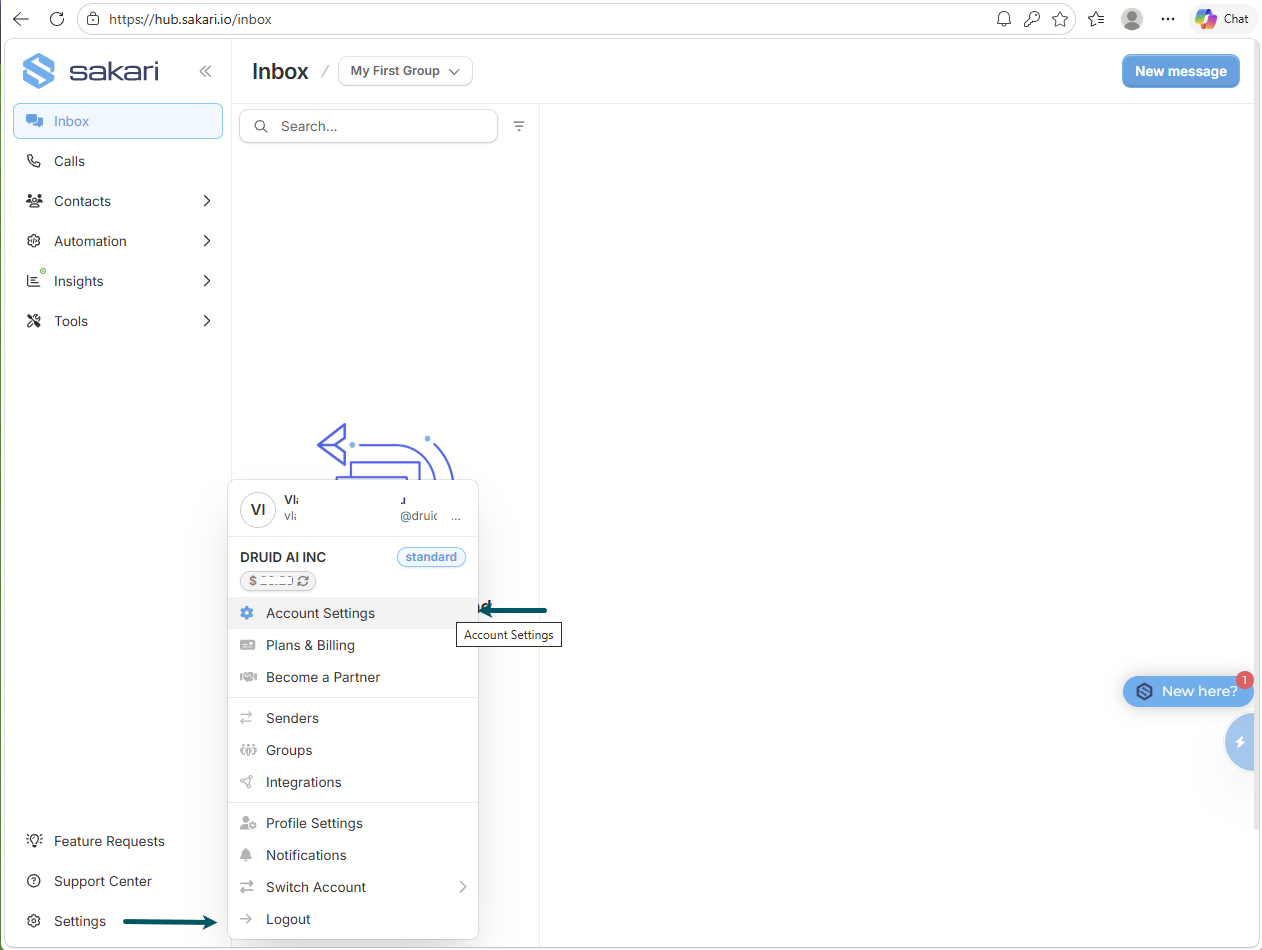
- Log in to the Sakari Hub.
- Navigate to Settings > Account Settings.
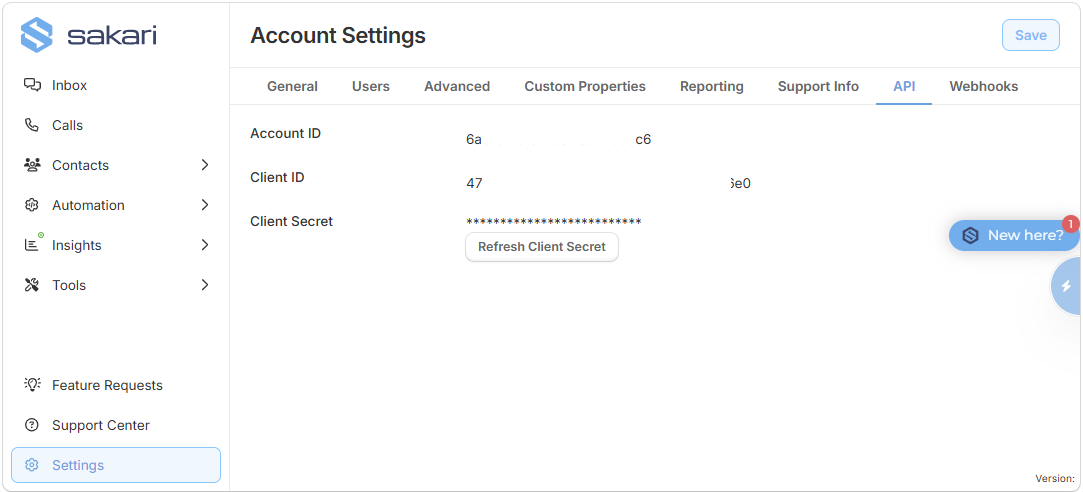
- Click the API tab and copy the Account ID and Client ID.
- If you do not know your Client Secret, click Refresh Client Secret to generate a new one, then copy the value.
- Securely store these details, as you will need them to configure the channel inside the Druid Portal.
Step 2. Activate the Sakari SMS channel in the Druid Portal
- In the Druid Portal go to your AI Agent settings.
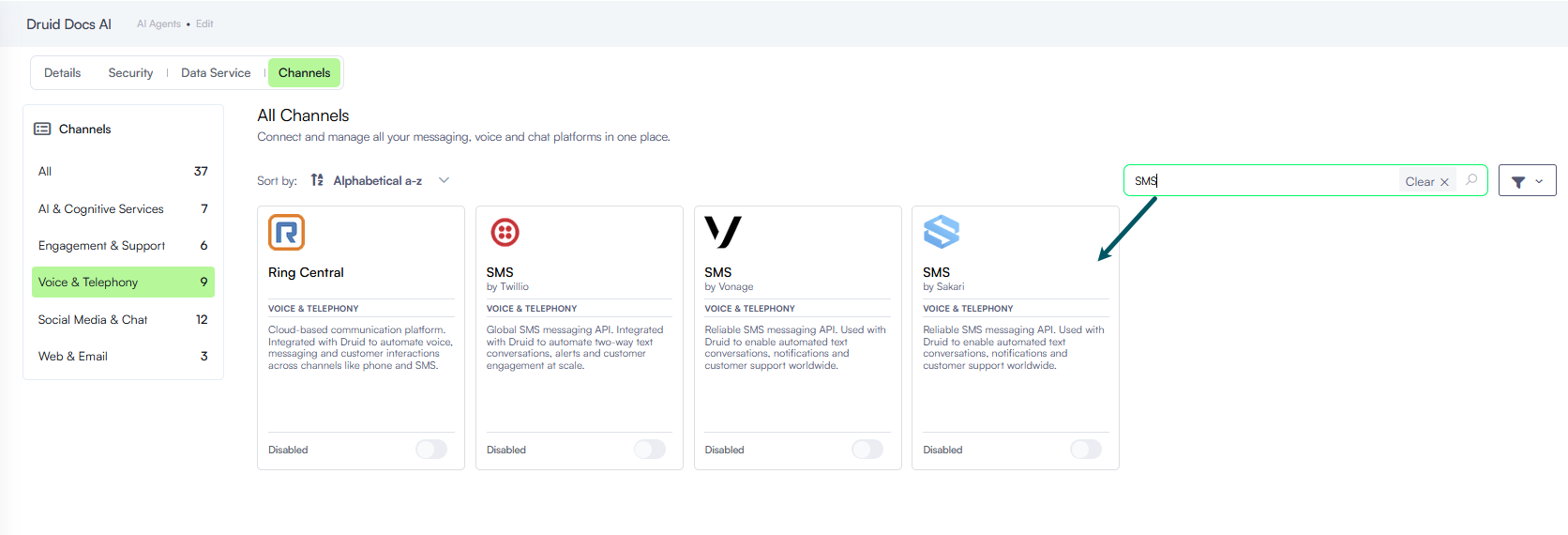
- Click the Channels tab, then search for SMS and click on the SMS by Sakari card.
- Enter the Account ID, Client ID and Client Secret retrieved from the Sakari Hub.
- Optionally, customize channel display settings as follows:
- Alias: Enter a clear, business-friendly display name (e.g., Interactive Messaging). This value is stored in[[ChatUser]].ChannelDisplayName, which appears in reporting tools like AI Agent Summary dashboard - Engagement KPIs and can also be referenced in flow business logic.
- Description: Enter a brief description. This is particularly helpful when using an alias, as it helps identify the channel's specific purpose within the Druid Portal.
- Channel Icon: Upload a custom icon to display on the channel card within the Druid Portal.
- Click Publish to activate the channel.
- Click on the channel card again and from the modal copy the Inbound SMS webhook and Delivery status webhook.
The channel configuration modal appears.
After the channel activates, the following fields are available in Druid:
- [[ChatUser]].ChannelId = “sakari-sms”. It identifies the channel.
- [[ChatUser]].Phone – Stores the user’s phone number.
- [[ChatUser]].CalleePhoneNumber – Stores the AI Agent phone number.
- [[ChatUser]].ChannelDisplayName - Stores the Alias which is used in AI Agent Summary Dashboard > Engagement KPIs > Channel chart.
Step 3. Configure webhooks in the Sakari Hub
- Navigate to Settings > Account Settings.
- Click the Webhooks tab.
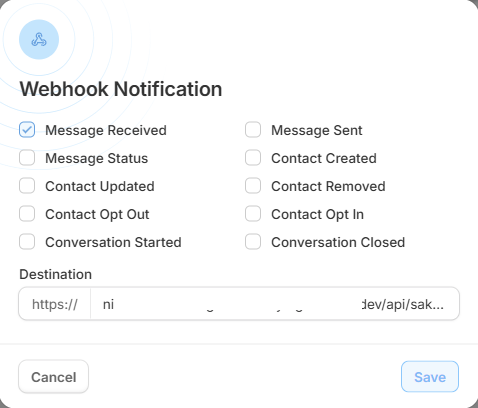
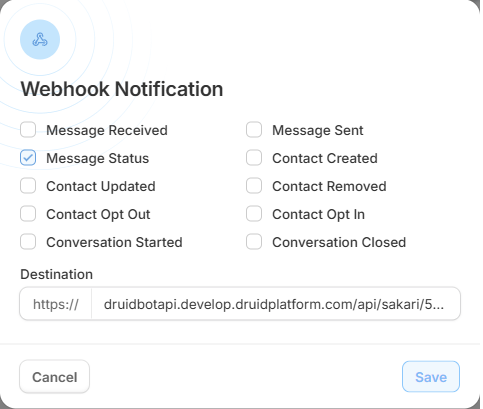
- Add two webhooks as follows:
- Message Received and in the Destination field, enter the Inbound SMS webhook your copied from the Druid Portal.
- Message Status and in the Destination field, enter the Delivery status webhook your copied from the Druid Portal.