Google Chat
Connect your Druid AI Agent directly to Google Workspace through Google Chat. This integration enables automated conversation workflows, direct messaging, and group space interactions within your organization's Google Chat environment using a single configuration.
Prerequisites
- Google Cloud Platform (GCP) account with project creation / admin permissions.
- Create a project in the Google Cloud project for your AI Agent. For information on how to create a Google Cloud Project, see Google Cloud documentation.
-
Druid Portal administrator access.
-
For Druid on premise deployments, make sure that you provide access to/from the necessary messaging endpoints as follows:
| Outbound | *googleapis.com |
| Inbound | DRUID.BotApp |
Integration procedure
To integrate an AI Agent with Google Chat, follow these steps:
Step 1. Get Google Cloud Project details
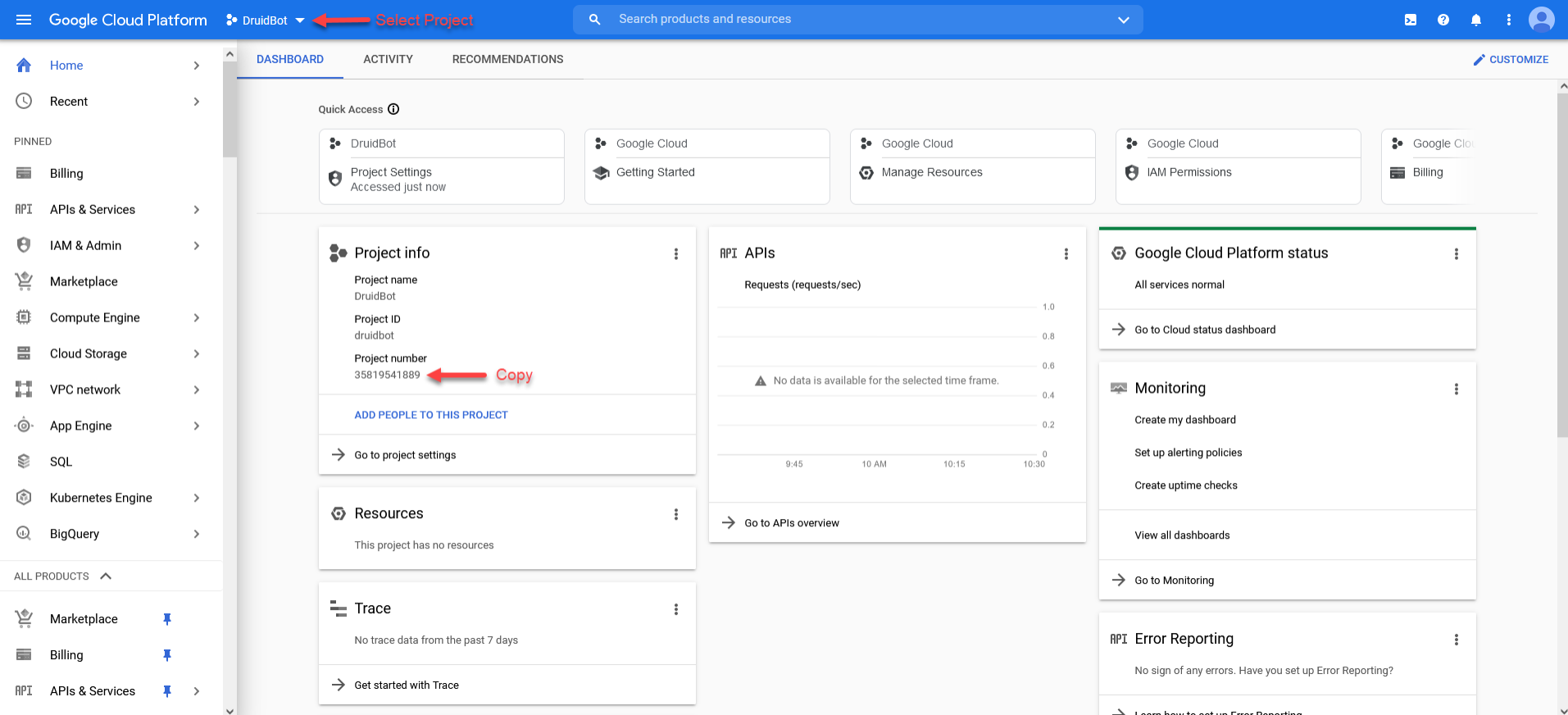
Log in the Google Console, select the project you’ll be using for Druid - Google Chat channel. On the project Dashboard, from the Project info card, copy the Project number as you will need it for Druid channel setup.
Step 2. Add Service account for your Google Console project
A service account is an identity that Google Cloud can use to run API requests on your behalf.
- From the APIs & Services menu, select Credentials.
- In the Service Accounts section, click the Manage service accounts link.
- At the top of the page, click CREATE SERVICE ACCOUNT.
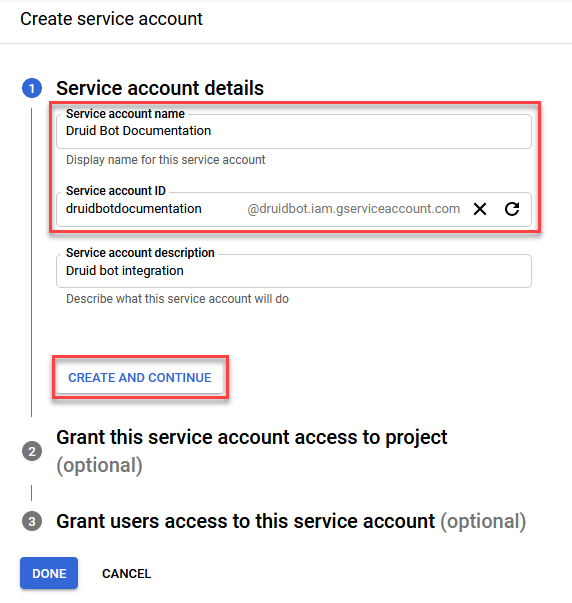
- Provide the service account details: a unique Service account name and the desired Service account ID.
- Click the CREATE AND CONTINUE button.
- Grant this service account Owner access to your Google Console project so that it has permission to complete specific actions on the resources in your project. From the Role drop-down, select Owner.
- Click DONE. The service account appears in the Service accounts page.
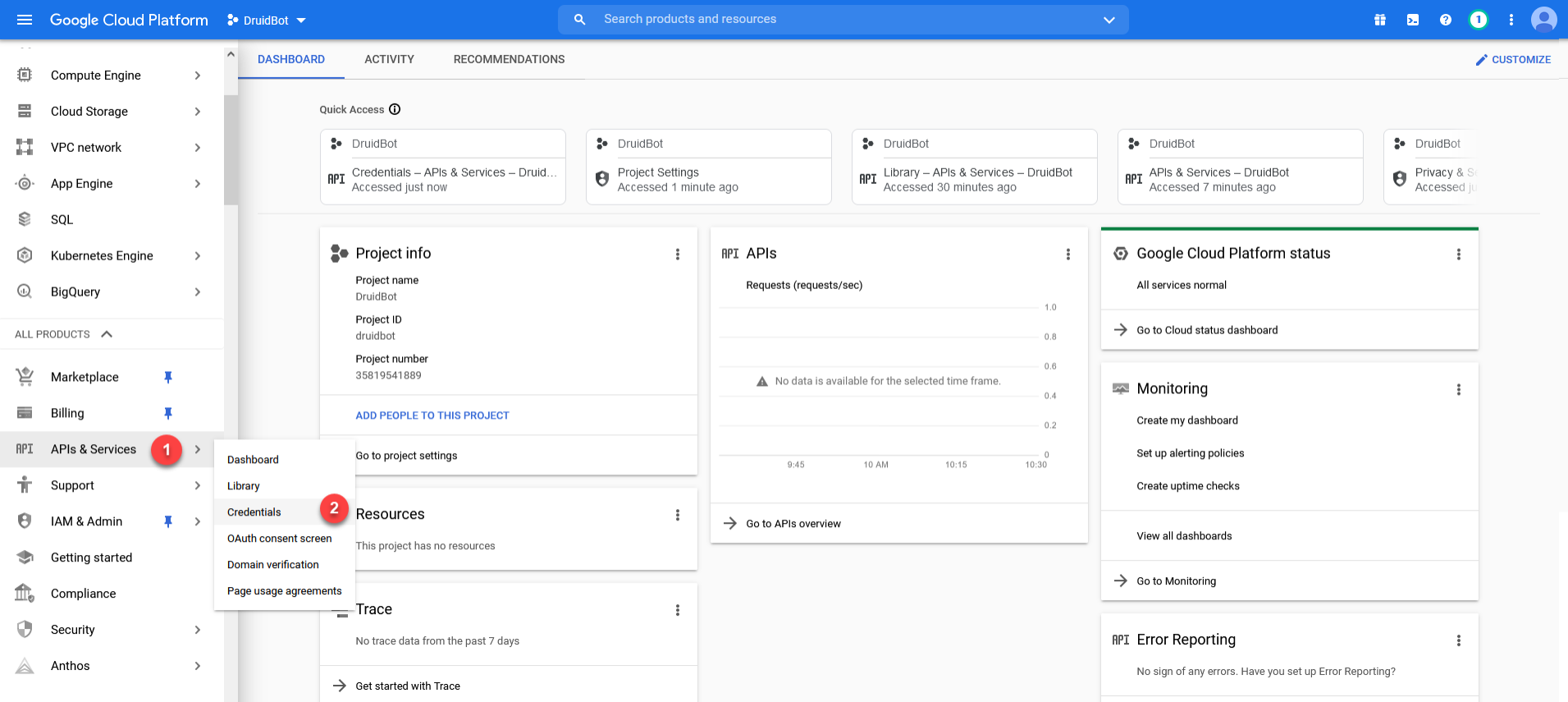
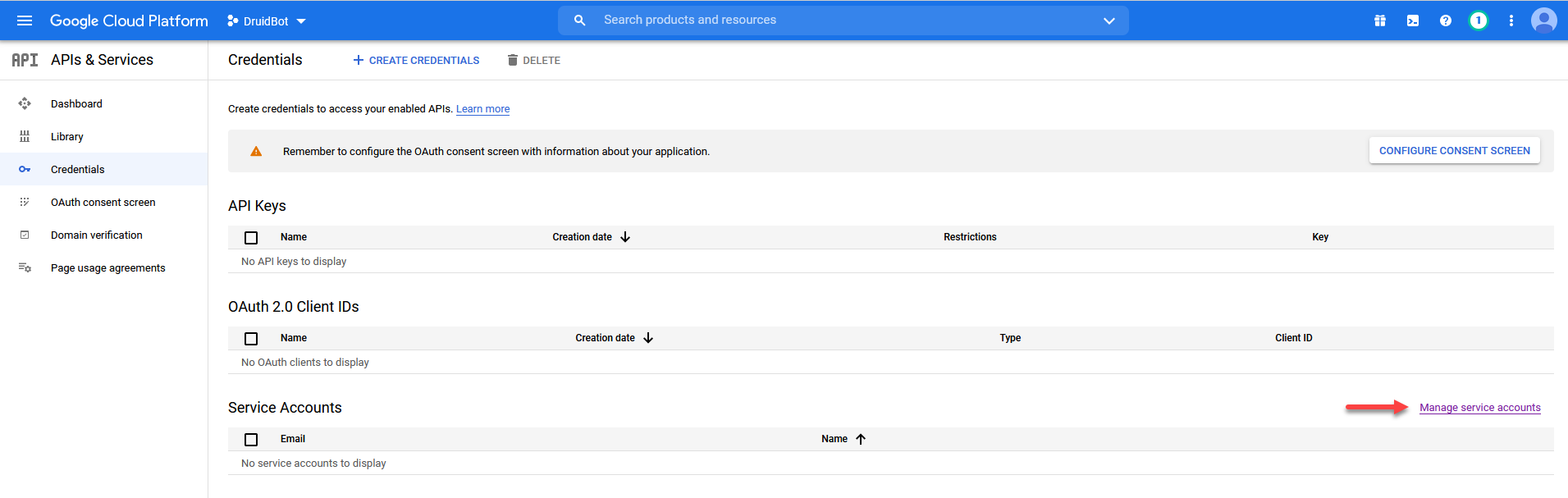
The Service accounts page appears.
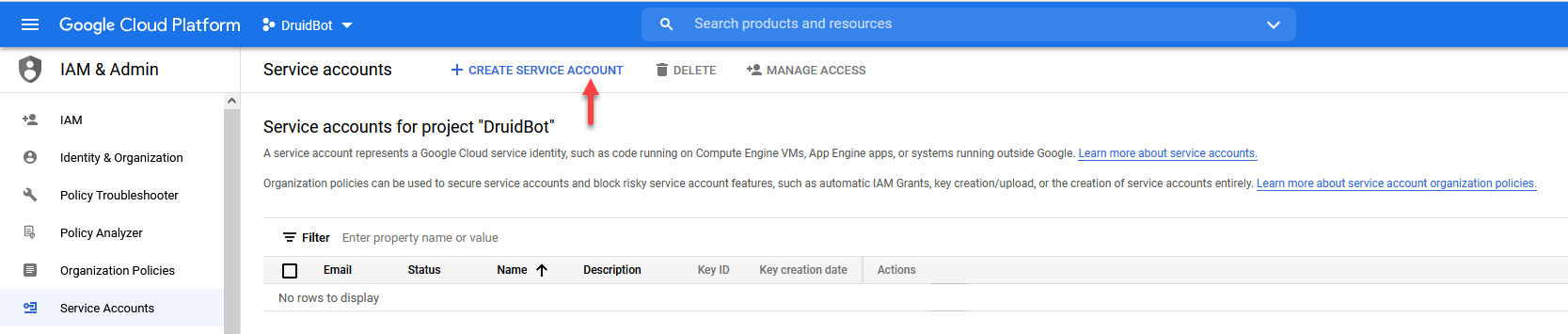
The Create service account page appears.
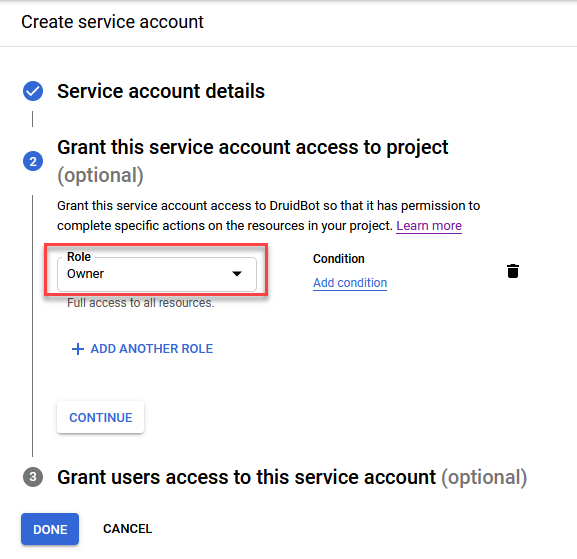
You can also grand users access to this service account. For more information on the service account settings, see Google Cloud documentation.

Step 3. Get service account Email
In the Service accounts page, click on the service account your created for your Google Console project.
The Service account details appears. Copy the value from the Email field.
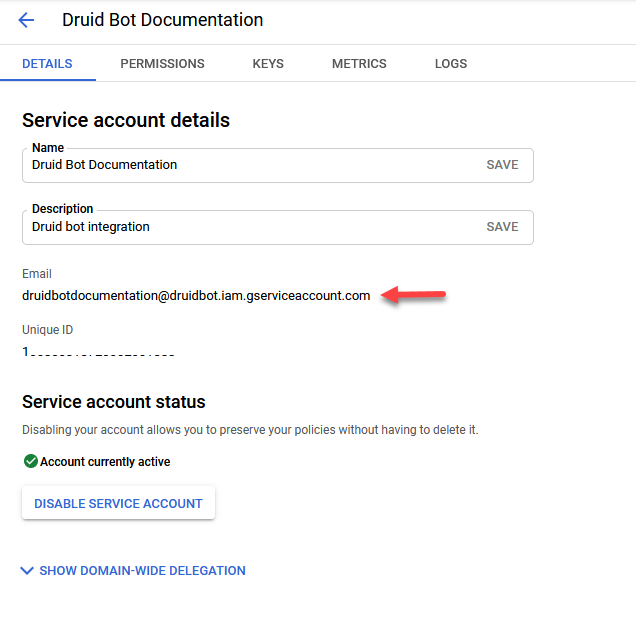
Now you have to add a service account key.
Step 4. Add service account key
In the Service account details page, click the KEYS tab.
You can easily add a service account key by either uploading it or by creating / generating a new one.
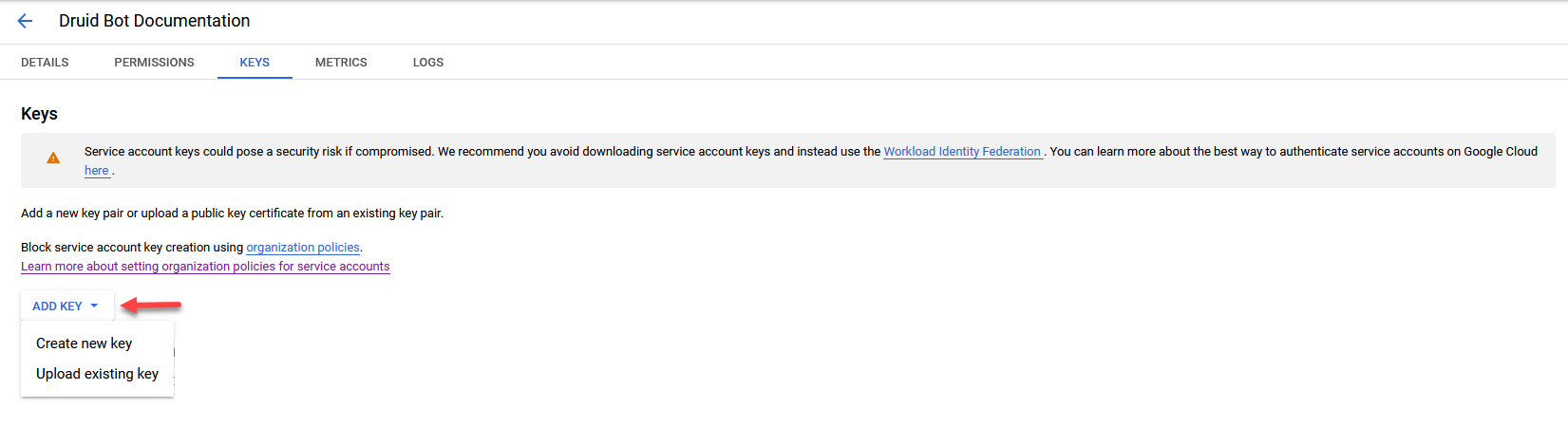
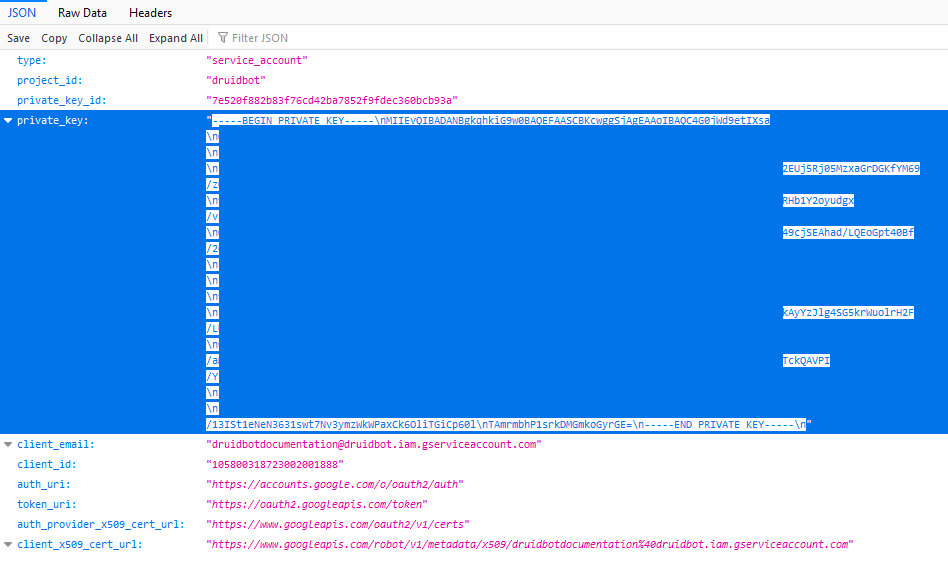
If you choose to create a new key, the key will be automatically downloaded in your default Download folder. You will need the file later during Google Chat channel configuration in Druid.
For information about adding service account keys, see Google Chat API documentation.
Step 5. Activate the Google Chat channel in Druid Portal
- In the Druid Portal go to your AI Agent settings.
- Click the Channels tab, then search for Google Chat and click on the channel card.
- In the modal, fill in the fields as follows:
- Optionally, customize channel display settings as follows:
- Alias: Enter a clear, business-friendly display name (e.g., Interactive Messaging). This value is stored in[[ChatUser]].ChannelDisplayName, which appears in reporting tools like AI Agent Summary dashboard - Engagement KPIs and can also be referenced in flow business logic.
- Description: Enter a brief description. This is particularly helpful when using an alias, as it helps identify the channel's specific purpose within the Druid Portal.
- Channel Icon: Upload a custom icon to display on the channel card within the Druid Portal.
- Click the Publish button. The channel activation might take up to 1 minute.
- When the channel is active, click on the channel card and copy the value of the Google Chat Inbound Url field that is automatically filled in. You will need the value at Step 6.
- Close the modal.
| Druid Field | Google Console Field |
|---|---|
| Google Chat Project Number | The Google Console project number. |
| Google Chat Service Account Email | The Email of the service account you granted access to your Google Console project. |
| Google Chat Service Account Private Key |
The Key you added to the service account you granted access to your Google Console project. If you created a new one, open the key file and copy its value (the value between the “ ”).
|
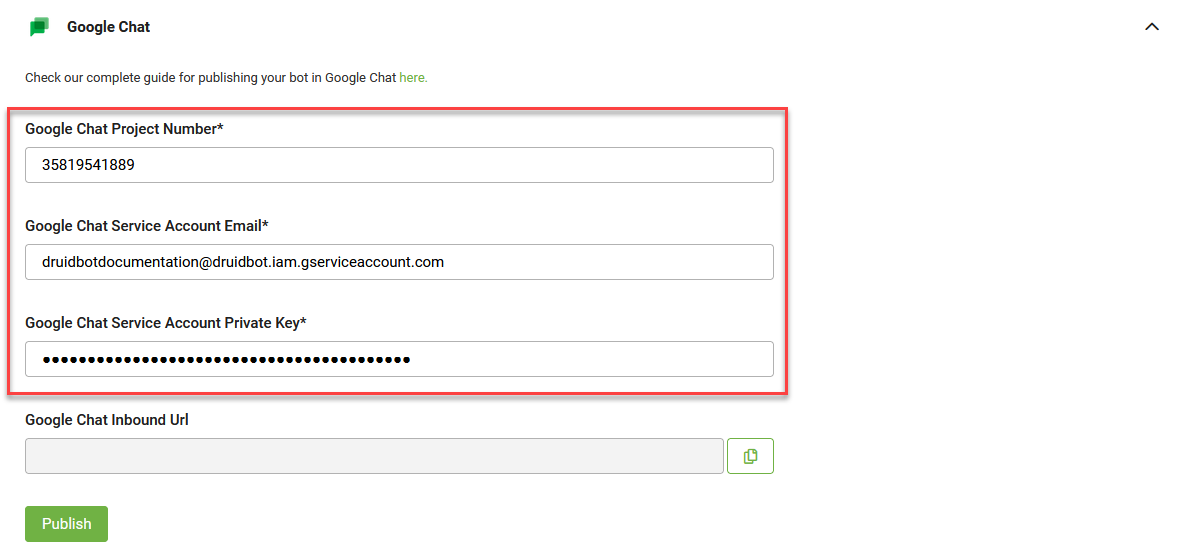
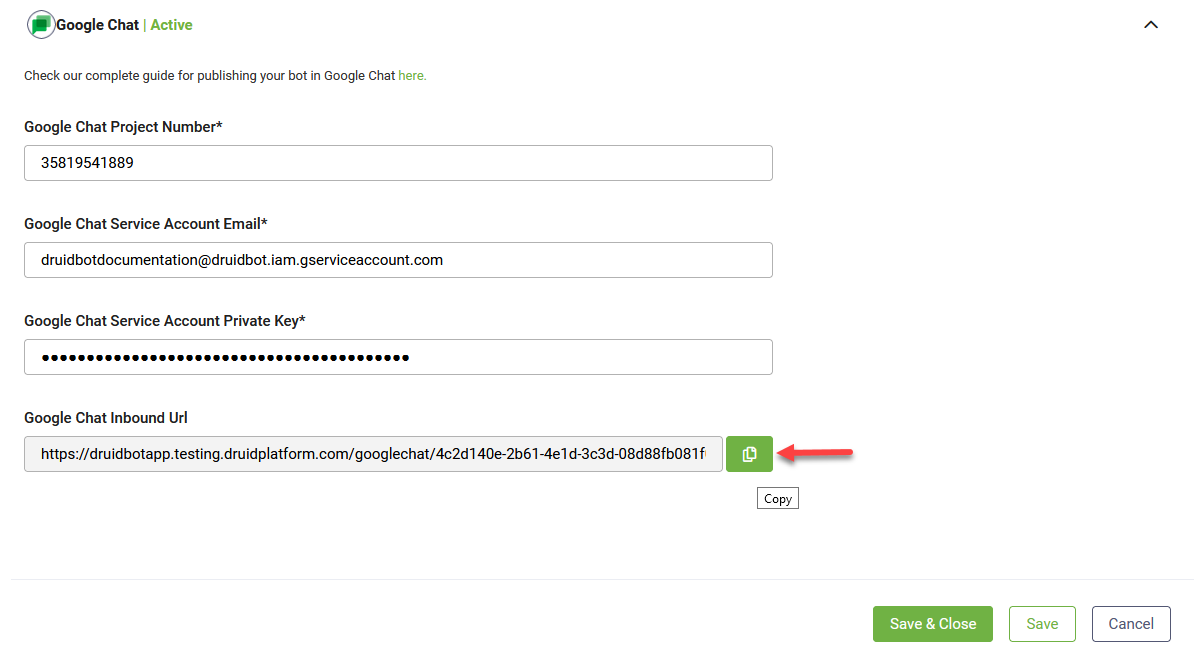
When the channel is active, the following fields are available in Druid:
- [[ChatUser]].ChannelId = "googlechat"
- [[ChatUser]].UserId - Stores an unique identifier of the Google user account.
- [[ChatUser]].ChannelDisplayName - Stores the Alias which is used in AI Agent Summary Dashboard > Engagement KPIs > Channel chart.
Step 6. Enable the Google Chat API for your Google Console project
New Google Console projects have by default a set of predefined Google APIs and services. For Druid Google Chat, you need to add the Google Chat API to your project. This Google API enables you to create a AI Agent for Google Chat:
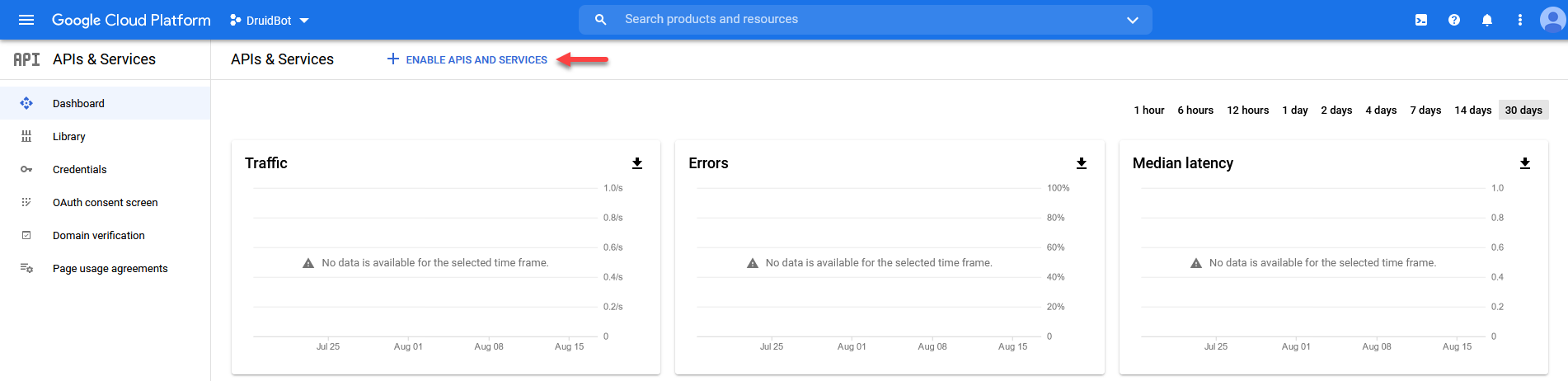
- From the left menu, click APIs & Services and select Dashboard.
- At the top of the page, click ENABLE APIS AND SERVICES.
- Search for the "Google Chat API".
- Click Google Chat API. The API details page appears.
- Click Enable.
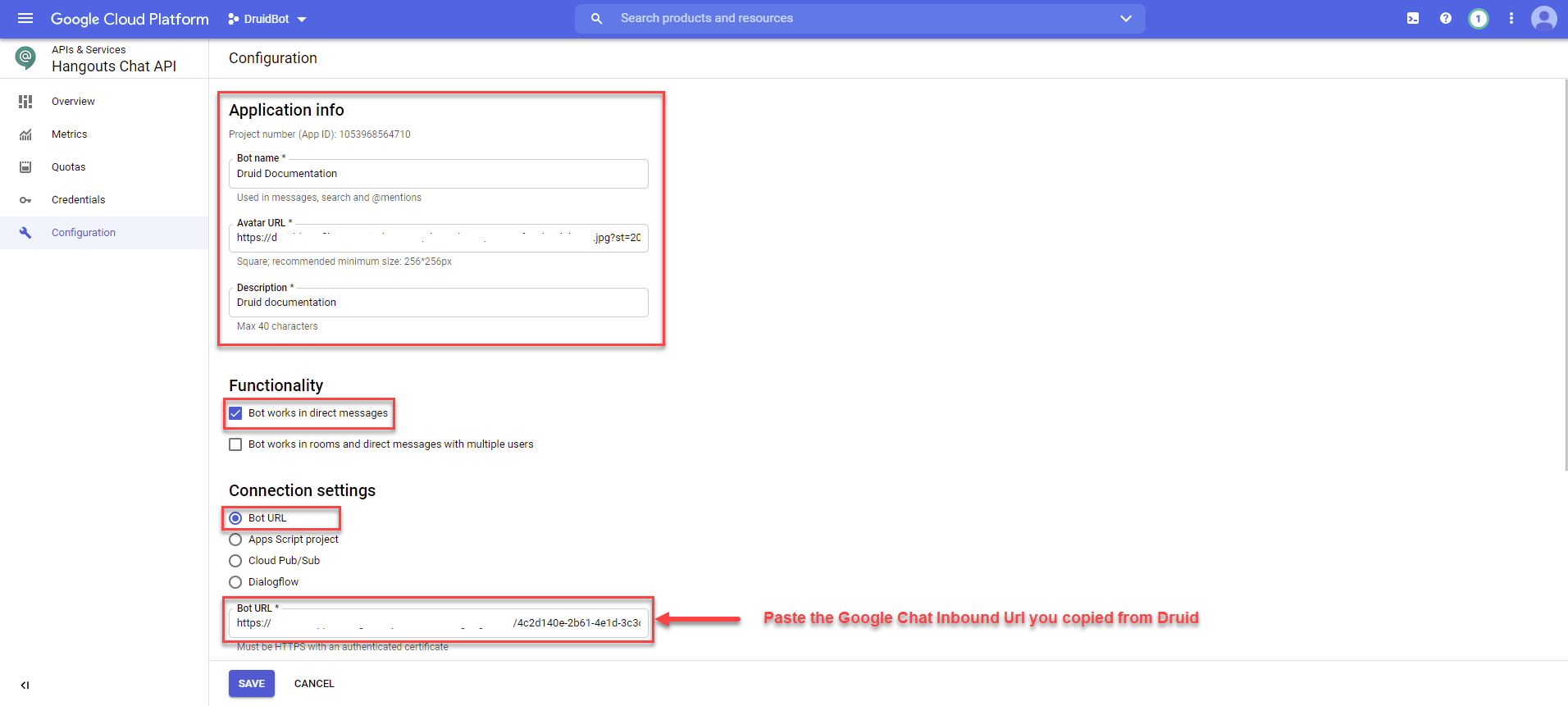
- From the main menu, click Configuration.
- Configure the Hangout Chat API as provided in the figure below:
- Click SAVE.
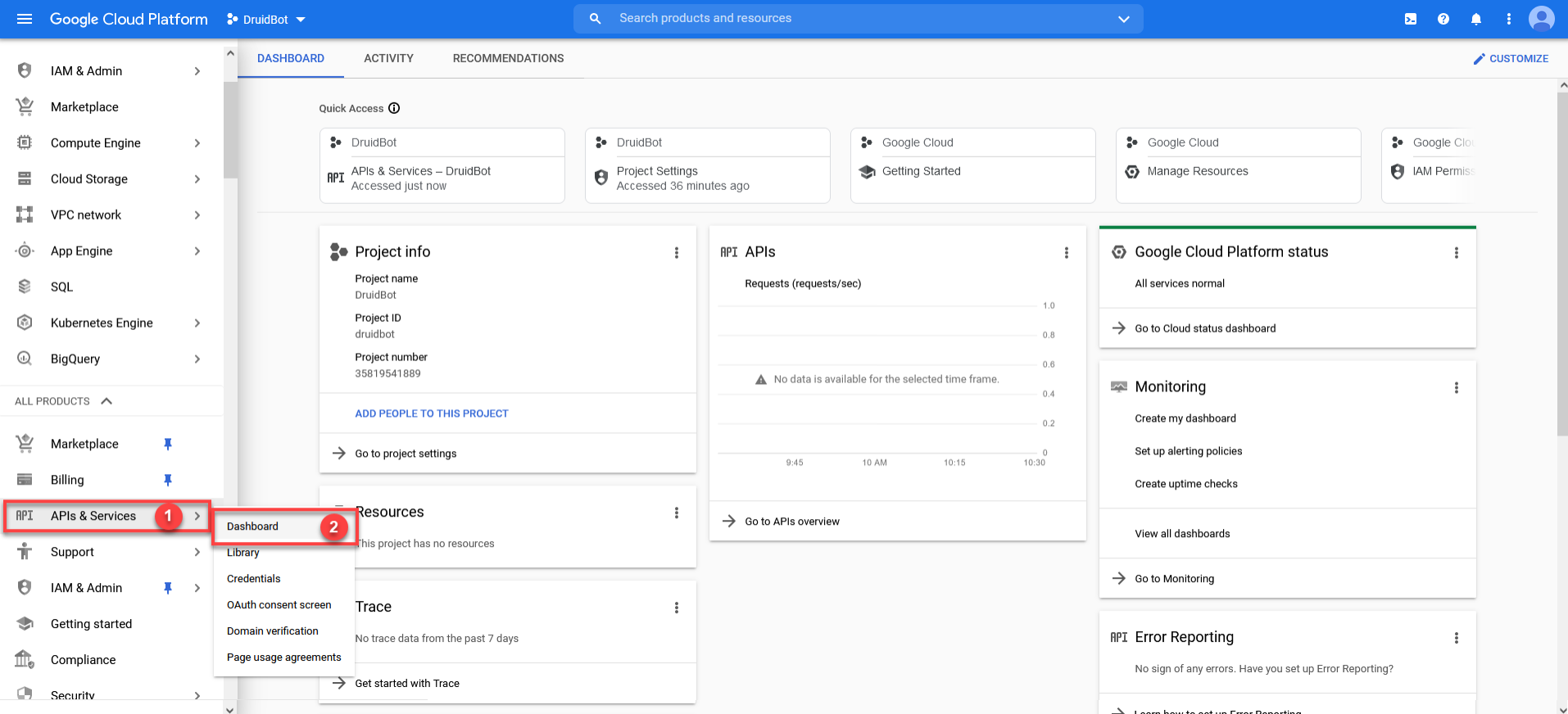
The list of Google APIs and Services available in your project appears.
Google API Library appears.

The search might return more results.
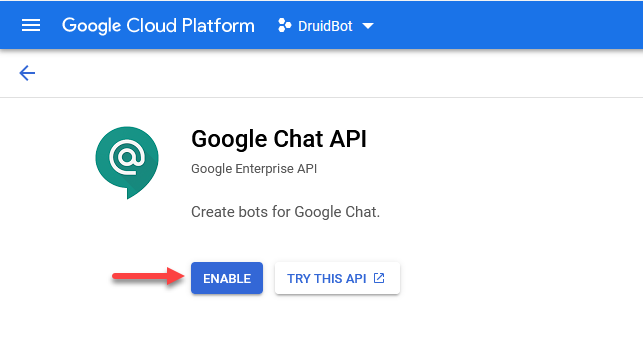
The Hangout Chat API is enabled and the Overview page appears.
Step 7. Talk to your AI Agent
You have two options to talk to your AI Agent:
From Druid Portal, Google Chat channel
To open the AI Agent in the Google Chat channel, in the Druid Portal, go to the AI Agent settings, click the Channels tab. Search for Google Chat and click the channel card. In the modal, click the Google Chat icon at the top-left corner of the modal. You can start talking to the AI Agent.
From Gmail account, Google Chat
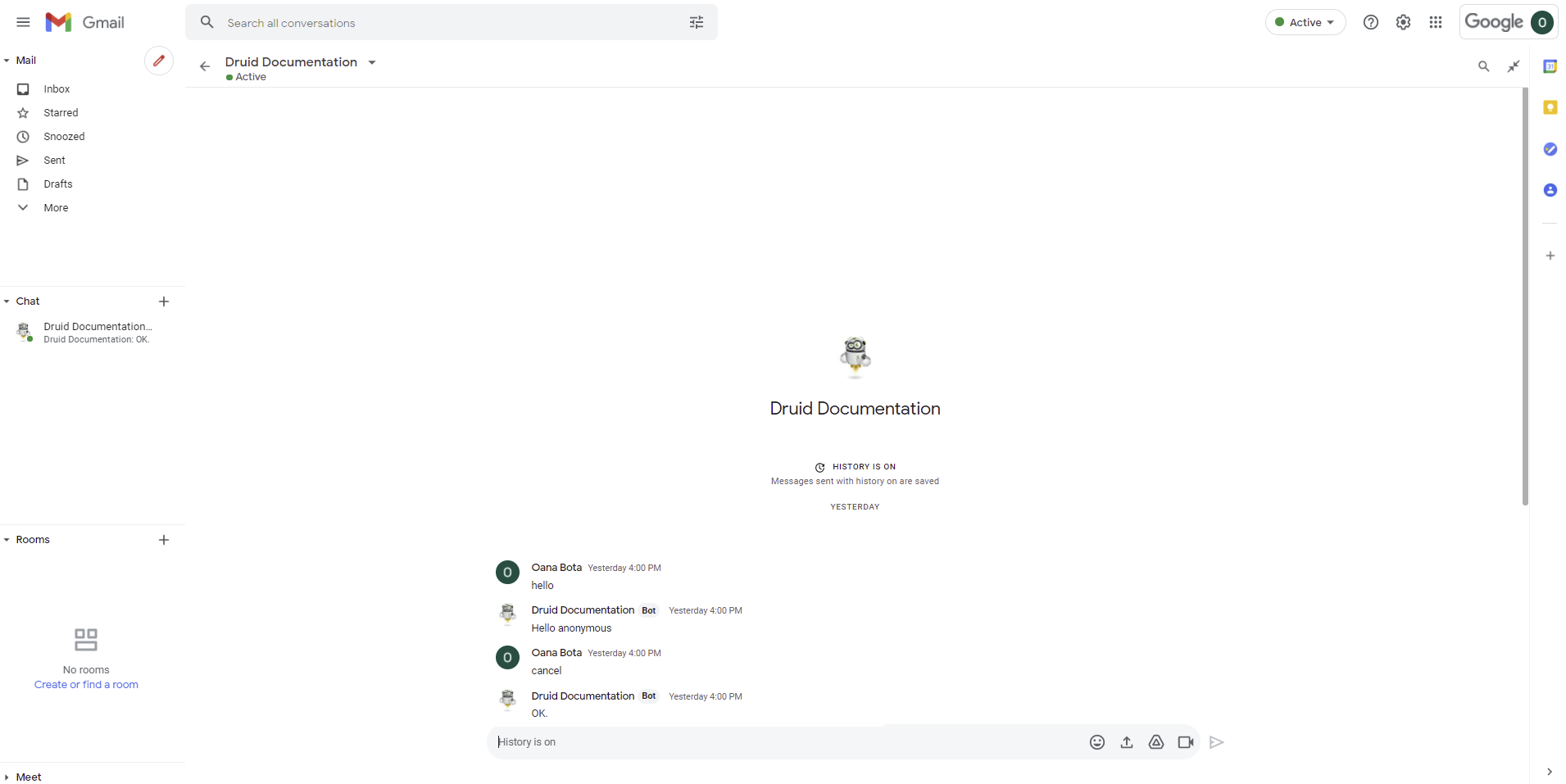
Log into your Gmail account and in the Chat section click Start a chat and search for the AI Agent you previously integrated in Google Chat. Select the AI Agent.
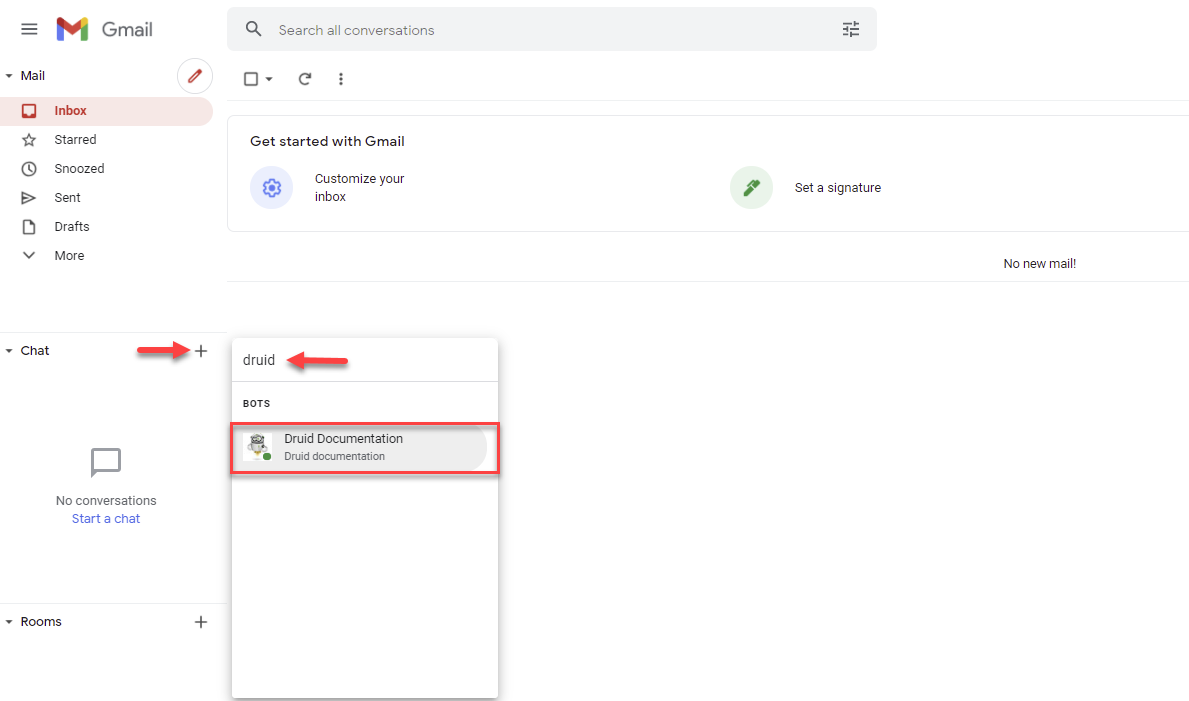
The chat appears and you can start chatting with your AI Agent.
Google User Information
The following Google user details are automatically available in the [[ChatUser]] entity:
- Google user's email in [[ChatUser]].Email.
- Google display name in [[Chatuser]].FirstName.
These details are useful to authenticate the user based on the Google email.
Messages sent in HTML format, including images and formatted content, are rendered similarly to the Direct Line channel instead of displaying raw HTML code.