AI Agent Avatar
AI Agent avatars bring a human-like, visual dimension to voice conversations, enabling users to interact with AI Agents through realistic video avatars. By combining interactive visual experiences with voice, organizations can deliver more engaging, personalized, and natural customer interactions.
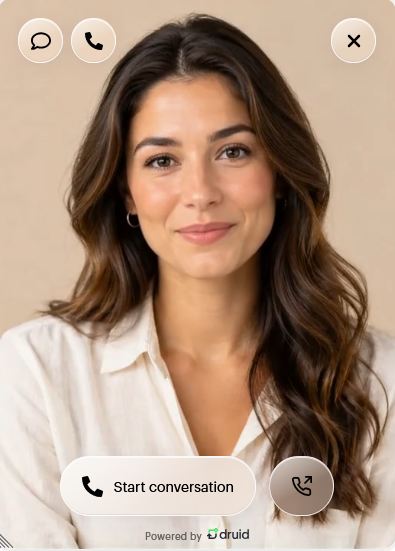
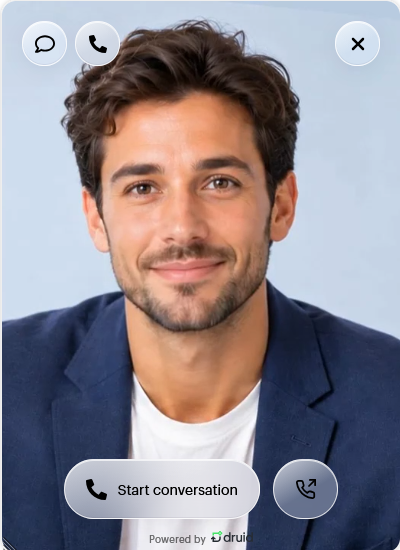
AI Agent avatars are particularly valuable for customer service, virtual assistance, and other voice-driven scenarios where a face-to-face experience can enhance user engagement and make interactions more intuitive.
Druid integrates with HeyGen to provide interactive video avatars while keeping voice communication within the Druid Voice infrastructure. This approach enables organizations to benefit from realistic avatars while maintaining greater control over voice processing and security.
Configure an AI Agent avatar
To configure and enable an AI Agent avatar in the webchat widget, follow these steps:
- Navigate to your AI Agent details and expand the Theme section.
- Click Customize Websnippet. The Customization options modal appears.
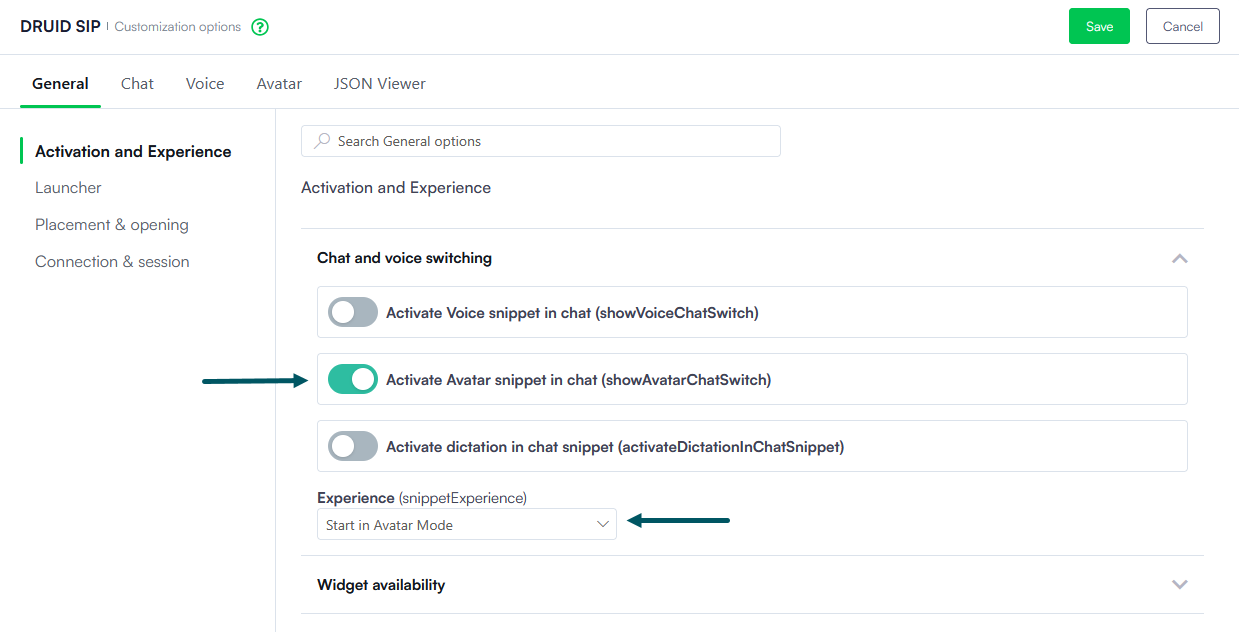
- On the General tab, click Activation and Experience in the left-hand menu, then select Chat and voice switching.
- Turn on Activate Avatar snippet in chat if you want the snippet to launch directly in avatar interaction mode instead of standard voice or chat.
- From the Experience dropdown, select how Start in Avatar Mode. This configures the webchat widget to launch directly in avatar mode.
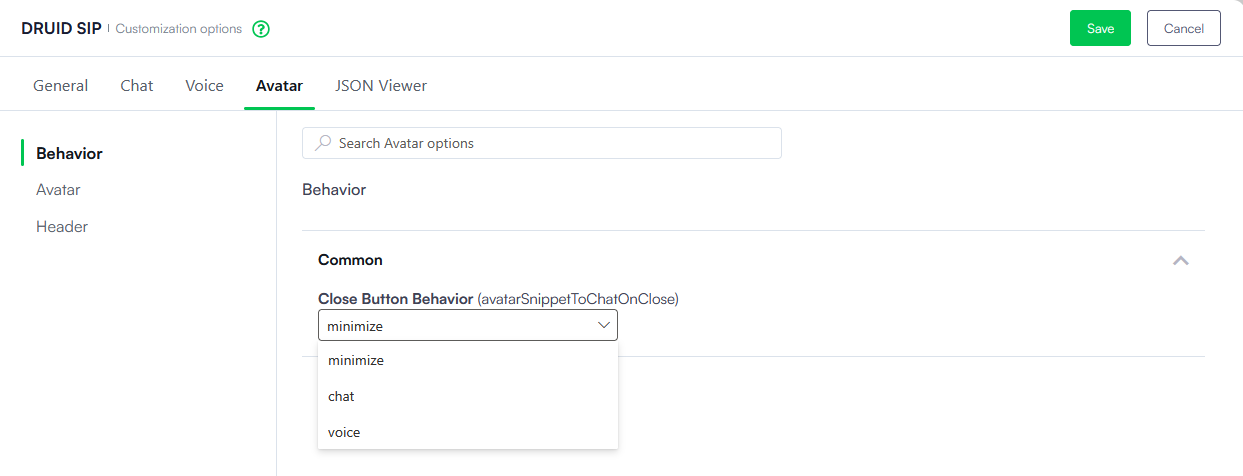
- Click the Avatar tab and select Behavior from the left-hand menu to configure the avatar's behavior.
- Under Common, configure Close Button Behavior (to define what happens when users click the close button in the avatar widget. Select one of the following options:
- minimize: Minimizes the avatar widget.
- chat: Switches from avatar mode to text chat.
- voice: Switches from avatar mode to voice mode.
- Select Avatar from the left menu to configure the avatar provider and appearance:
- Under Providers, select HeyGen from the Choose Provider dropdown.
- HeyGen is currently the default and only supported provider.
- Under Avatar, select the avatar you want to display in the webchat widget.
-
Select Header from the left menu and configure the controls available in the avatar widget:
- Show switch to chat button: Allows users to switch from avatar mode to text chat.
- Show switch to voice button: Allows users to switch from avatar mode to voice mode.
- Show fullscreen button: Allows users to expand the avatar widget to fullscreen mode.
- Allow Minimize: Allows users to minimize the avatar widget.
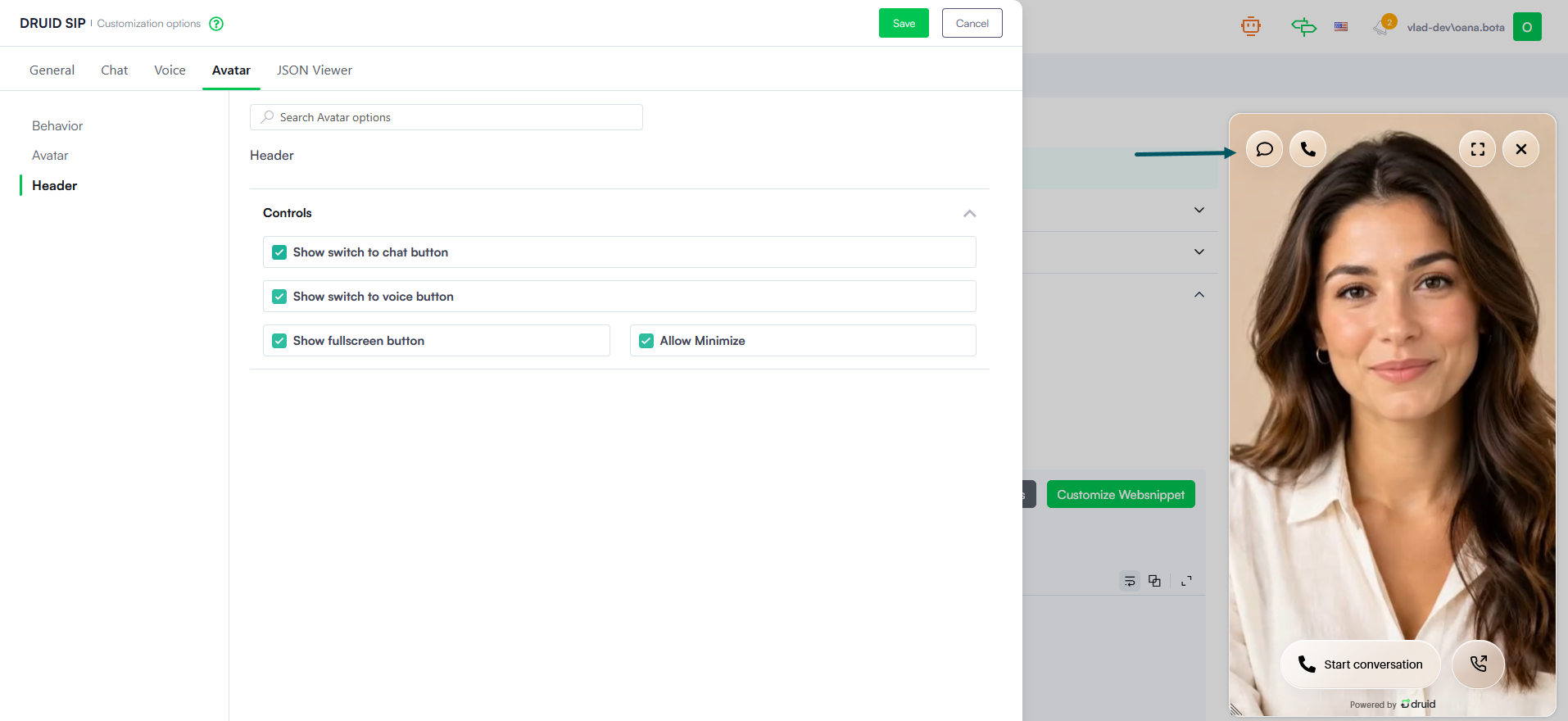
- Click Save to apply the customization settings, then save the AI Agent configuration.
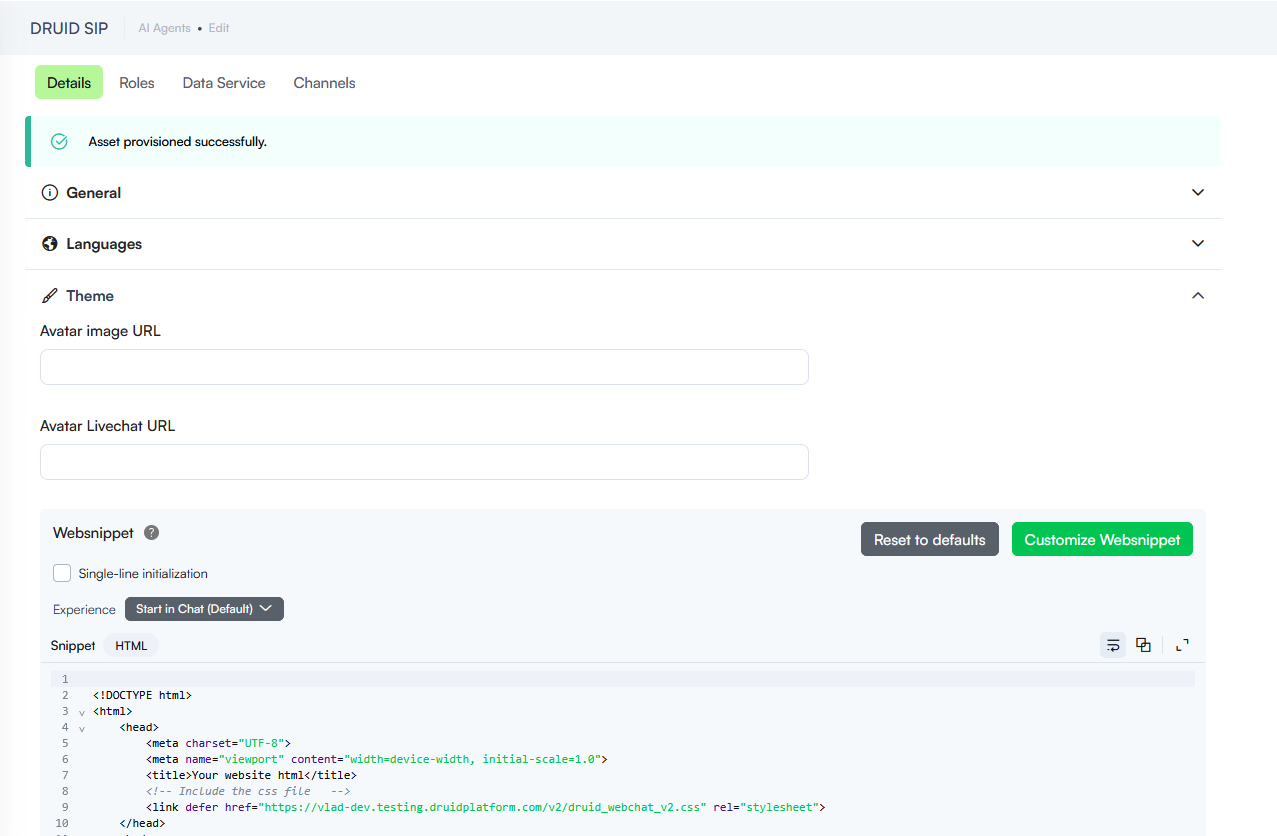

Once configured, the selected video avatar appears in the webchat widget, allowing users to initiate voice conversations through an interactive, visual interface.