REST Apps
REST Apps allow you to define and manage reusable connection strings for web services within the Druid AI Platform. Before your AI Agents can execute individual API actions, you must create a REST App to store the target application base URL and authentication credentials. By bundling these settings under a unique Connection Code, the platform abstracts technical details away from individual workflow steps, allowing you to manage environment endpoints and security keys in one centralized location."
To create an app, go to Solution Contents > Apps and click the Create App button at the top-right corner of the page and select REST from the dropdown.
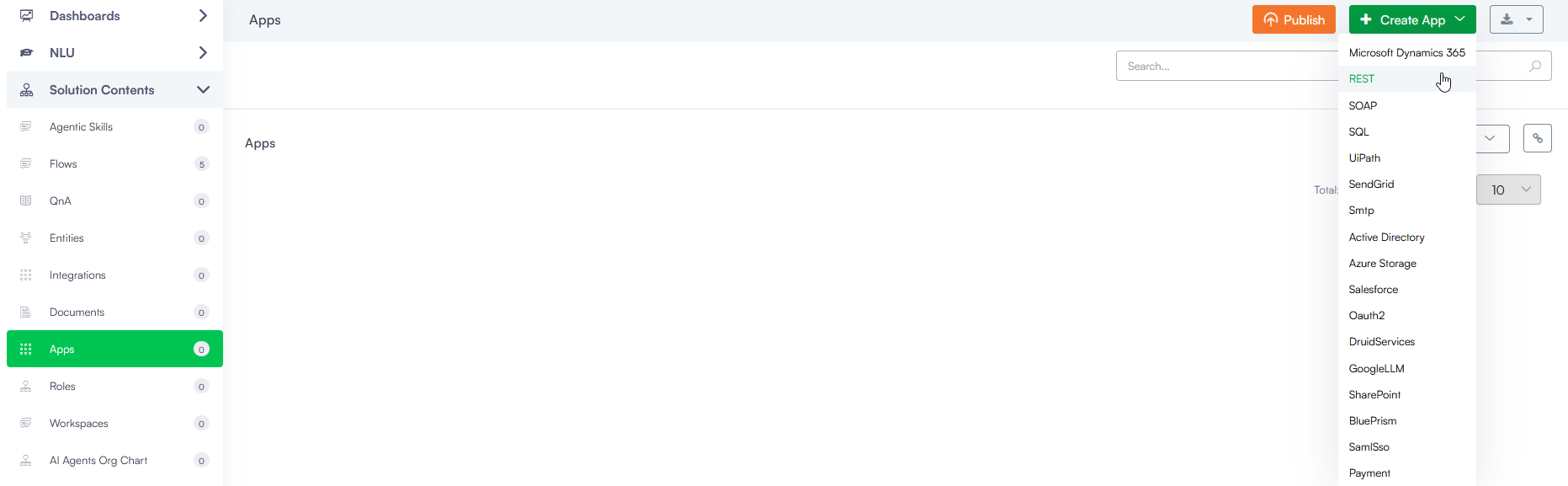
When creating or editing a REST App, configure the following settings:
| Parameter | Description | Default value | Mandatory |
|---|---|---|---|
| Code |
A unique alphanumeric identifier for the application. This value acts as the Connection Code referenced downstream by individual integration tasks. |
Yes | |
| Type |
The integration protocol type. This is a non-editable field. |
REST | Yes |
| Icon |
A visual asset selection to customize the appearance of the REST App within the apps list. |
No | |
| AI Agent | Automatically set to the current AI Agent. This is a non-editable filed. | The current AI Agent | |
| Execution Timeout |
The maximum number of seconds a request is allowed to execute. By default, the timeout for all connector integrations is 60 seconds. This setting will apply to all connector tasks which use this app. IMPORTANT! To avoid long execution time for an integration with many tasks, the maximum sum of all timeouts configured on an integration is 250 seconds. Whenever this maximum is reached, the execution of the currently running integration task is interrupted and any subsequent integration tasks are no longer executed.
|
60 seconds | |
| Encryption Type |
Enables data encryption on the connector using the AES CGM encryption algorithm and allows authors to encrypt specific data before sending it to external REST apps, by using the Encrypt Data integration task as first task in the desired connector action. When you select AES CGM encryption algorithm (the only one currently available), two new options are available:
For more information, see Encrypt Data. |
None. No encryption layer applied. | |
| Base URL | The primary host or internet domain path of the external enterprise application (e.g., https://api.enterprise.com/v2). Individual integration task configurations append resource paths onto this root URL. | ||
| Security Type |
Declares the global authentication protocol used to handshake with the target service host. Options include:
Toggling additional security controls below this dropdown allows activating NTLM security, Basic Rest Security, or Client certificate security parameters depending on network routing requirements. |
None | |
| NTLM security |
For Druid on premise deployments, if the client computer and Web server are in the same domain, you can use Windows Challenge / Response (NTLM) authentication. It is the authorization flow for the Windows operating system and for standalone systems. For more information, see NTLM Authentication. |
||
| Basic Rest Security |
Enables HTTP Basic Authentication for REST API calls. Enter the API username and password required by the target service. Druid automatically adds an Authorization header to every request, containing a Base64-encoded representation of the configured username and password in the format Basic <Base64 encoded username and password>. Similar to Postman, the credentials are sent with each request to authenticate the client. For more information, see Basic Authentication. Info: Basic Authentication is available starting with Druid version 9.24.
|
||
| Variables |
Integration context variables are specific to connectors and are distinct from Druid variables used within flows. These variables serve as placeholders for storing sensitive information such as usernames, API keys, and passwords securely. Upon saving the settings, Druid encrypts the values, ensuring confidentiality. However, an option is available to exclude encryption if the integration tasks involve consuming non-sensitive metadata. IMPORTANT!
|
 Related Topics