Epic
Epic on FHIR provides standards-based APIs that enable applications to securely access and exchange healthcare data and interact with functionality available in Epic. It uses FHIR (Fast Healthcare Interoperability Resources), an HL7 standard for exchanging healthcare information electronically.
The Epic Integration enables Druid AI Agents to connect to Epic through these APIs using REST API calls. Depending on the Epic APIs enabled for the integration, AI Agents can access Epic resources and perform healthcare-related operations, such as retrieving information or supporting appointment-related processes.
Prerequisites
Before configuring the integration:
- Make sure that you have an administrator or developer account that provides access to Epic on FHIR.
- Create an application in Epic for the Druid integration. When configuring the application in Epic, under Incoming APIs, select the Epic API endpoints that Druid needs to access.
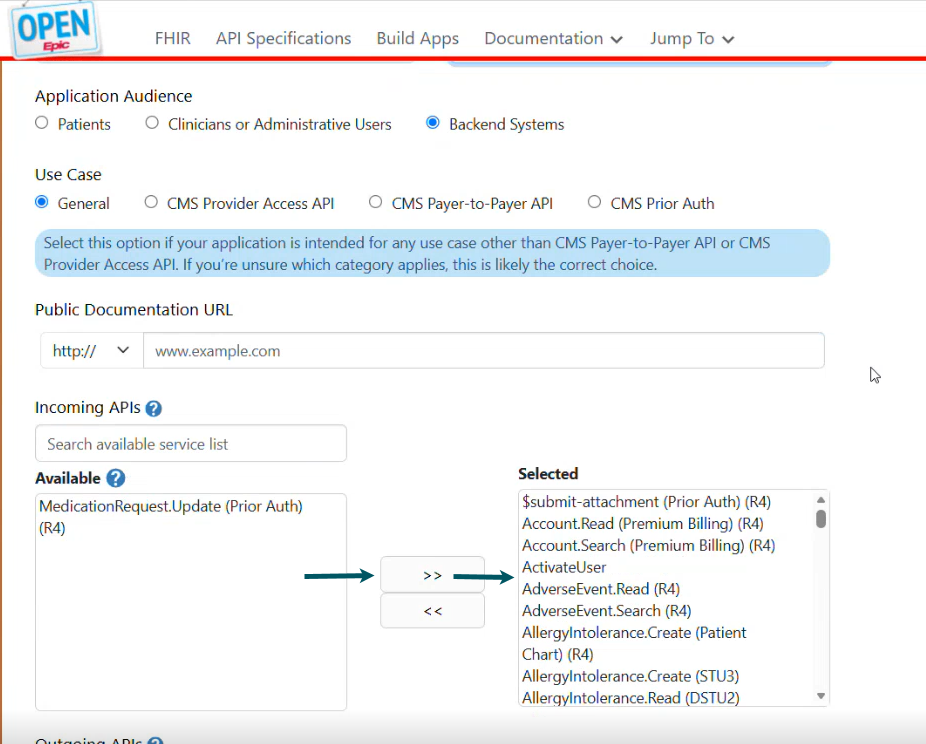
Epic integration procedure
You configure an application in Epic and a corresponding Epic App in the Druid AI Platform, then use that app as the connection for REST integrations that call Epic API endpoints.
Step 1. Configure the Epic app in Druid
After creating the application in Epic, create the corresponding Epic app in Druid:
- In the Druid Portal, go to Solution Contents > Apps.
- From the Create New App drop-down list, select Epic.
- Configure the general app settings as required. Most settings are common to REST Apps. For descriptions of these settings, see REST Apps.
- In the Client ID field, enter the client ID of the application you created in Epic. We recommend starting with an Epic sandbox environment:
- For a sandbox environment, use the Non-Production Client ID from Epic.
- For a production environment, use the Client ID for the production application.
- Save the app.
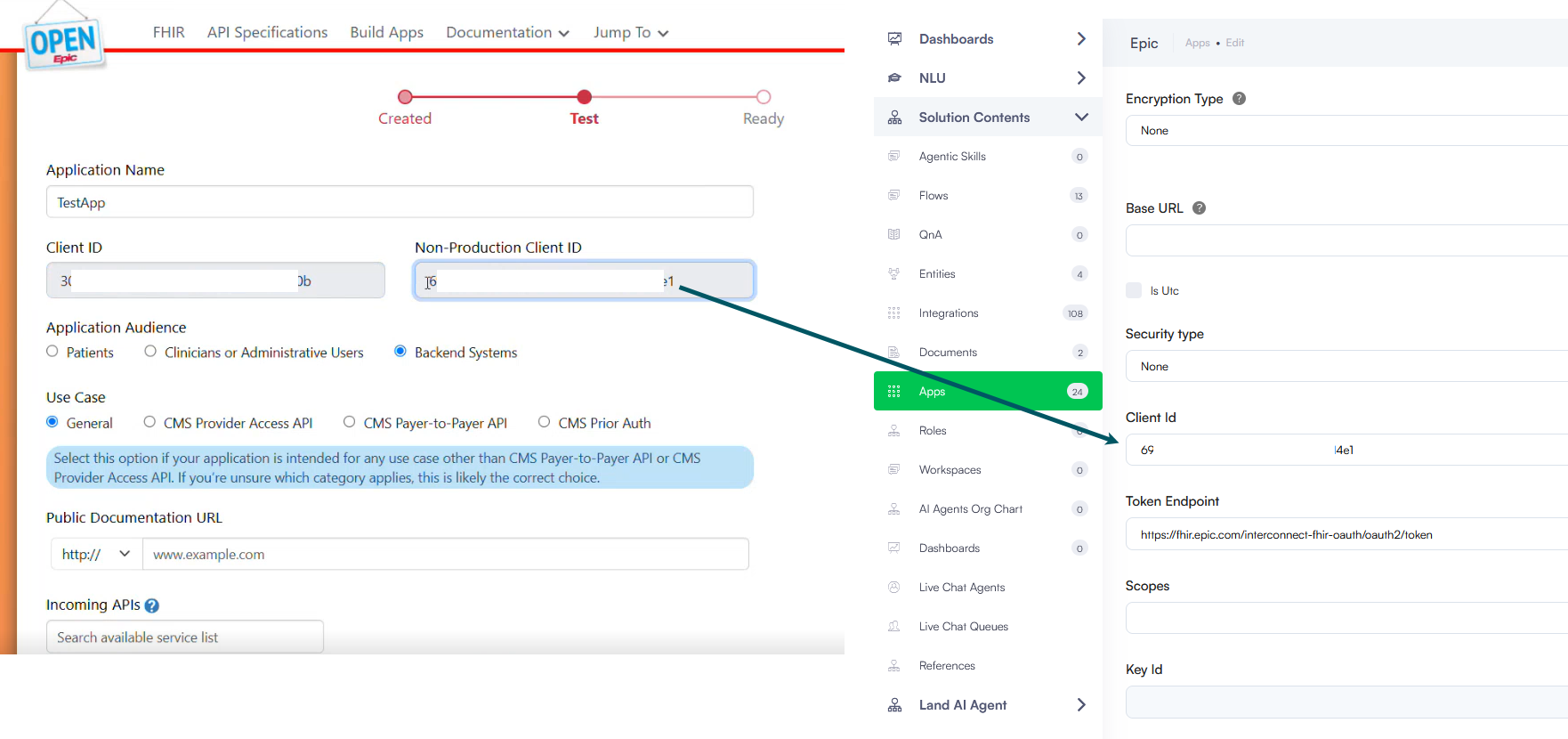
Step 2. Configure the JWK Set
After saving the Epic app, generate the key information required to establish the integration with Epic.
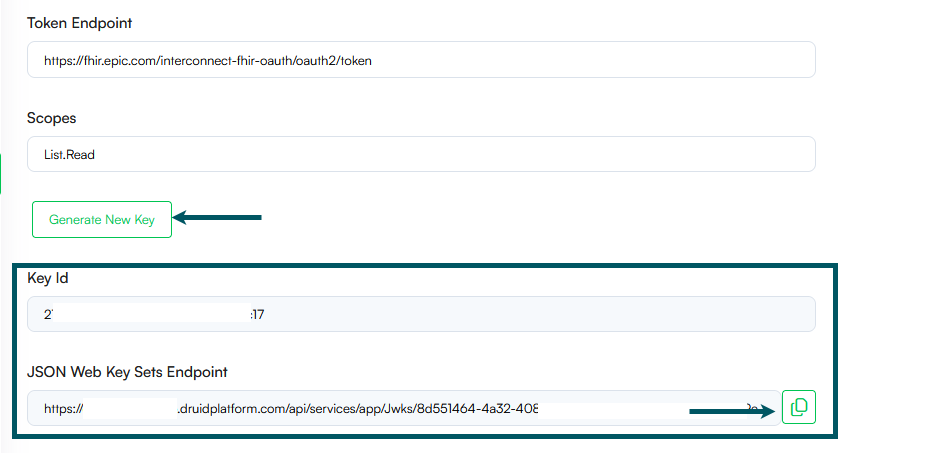
- On the Epic app configuration page in Druid, click Generate New Key. The page refreshes and Druid automatically populates the following fields:
- Key Id
- JSON Web Key Sets Endpoint
- Copy the value from the JSON Web Key Sets Endpoint field.
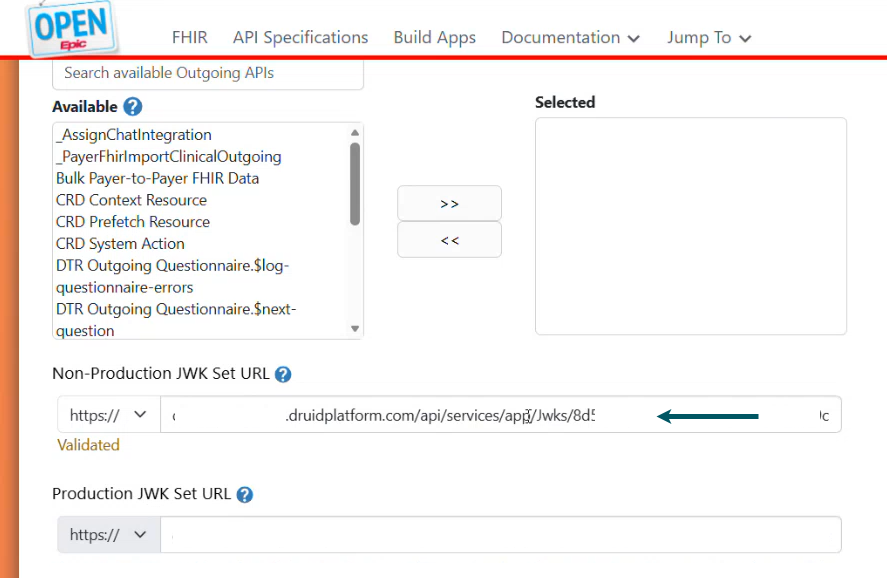
- In Epic FHIR, open the application that you created for the Druid integration.
- Paste the Druid JSON Web Key Sets Endpoint into the appropriate Epic field:
- For a sandbox environment, enter it in Non-Production JWK Set URL.
- For a production environment, enter it in Production JWK Set URL.
- At the bottom of the Epic application page, select the appropriate option for your environment:
- Save & Ready for Sandbox
- Save & Ready for Production
Step 3. Create REST Integrations for Epic
After configuring the Epic App in both Druid and Epic, create the REST integrations required by your AI Agent.
- In the Druid Portal, create a REST integration for the Epic API operation you want to execute.
- Configure the required REST integration tasks.
- For each applicable integration task, in the Connection Code field, select the Epic app that you created. The REST integration uses the selected Epic app to connect and authenticate to Epic.
For information about configuring REST calls and integration tasks, see REST Calls.
For the available Epic resources, operations, request parameters, and endpoint specifications, see the Specifications - Epic on FHIR.