Agent Mandate
Agent Mandate defines an AI Agent's purpose, responsibilities, and operational boundaries, establishing what the agent is expected to accomplish and the capabilities it can use to achieve its goals.
In an agentic-first approach, the agent is guided by a defined business objective rather than a rigid sequence of predefined conversational steps. It can reason about user requests, determine the actions needed to complete a task, and use available tools to interact with enterprise systems.
The mandate provides the instructions and capabilities that guide these decisions, helping align the agent's behavior with business requirements.
In Druid, you can configure the Agent Mandate through the Mandate Editor, which brings together the agent's instructions, tools, and LLM configuration in a single interface. Instead of manually configuring each component in the underlying Flow Diagram, you can define the agent's behavior and capabilities from one place.
The Mandate Editor automatically connects the configured components behind the scenes. You can view the resulting flow structure in the Flow tab.
How Agent Mandate works
Agent Mandate brings together three essential elements of agent configuration:
- Instructions. Define the agent's role, business objective, responsibilities, and rules that guide its behavior.
- Tools. Equip the agent with the capabilities required to accomplish its tasks, such as searching the Knowledge Base, executing integrations, or performing custom operations.
- LLM configuration. Specify the language model that powers the agent's reasoning, decision-making, and tool selection.
Together, these elements enable the agent to determine how to accomplish a task based on the user's request and the capabilities available to it.
For example, an Appointment Management Agent can be instructed to help patients schedule appointments, verify available time slots, and confirm bookings. By providing the appropriate tools, the agent can retrieve relevant information and interact with scheduling systems to complete the appointment process.
The agent can dynamically determine which information to request and which tools to use, rather than following a fixed conversational path.
This approach simplifies agent development and maintenance while providing a central place to define the agent's operational responsibilities.
Configure the Agent Mandate
To configure the mandate, open an agentic flow containing an Agent step. The Mandate Editor opens by default. Configure the following elements to define how the agent operates.
Step 1. Define the agent's instructions
Instructions establish the agent's purpose and guide how it should behave when handling user requests.
Define the agent's persona, business objective, responsibilities, and any rules it should follow when completing tasks.
To configure the instructions:
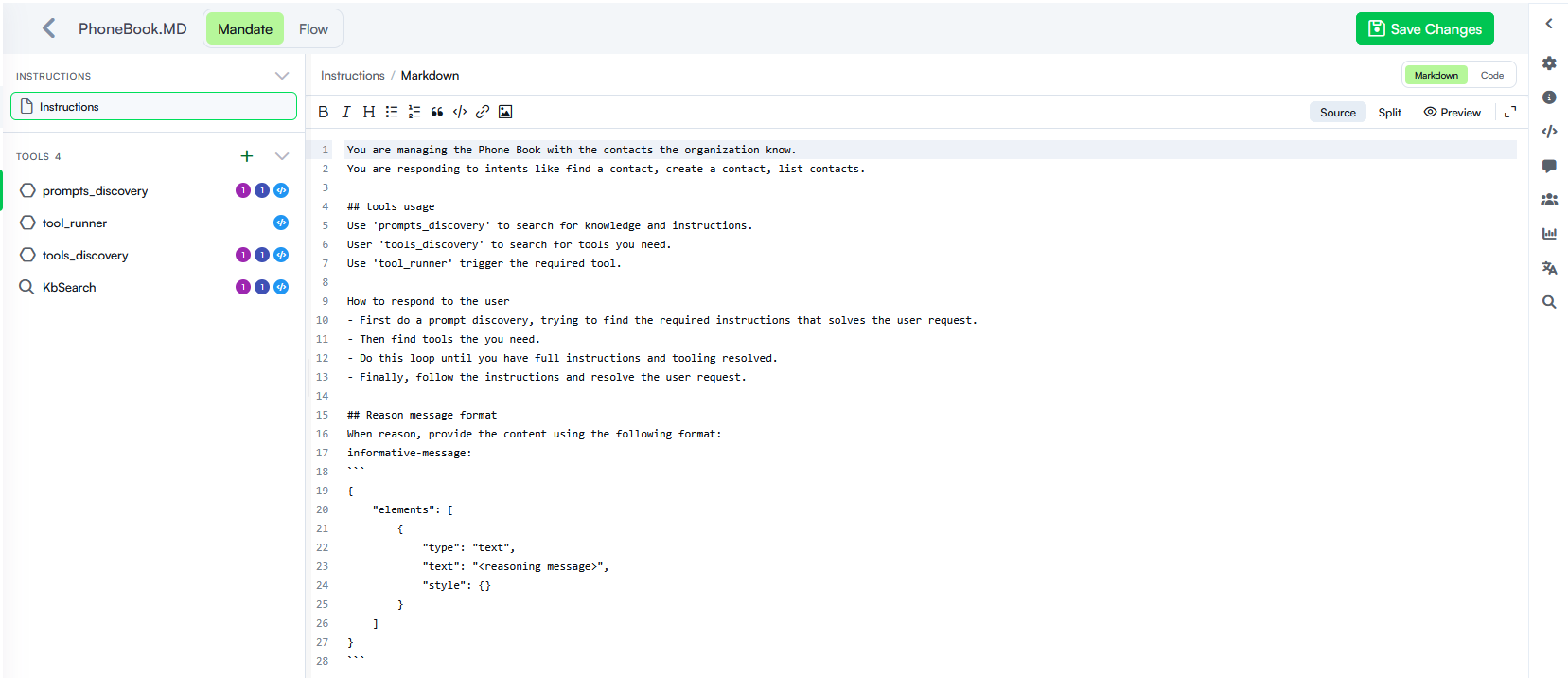
- In the Mandate Editor, locate the Instructions section. When you access the editor, the Instructions display by default.
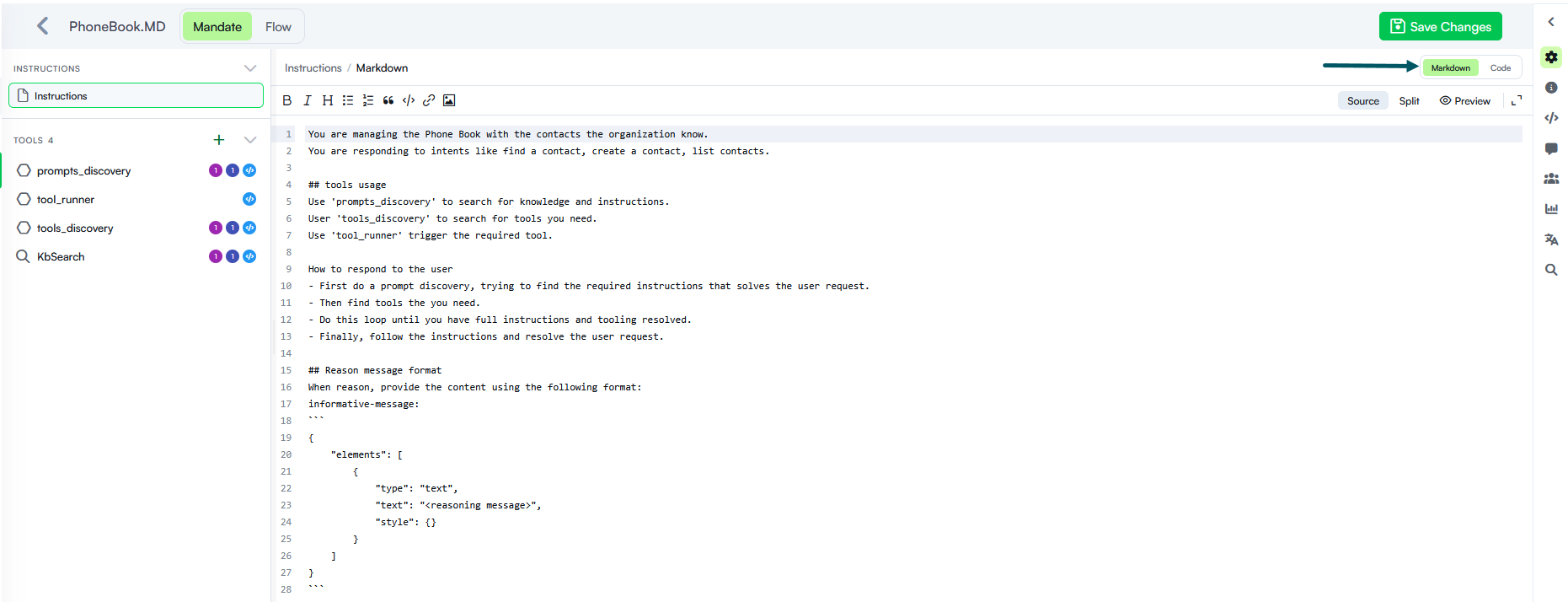
- Enter the instructions that define the agent's role, goal, and operating rules. By default, instructions are displayed in the Markdown editor.
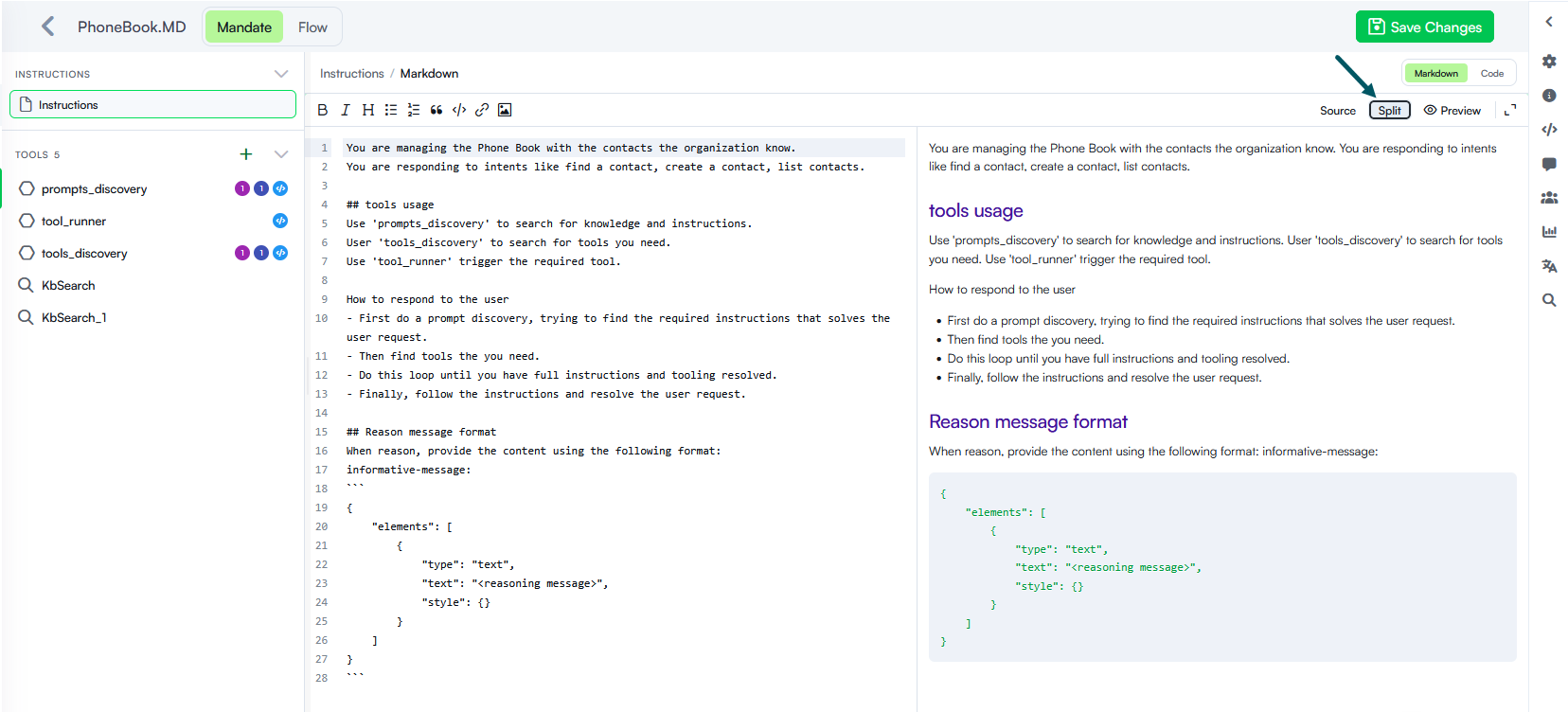
- For longer instructions, click Split to display the Markdown editor and its preview side by side.
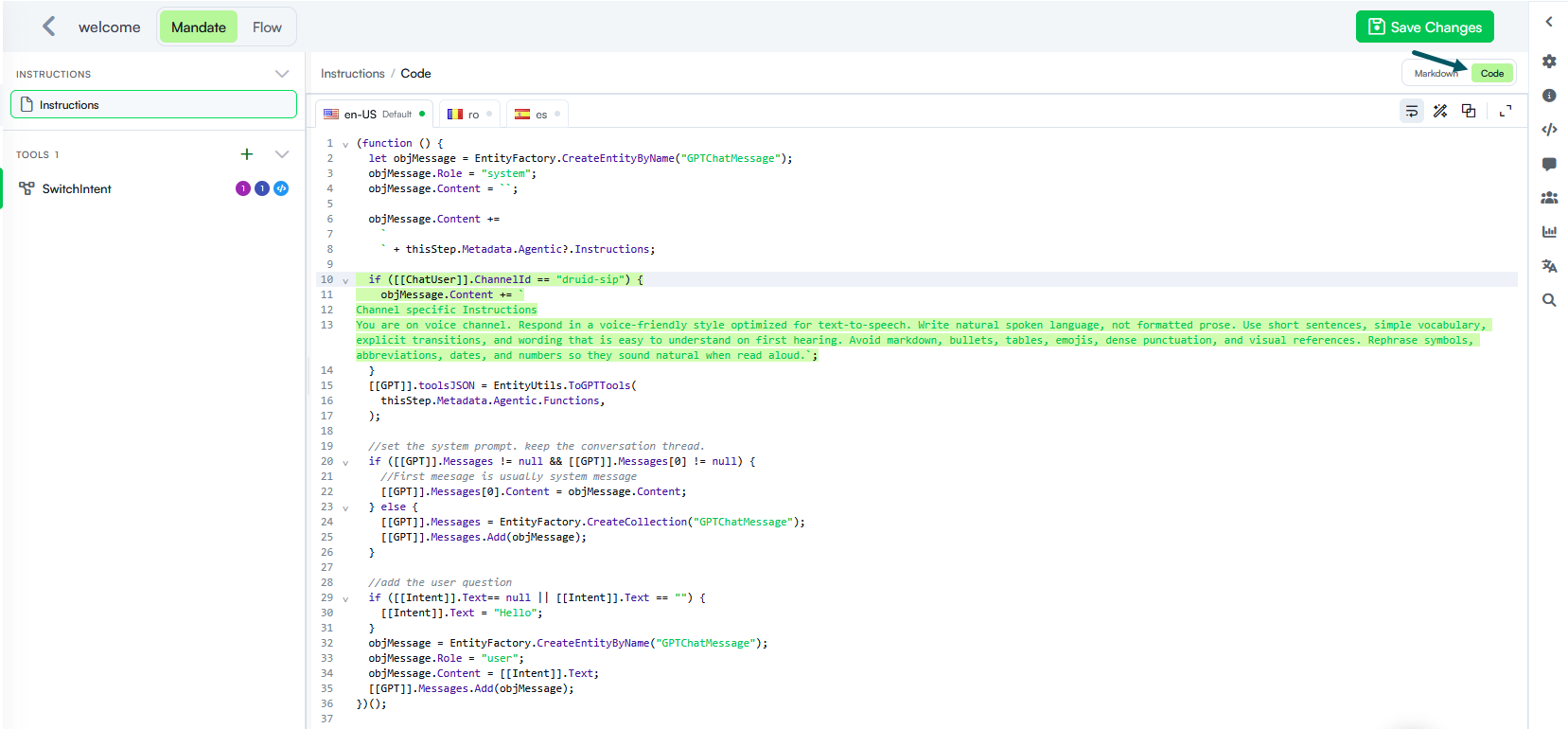
- If you need to generate or adjust instructions dynamically, switch to the Code editor and use the Code Extension to define the required logic programmatically.
- Click Save Changes in the upper-right corner to save the instructions.
Step 2. Add and configure tools
Tools enable the AI Agent to move beyond generating responses and perform actions required to achieve its business objectives.
Depending on the tools you provide, the agent can retrieve information, access enterprise systems, execute integrations, or perform custom operations.
Add tools
The tools you configure determine which capabilities are available to the agent when executing its mandate.
To add a tool:
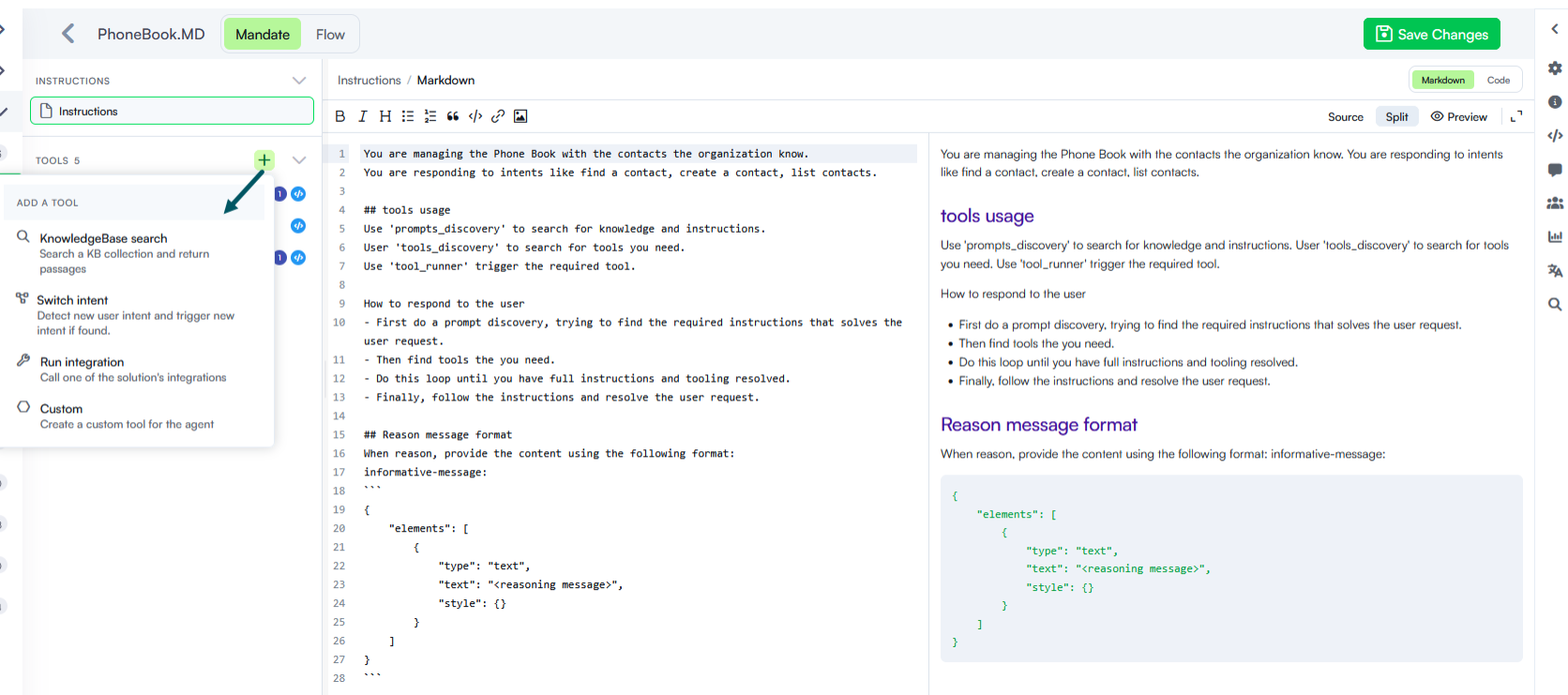
- In the Mandate Editor, locate the Tools section.
- Click the + icon next to Tools.
- Select one of the available tool types:
- Knowledge Base search: Searches the Knowledge Base and retrieves relevant passages or responses.
- Switch intent: Detects a change in the user's intent and triggers the corresponding intent when a new intent is identified.
- Run integration: Executes one of the integrations configured in the solution.
- Custom: Allows you to define a tool tailored to specific business requirements.
- Configure the selected tool according to the operation it should perform.
- Save the tool configuration.
Configure tool execution
The tool editor brings together the configuration required to execute a tool on a single page.
You can use the tabs at the top of the editor to navigate through the configuration sections, which correspond to the following execution order:
- Properties: Define the tool's name, description, and input parameters:
- Name: Identifies the tool.
- Description: Provides instructions describing what the tool does and when the AI Agent should use it. Write a clear, meaningful description to help the agent select the appropriate tool when performing a task.
- Parameters: Define the input values the tool requires to execute. For each parameter, specify its name, data type, and whether it is required.
- Set Variables: Define or update the values required for tool execution.
- PreActions: Configure actions to execute before the main tool logic.
- Code Extension: Add custom logic required by the tool.
- PostActions: Configure actions to execute after the preceding operations.
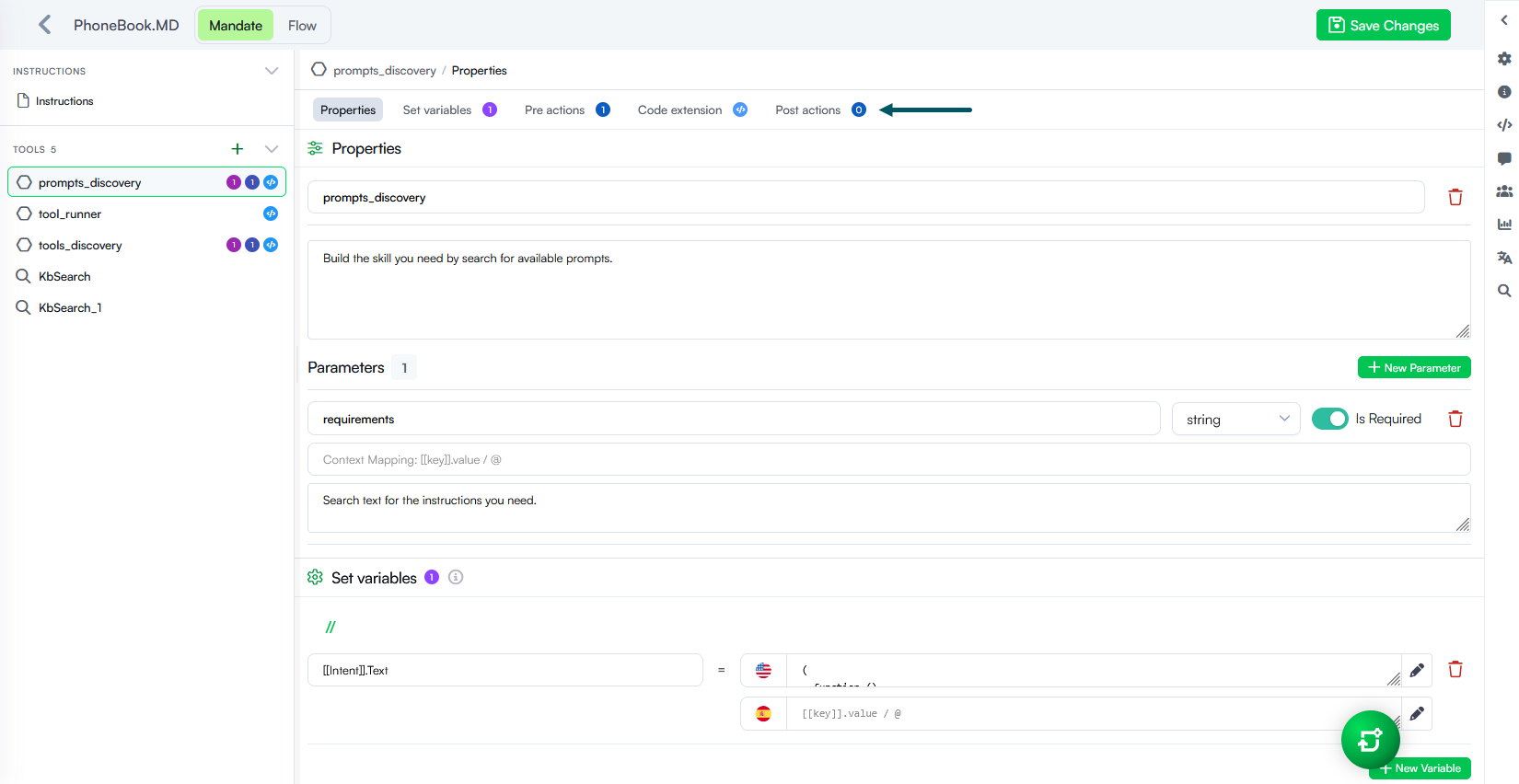
The tool editor simplifies the configuration process by organizing these components in one place. Druid automatically connects the corresponding elements in the underlying Flow Diagram.
Map tool parameters to conversation context
You can map tool parameters to values available in the conversation context so that the agent can use information already collected during the interaction.
For example, you can map a tool parameter to [[ChatUser]].Name to pass the user's name to the tool.
When you save the configuration, DRUID automatically adds the parameter mapping to the Set Variables section.
This allows tools to use contextual information without requiring the user to provide the same information repeatedly.
Step 3. Configure the LLM
The LLM powers the agent's reasoning and determines how it interprets instructions, processes user requests, and selects the appropriate tools.
To configure the LLM:
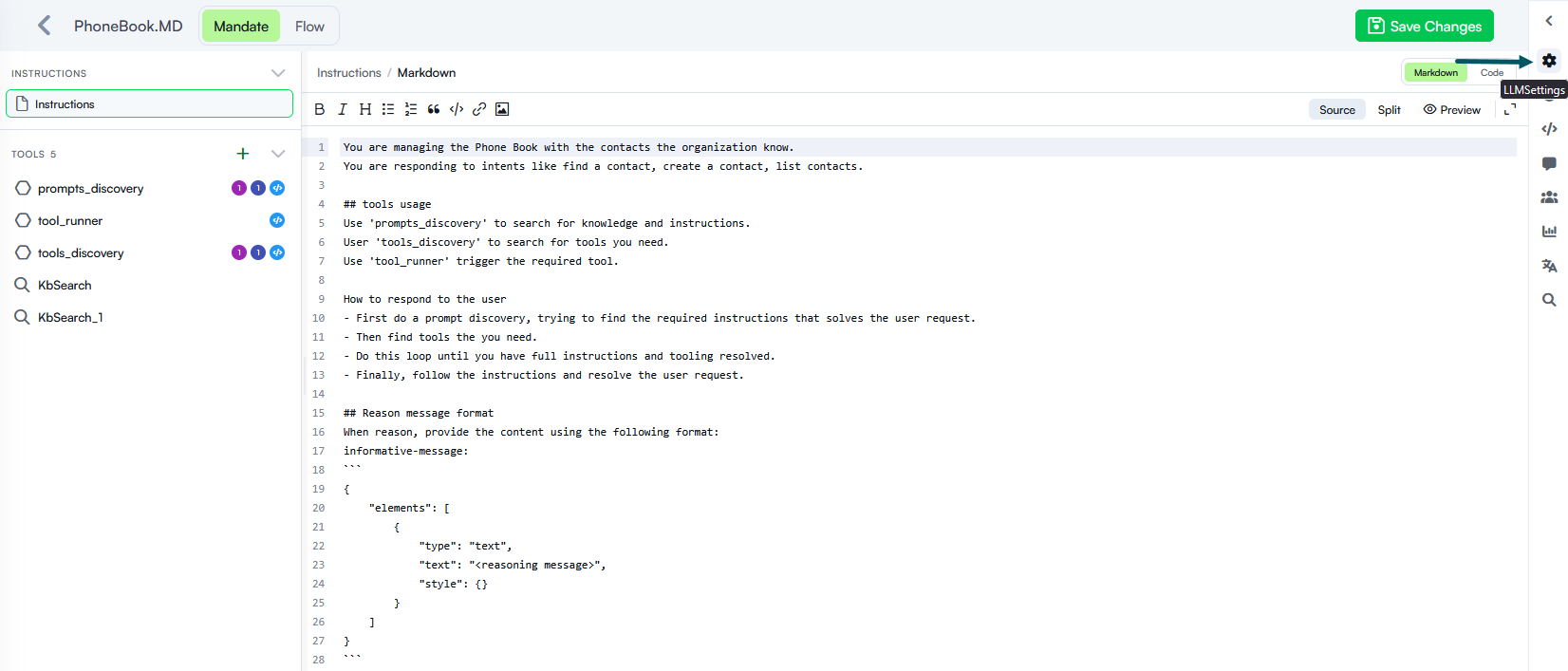
- In the Mandate Editor, click the LLM Settings icon on the actions toolbar.
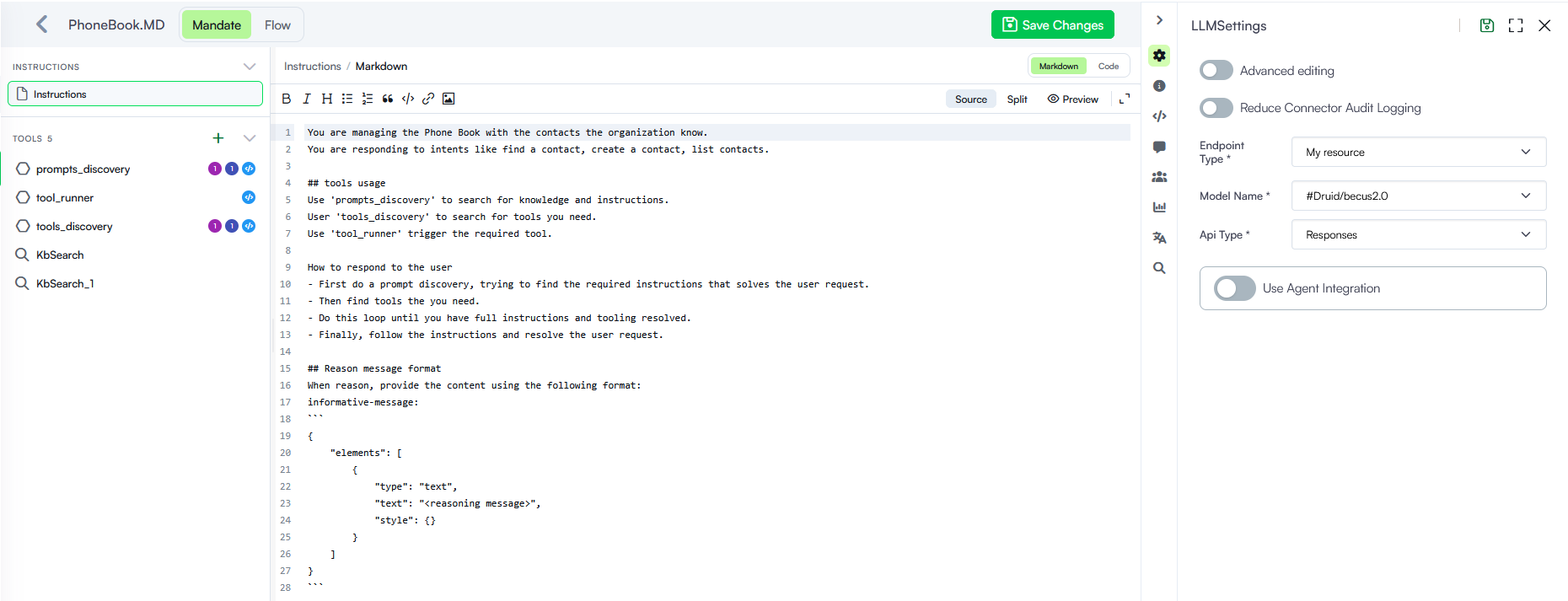
- Configure the LLM using one of the following methods:
- Use an LLM resource. If you use a Druid-provided LLM resource or an LLM resource configured on your tenant, select the following settings:
- Endpoint Type
- Model Name
- API Type
- Use an integration. If you have configured an LLM integration on the [[GPT]] entity, enable Use Agent Integration and select the integration from the dropdown list.
Important: The selected model must support tool or function calling so that the agent can execute its configured tools.
View the underlying agentic flow
Although the Mandate Editor provides a consolidated interface for configuring the agent, the underlying execution logic remains available in the flow diagram.
To inspect the generated structure, click the Flow tab.
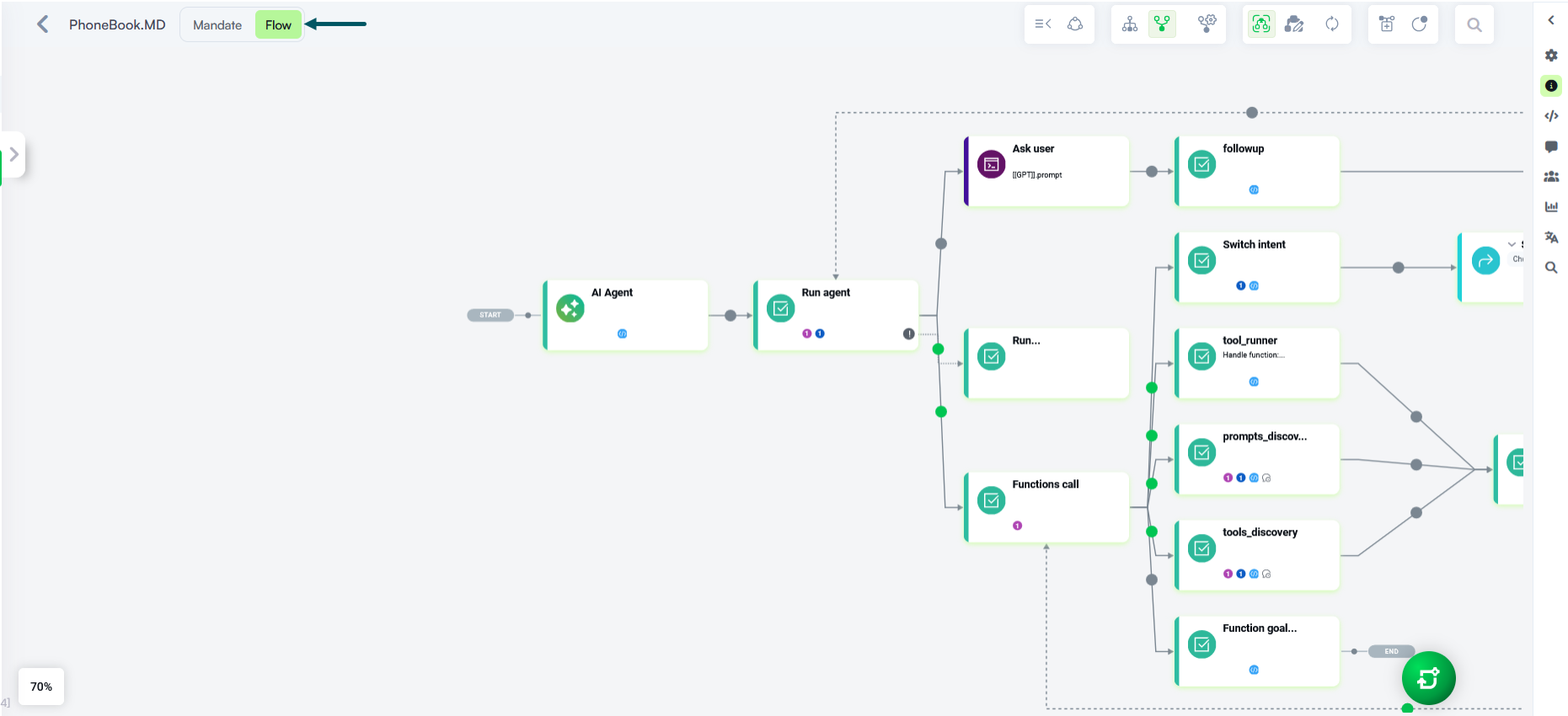
The Flow Diagram displays the components and connections that support the agent's execution, including the steps and tool handlers configured through the Mandate Editor.
Use the flow diagram when you need to inspect the underlying execution structure or understand how the configured tools are connected.