Content Chunkers
The Druid KB Engine supports two types of content chunking (article extraction) methods: Basic and LLM. These options help define how content is divided into chunks for processing, allowing you to customize the level of detail processed from documents.
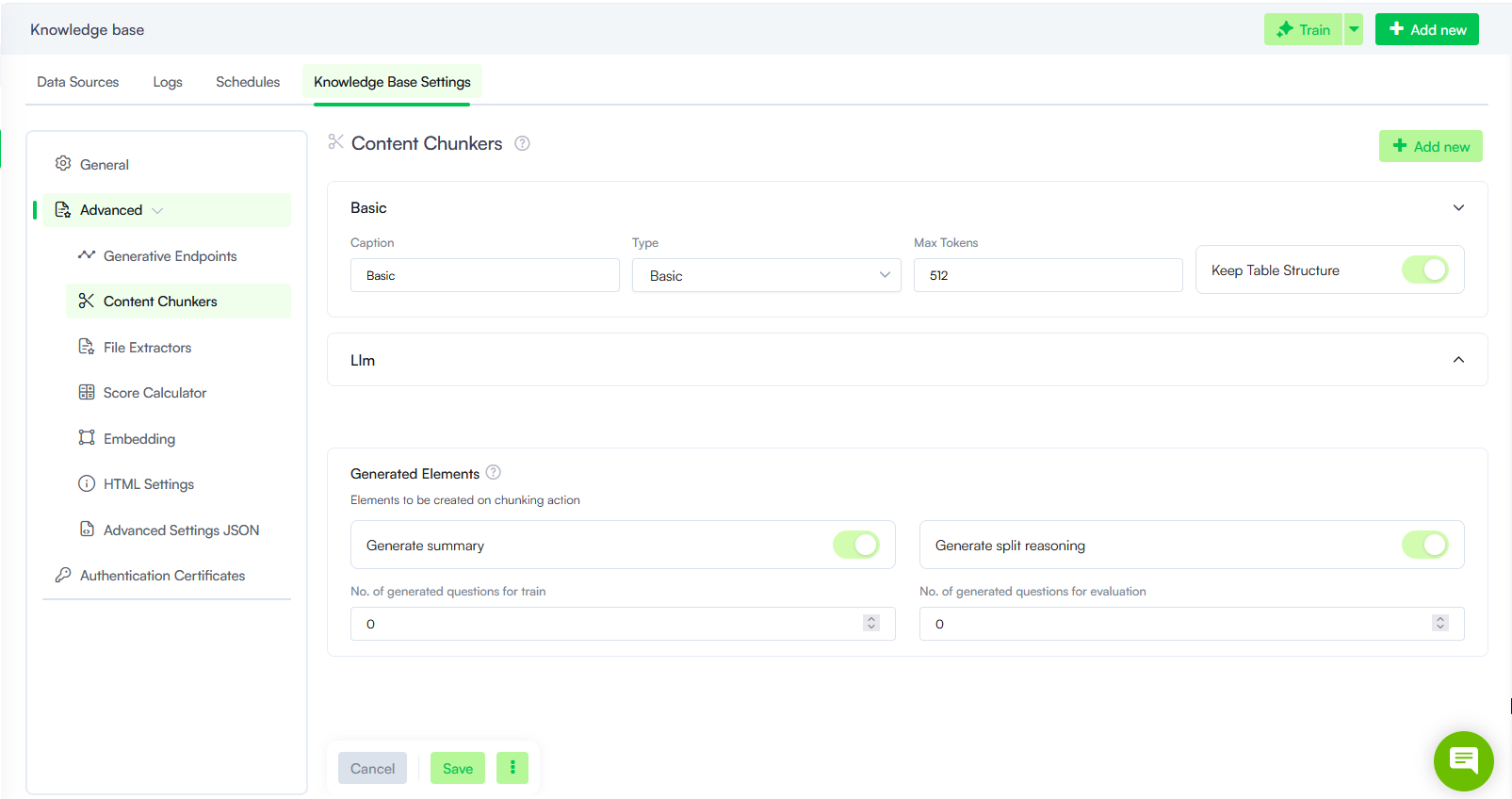
Basic Content Chunking
This method extracts articles in chunks of 512 tokens (approximately 2,000 characters).
Use this option for simple content processing when you do not require deep semantic understanding. It is ideal for smaller, less complex documents or when speed is a priority over nuanced content interpretation.
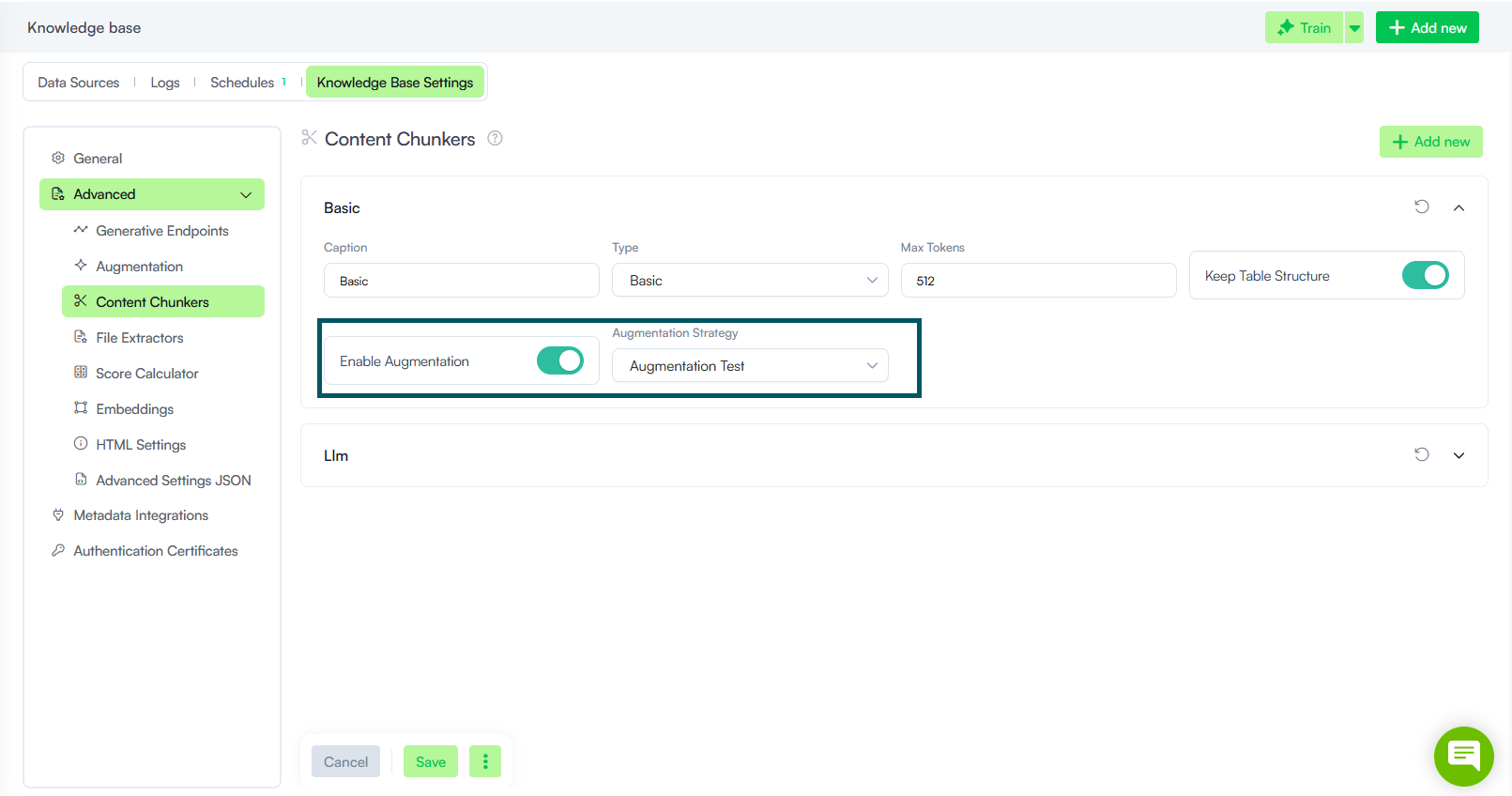
To generate additional information for the extracted content using an LLM, turn on the Enable Augmentation toggle, then select the Augmentation Strategy to use. Augmentation strategies define the generative endpoint and prompt used to generate missing elements.
LLM Content Chunking
LLM chunking uses generative AI to perform smart content splitting, focusing on producing more meaningful and contextually relevant chunks. This approach leverages language models to identify and split key pieces of content, improving the relevance of each chunk.
Add new chunkers
To add a new chunker:
- Click Add new.
- Select the chunker type.
- Configure the chunker parameters (see details below).
- Click Save.
Chunker Parameters
The table below describes the Chunker parameters.
| Parameter | Description |
|---|---|
| Caption |
The display name of the content chunker in the UI. Use a descriptive name to distinguish between multiple configurations. |
| Type |
Determines the chunking method:
|
| Generative Endpoint |
NOTE: Available for LLM chunkers only.
Select the generative endpoint the chunker will use to process content. The available options correspond to the endpoints configured in the Generative Endpoints section. |
| Max Tokens |
NOTE: Available for Basic chunkers only.
Defines the maximum number of tokens per chunk. Controls output length to prevent excessively large chunks Info: Max Tokens cannot exceed the remaining space in the Model Context Window Size after accounting for input tokens.
|
| Max Lines |
NOTE: Available for LLM chunkers only.
Limits the number of lines in each chunk, regardless of token count.. Structures the output into a fixed number of lines. This parameter is specific to the generative model being used. For optimal performance, you should adjust these values based on the capabilities of the selected generative endpoint. Info: If both Max Tokens (per request) (in the generative endpoint configuration) and Max Lines are set, the model generates up to Max Tokens (per request) but also stops at Max Lines — whichever limit is reached first.
Example: If you use a model with a token limit of 4,096, you might set Max Tokens (per request) to 2,000 and Max Lines to 30 to ensure each chunk is appropriately sized. |
| Keep Table Structure |
This option, allows you to exclude tables from LLM chunking and process them with Druid’s proprietary chunking technology. Enabling this option is useful for maintaining the structure and readability of tables in the processed content, ensuring tables are handled more precisely than with LLM-based chunking. Info: If your documents include structured tables or data that need to be accurately retained, consider enabling this option for better results.
|
| Prompt |
NOTE: Available for LLM chunkers only.
Defines the instructions the model uses to interpret and process the chunking task. You can edit the prompt directly in the text field to customize how the LLM splits content. The default prompt ensures article/paragraph titles are always extracted in the same language as the source document. If you use a custom prompt, you can add the following rules manually:
Copy
|