Two-Factor Authentication Using an Authenticator App
Two-Factor Authentication (2FA) adds an extra layer of security to your Druid accounts. By requiring a temporary, time-based verification code from a mobile authenticator app (such as Google Authenticator or Authy) alongside standard user credentials, 2FA protects sensitive data and prevents unauthorized tenant access.
This guide explains how Druid Portal administrators can enable authenticator-based 2FA tenant-wide, and how portal users can enroll, manage recovery codes, and swap authenticator apps.
Enable two-factor authentication
For Druid Portal administrators
To enable authenticator app support for your entire tenant, follow these steps:
- Log into the Druid Portal.
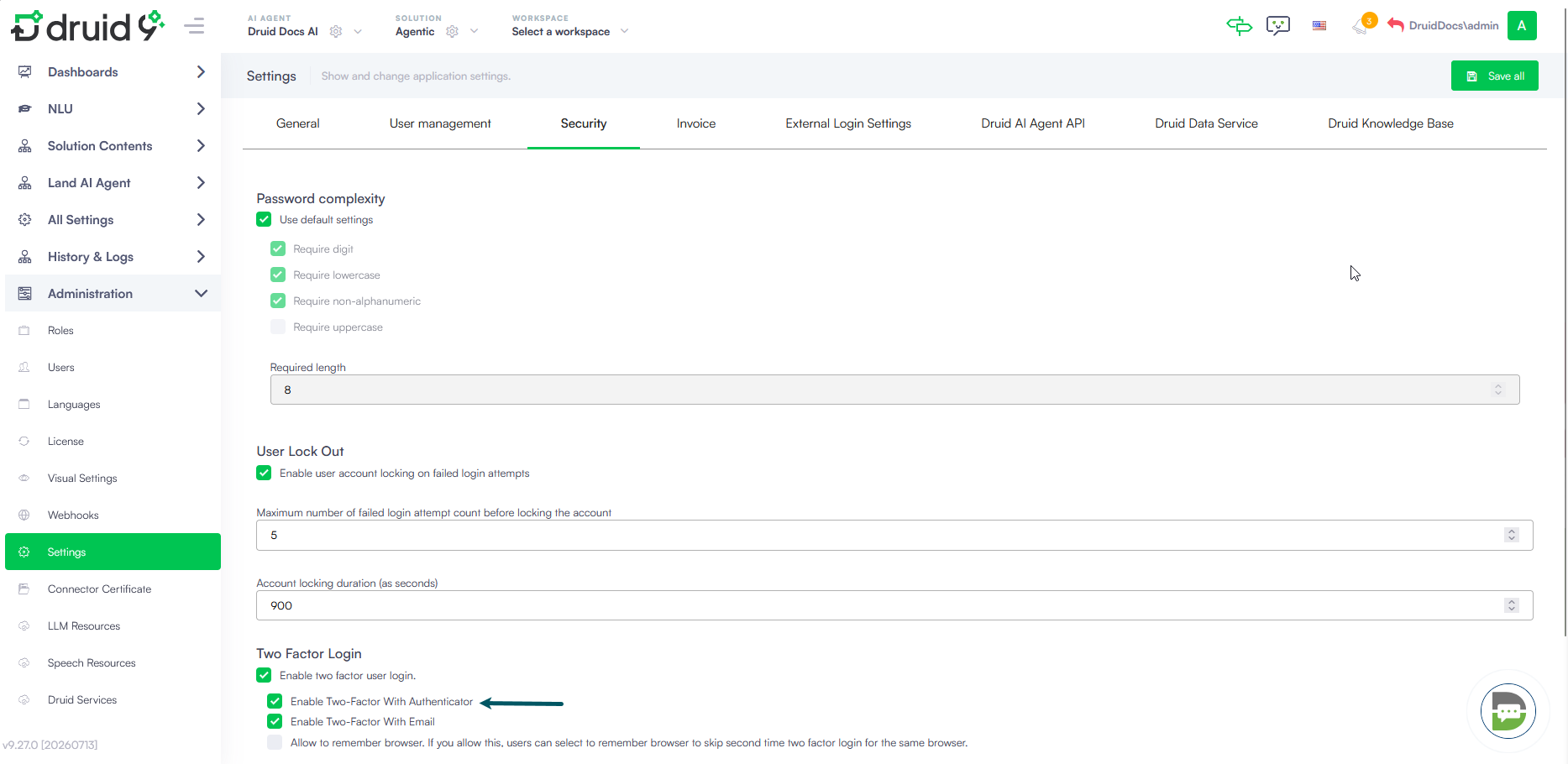
- Navigate to Administration > Settings on the main menu.
- Click the Security tab.
- Scroll down to the Two Factor Login area and check Enable Two-Factor With Authenticator.
- Click Save all in the top-right corner of the page.
Set up two-factor authentication for your account
For Druid Portal users
Once tenant administrators enable 2FA, you will be prompted to set up your authentication method during your next login attempt.
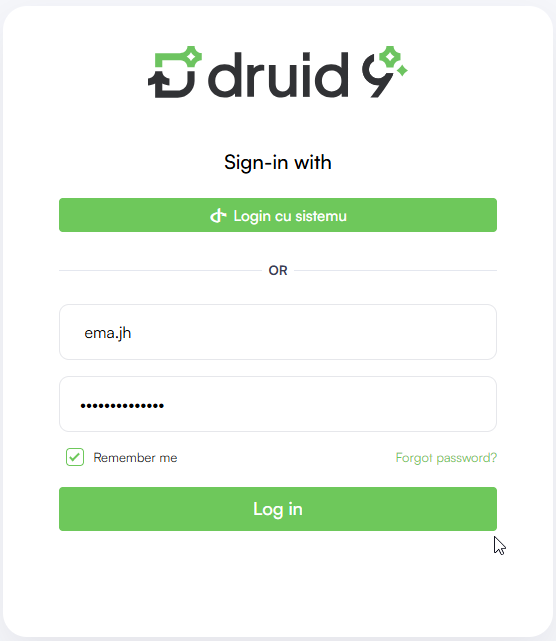
- Go to your tenant login page in your browser.
- Enter your username and password, then click Log in.
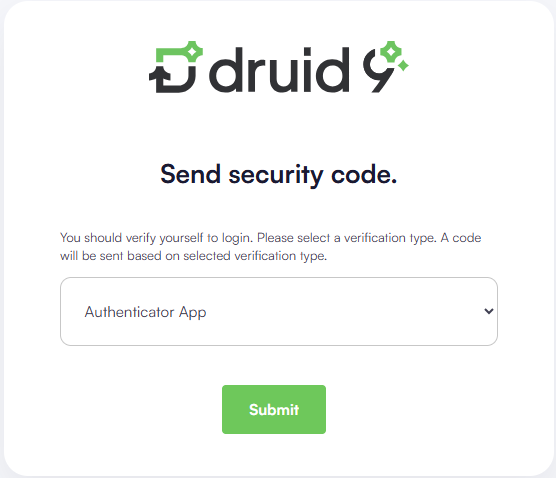
- If multiple authentication options are enabled, select Authenticator App from the verification type dropdown and click Submit.
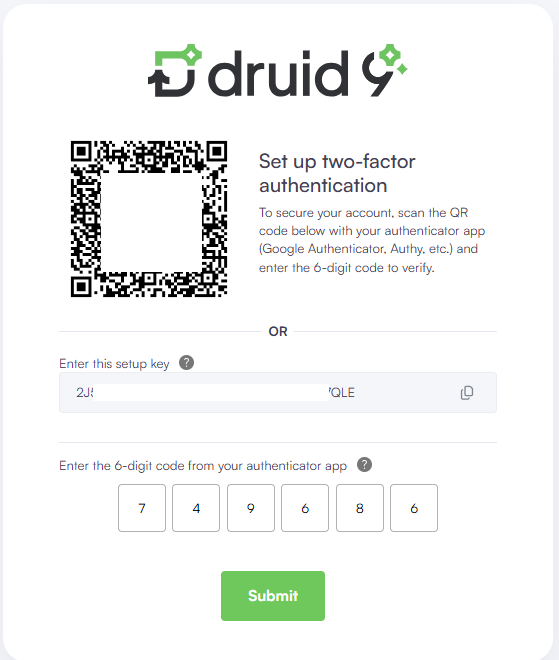
- Open your preferred authenticator app (e.g., Google Authenticator, Authy) on your mobile device.
- Scan the QR code displayed on your screen.
- Your app will generate a 6-digit one-time password. Enter this code in the input boxes on the Druid screen and click Submit.
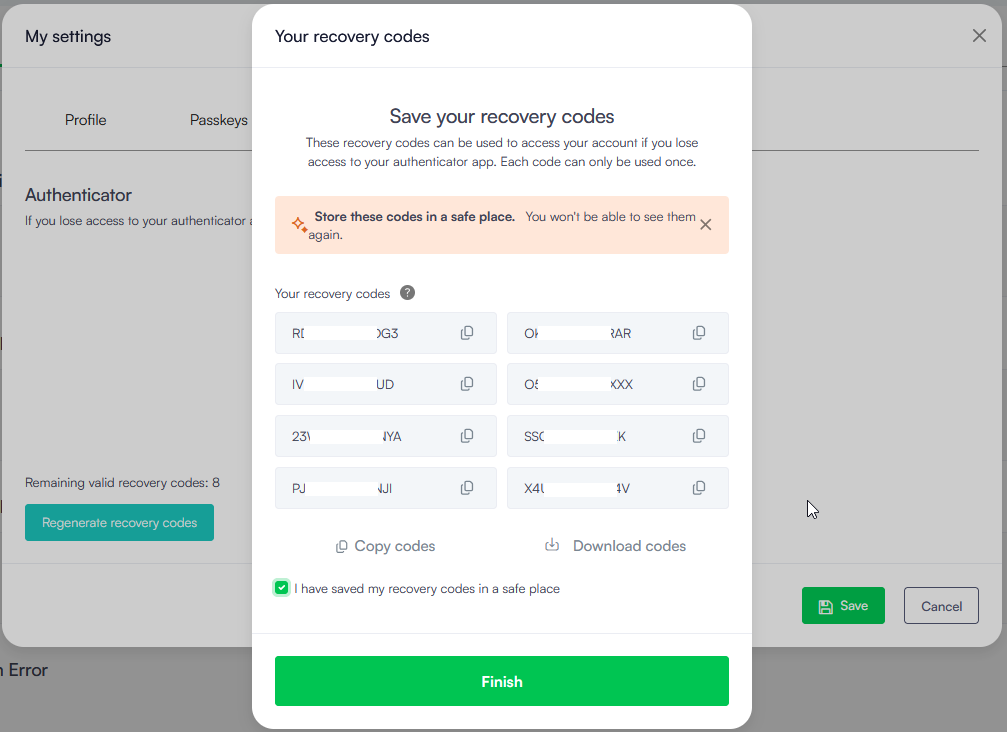
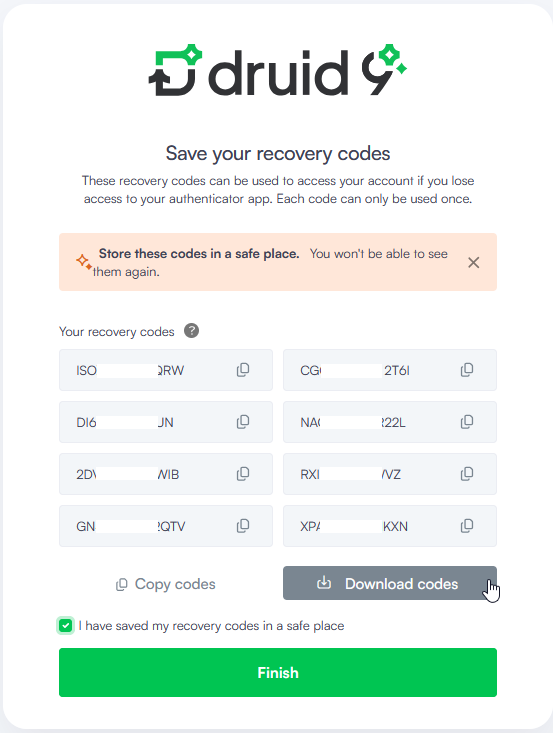
- Click Copy codes or Download codes and store them in a secure location.
- Select I have saved my recovery codes in a safe place and click Finish. Your account is now more secure.
The Save your recovery codes page will appear. These codes are crucial for gaining account access if you lose your mobile device.
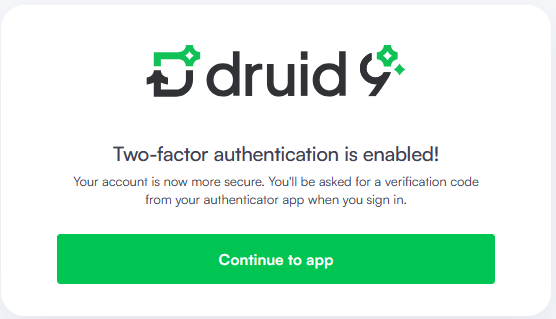
You can continue to the Druid Portal by clicking Continue to app.
At the next login, you will be asked for the user credentials, then for the verification code from your authenticator app.
Set up another authenticator app
For Druid Portal users
If you switch mobile devices or want to register a different authenticator service, you can do that from your account settings:
- Log into the Druid Portal.
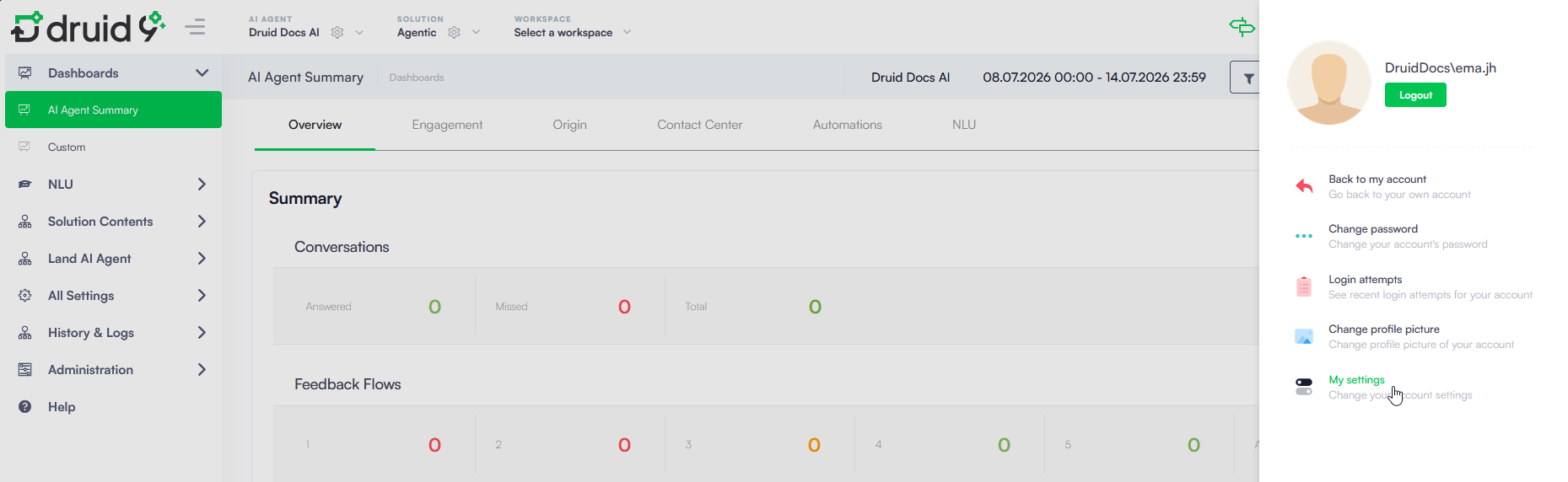
- Click your profile icon in the top-right corner and select My settings.
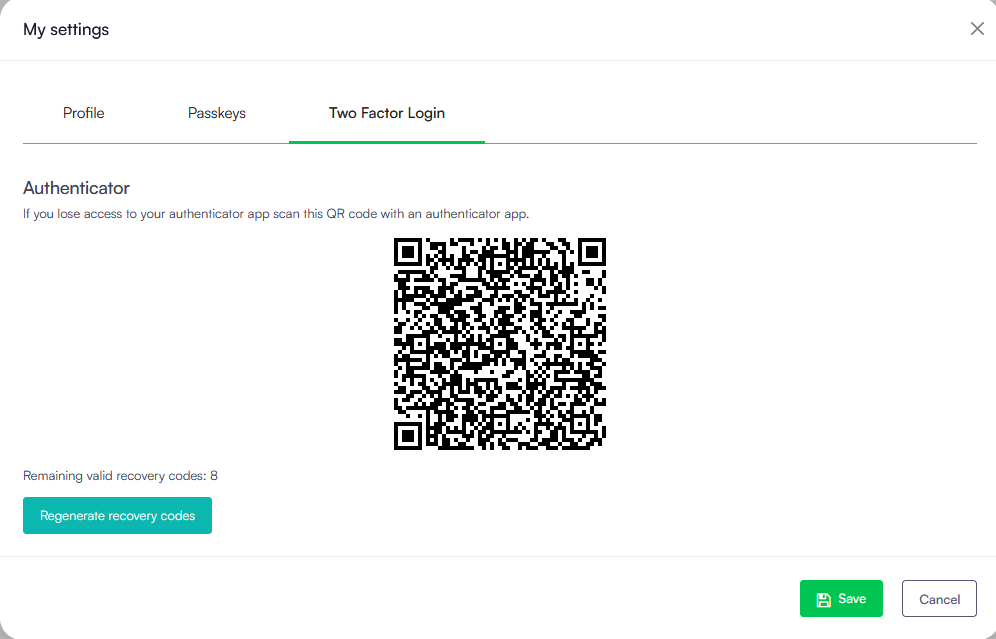
- Click the Two Factor Login tab.
- Scan the new QR code with your new authenticator app.
At next login, at the second-authentication step, use the code generated by the new authenticator app.
Generate new recovery codes
For Druid Portal users
If you have misplaced your recovery codes, or have used most of your remaining codes, you can generate a fresh set:
- Click your profile icon in the top-right corner and select My settings.
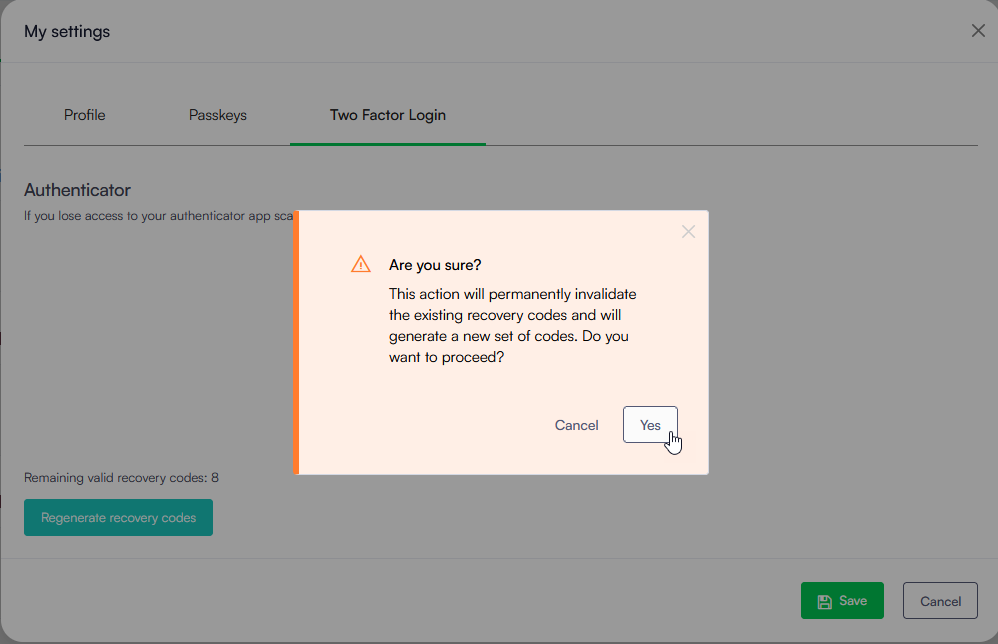
- Click the Two Factor Login tab, then click Regenerate recovery codes.
- Click Yes on the confirmation prompt to invalidate old codes.
- Copy or download your new codes and keep them safe.
- Select I have saved my recovery codes in a safe place and click Finish.
- Click Save in the My settings window to apply the changes.