Passkey Login Configuration
Starting with Druid 9.23, administrators can enable user login using a passkey. Once activated, portal users can configure their user profile to log into the Druid Portalsecurely without typing their password every time.
Admin Configuration: Enable Passkey Authentication
To allow your team to log in using passkeys, the tenant administrator must enable the option globally:
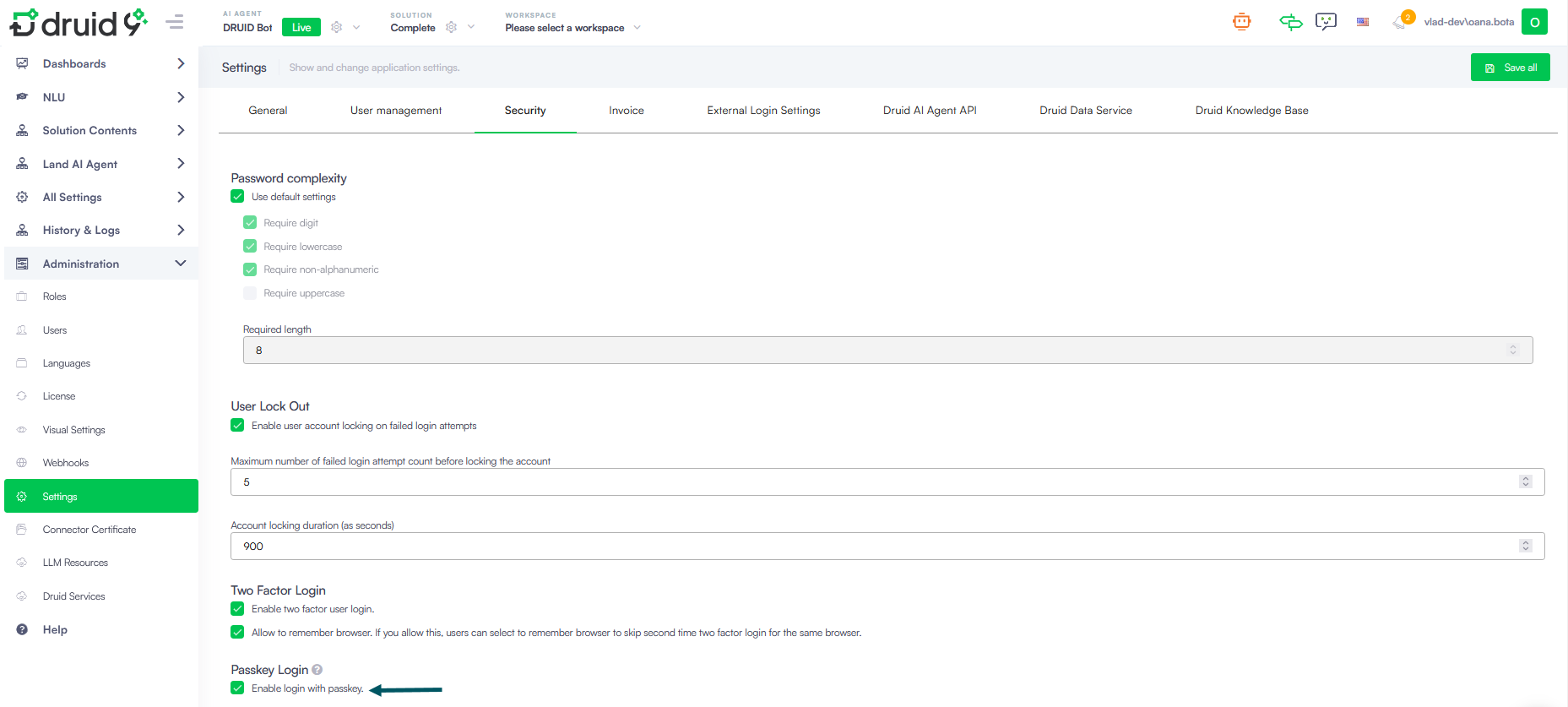
- Navigate to Administration > Settings and click the Security tab.
- Scroll down to the Passkey Login section.
- Select Enable login with passkey.
- Click Save all at the top right of the page.
User Configuration: Set Up Your Passkey
If your tenant administrator has enabled this feature, you can configure your user profile to use a passkey for future logins.
To set up your passkey:
- Log into the Druid Portal.
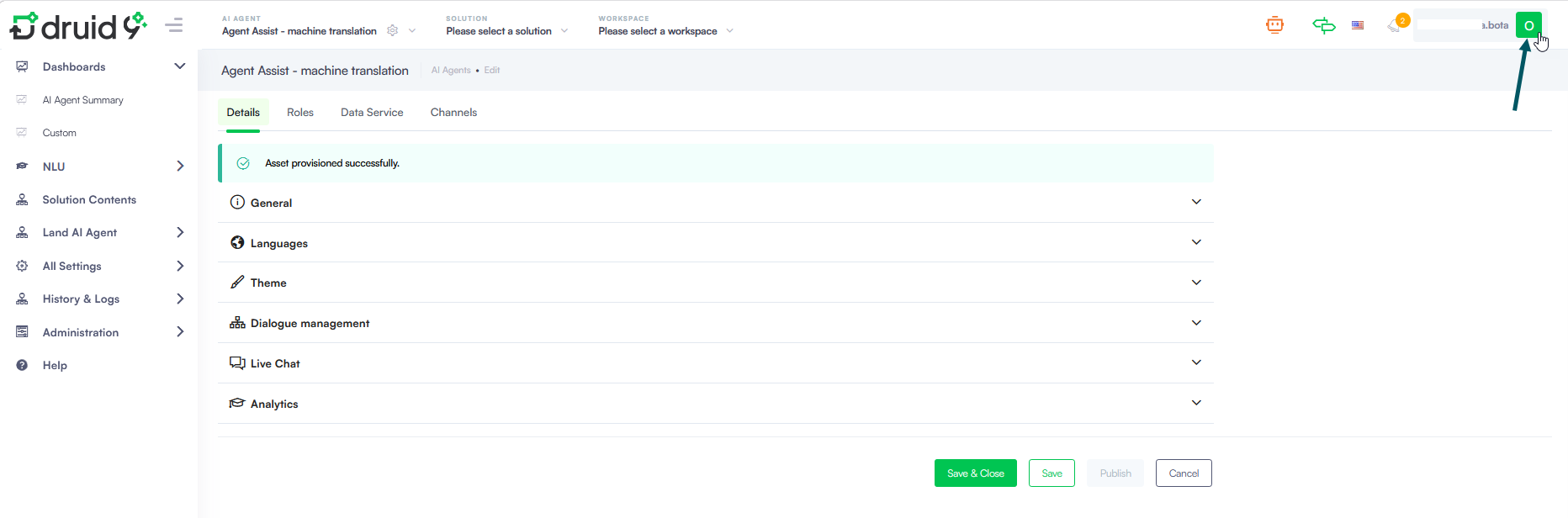
- Click on your user profile icon located in the top-right corner of the page.
- Click My Settings from the right menu.
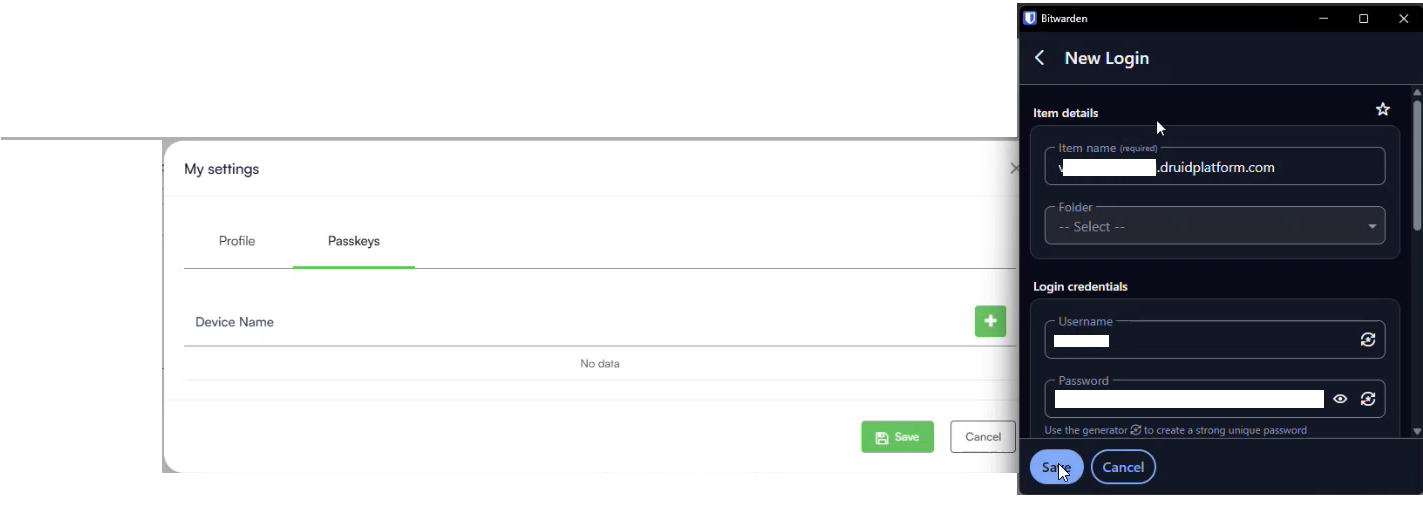
- Click the Passkeys tab.
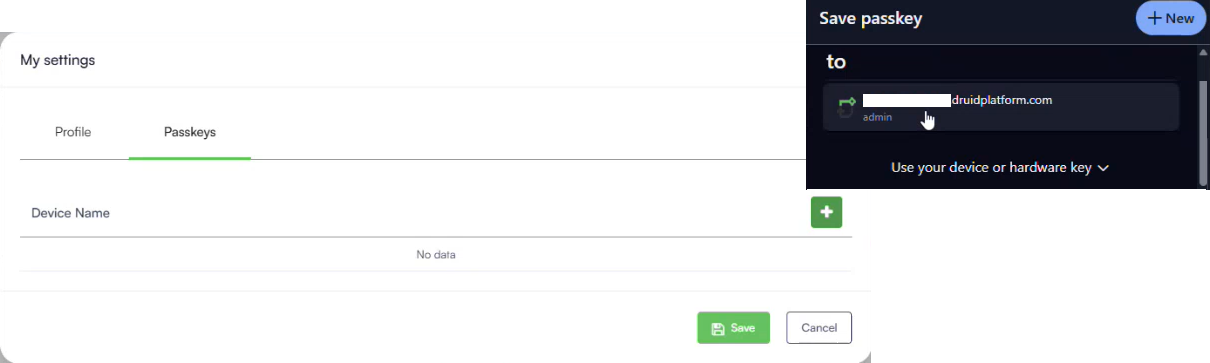
- Click the + icon. If you have multiple passkey managers installed, select your preferred manager from the system prompt; otherwise, your default manager will launch automatically.
- Choose the option to create a new passkey within your manager window. Depending on your specific passkey manager, enter your Druid Portal credentials to generate the passkey or authorize it via your device PIN.
- Click Save inside your passkey manager interface.
- Click the + icon on the Druid Portal again, and select the newly created passkey from your passkey manager modal.
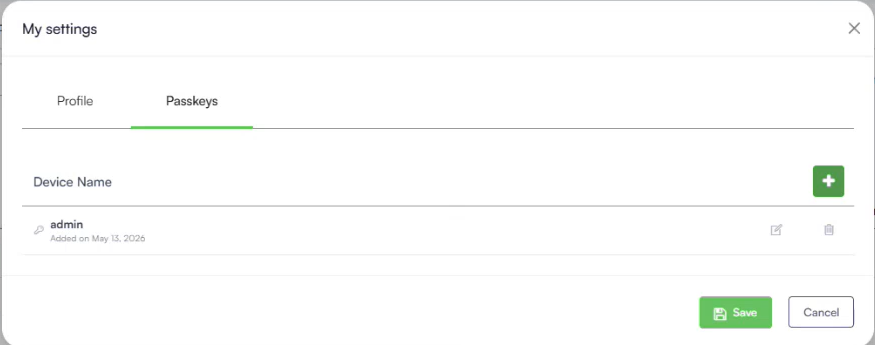
- A new device record will appear in your Passkeys tab list.
- Click the Save button at the bottom of the My settings modal to finalize the process.
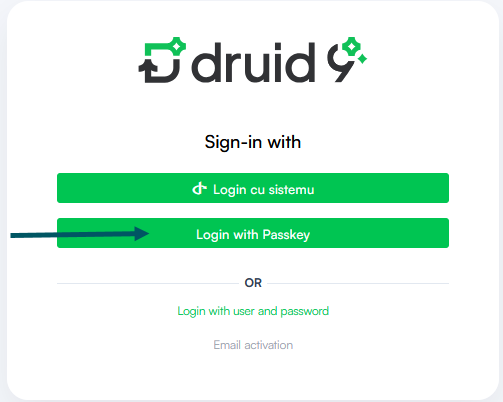
The next time you access the Druid Portal login page, you can choose to authenticate seamlessly using your passkey.