Creating Authoring Users (Portal Users)
NOTE: Only Portal admins can manage users.
To create a AI Agent author user, follow these steps:
- From the Administration menu, click Users. The Manage users and permissions page appears.
- At the top-right corner of the page, click the Create new user button. The Create user page appears.
- Provide the mandatory user information: Name, Surname, Email address and User Name.
- Optional for helpdesk agents, in the Alias field, provide a display name for helpdesk agent users. If specified, the alias is shown to customers instead of the agent's first and last name in the default system messages sent when the agent joins or leaves a live chat. If no alias is configured, the agent's first and last name are used. For more information, see Set Live Chat Special Messages.
- Tick the Is author user checkbox.
- Click the Roles tab. The page displays all security roles existing in the Platform (default roles and the ones you created to accommodate your specific needs, if any). The User role is automatically selected.
- Select the Admin role or another security role you created for your specific use case.
- The default security role, Admin grants the authors with access privileges to all Druid Portal features and all AI Agents.
- Is author user is only a user attribute, it is NOT a role. By default, it lists the specific user in the list of all users without the need to select the Show Chat Users option. The Users list only displays the author users by default, do differentiate them from chat users.
- Click the Save button. The AI Agent author appears on the Users page.
Info: The Alias field is available starting with Druid 9.27.
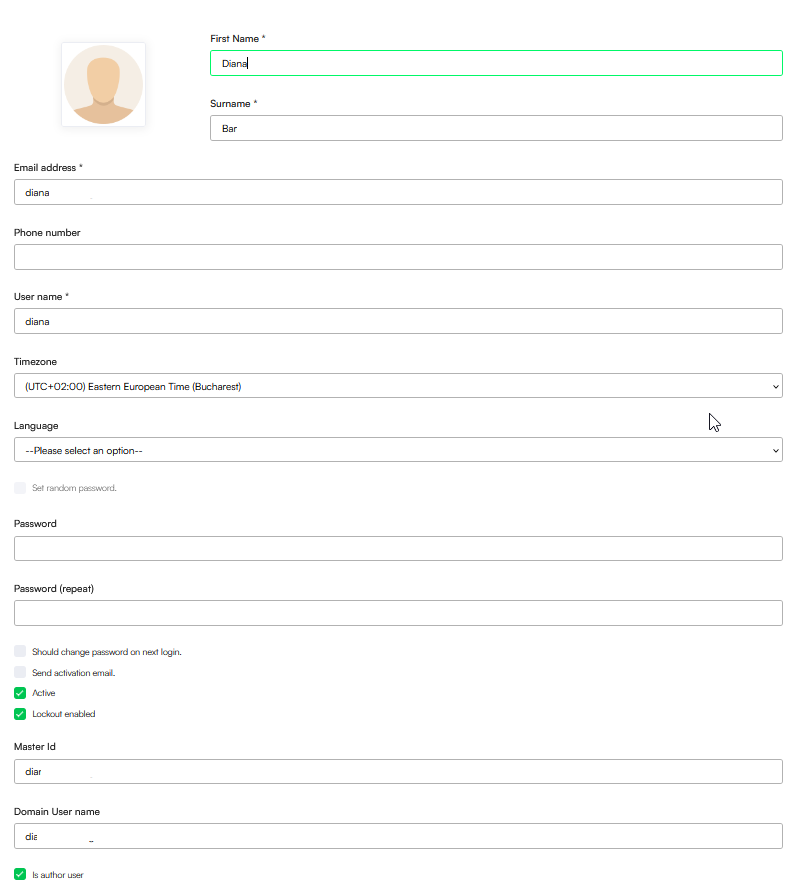
If you want to set a specific password for a user, untick Set random password and type and retype the desired password.
For security purposes, we recommend you to Set random password and also ask the user to change the password on the first login (leave Should change password on next login ticked).
NOTE:
The AI Agent author can now log in the Druid Portal and access specific Portal elements based on the assigned security role. If you want to restrict AI Agent author access to a specific AI Agent or even to specific elements of a specific AI Agent, you can do so by using a Role-based Access Control (RBAC) policy.