AI Agent Authoring Privileges via RBAC Policy
Using Role-based Access Control (RBAC) policies you can grant authors access privileges to specific elements on AI Agent level: AI Agent Security, AI Agent Settings, Connector Action, Connector List, Conversation History, Document Template, Entity, Flow or Live Chat Settings.
To grant authors specific privileges for a specific AI Agent:
- Go to All Settings > AI Agents.
- Select your AI Agent.
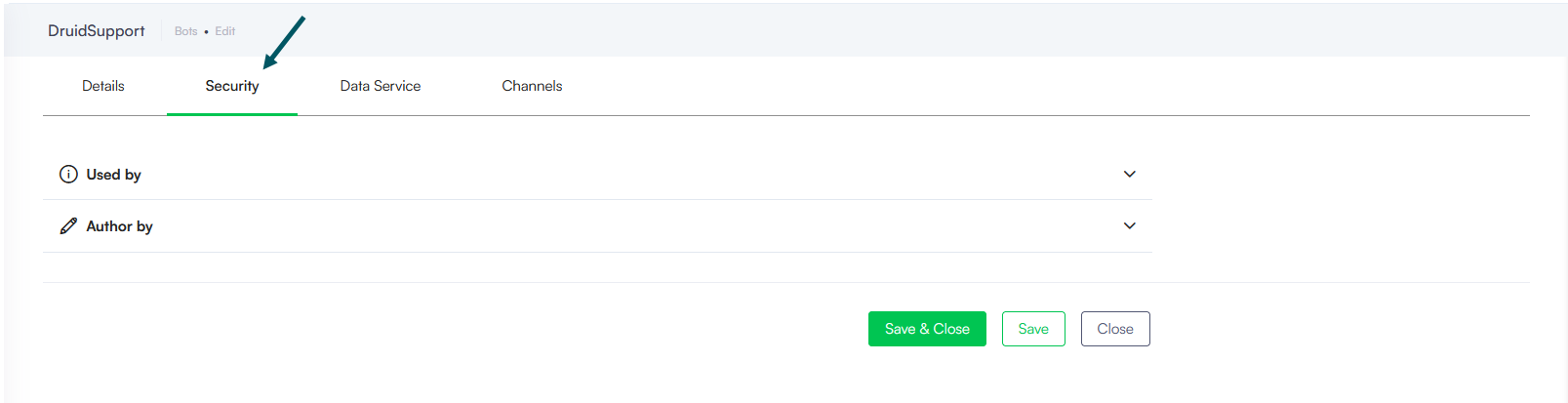
- Click the Security tab.
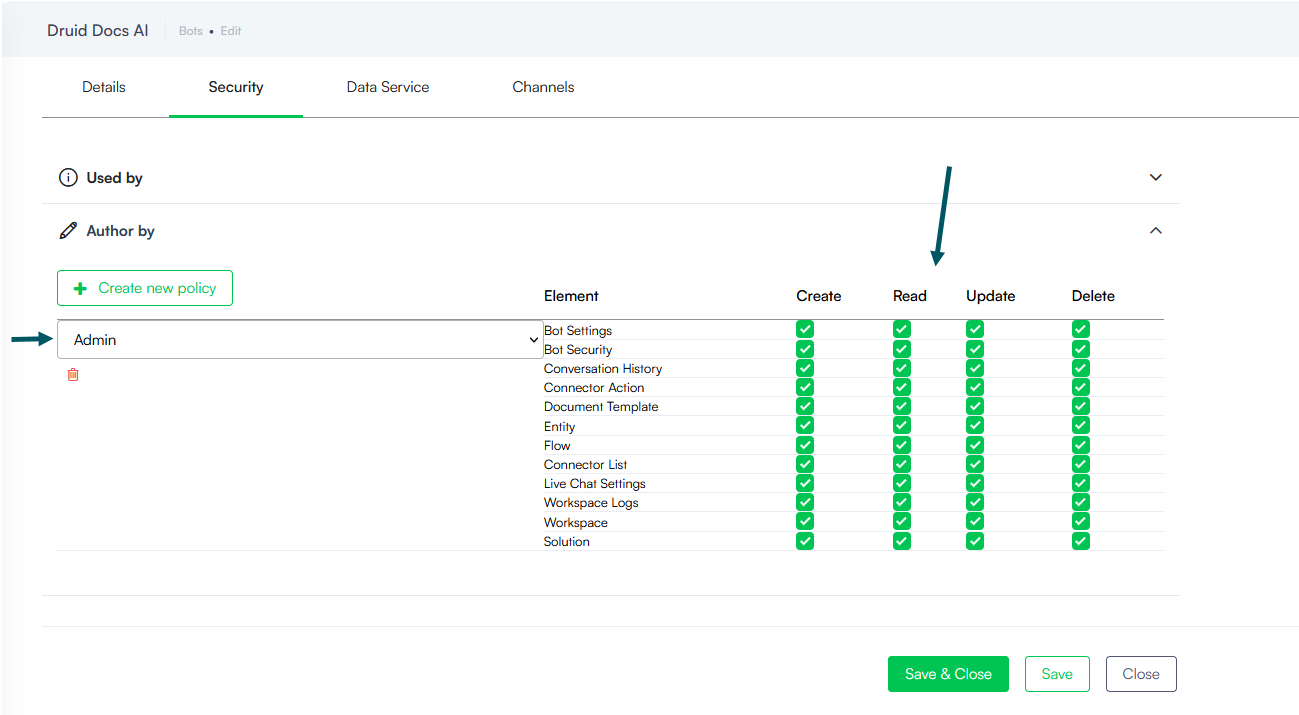
- Click the AuthorBy section header. The section expands.
- Click the Create new policy button.
- From the dropdown, select the security role.
- Set the access privileges to different elements based on your use case.
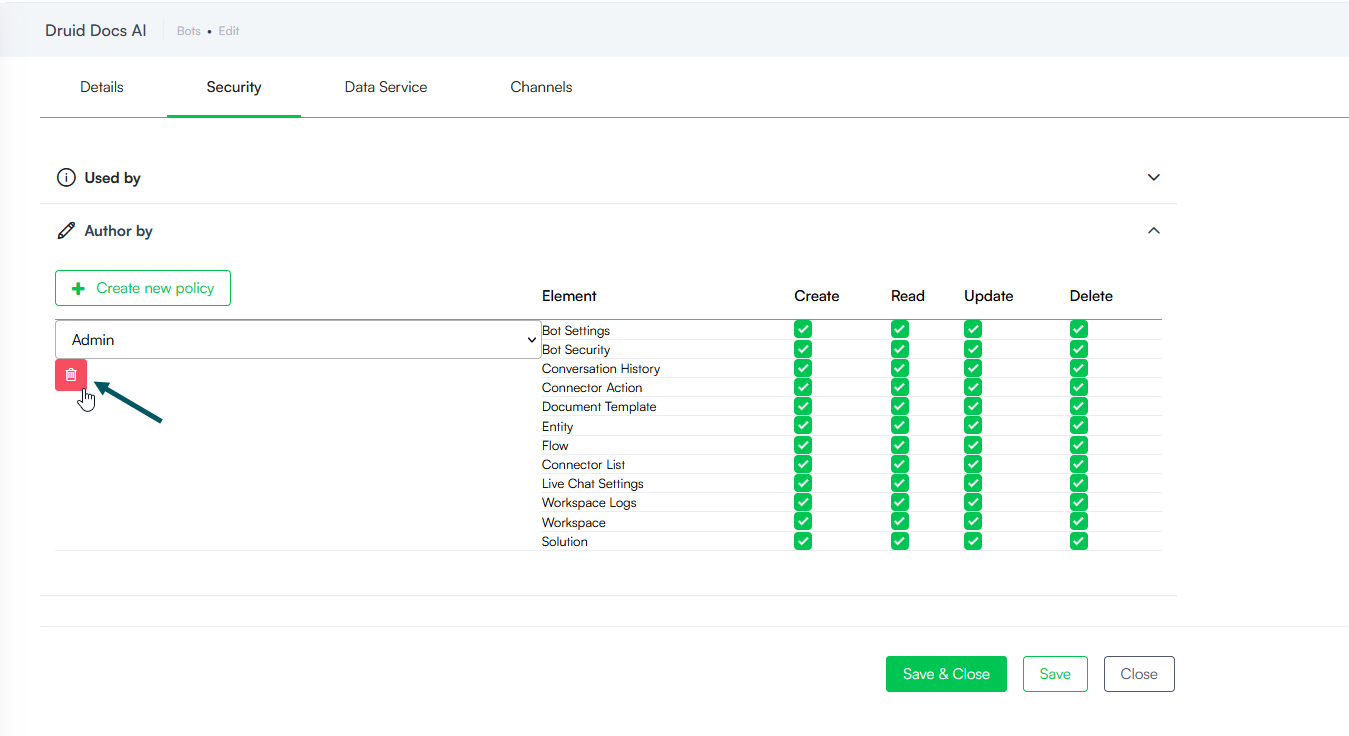
To remove an RBAC policy, click the delete icon below the security role dropdown.
After you finish creating all needed RBAC policies, click the Save & Close button. At next login, the authors who have been assigned with the security role specified in the RBAC policy, will have access permissions on the AI Agent as specified in the RBAC policy.