Druid Connector Host High Availability
DRUID allows you to deploy the Druid Connector Host in a high availability (HA) scenario, enabling load balancing by running multiple Connector Host instances in parallel for your tenant. If you are using multiple Connector Host instances, they automatically sync their configuration, operate concurrently, and can independently handle specific requests.
For this setup, all Connector Host instances must connect to the same shared Conversation History Database and shared drive for file storage on your network. These components must be accessible to all virtual machines (VMs) where the Connector Hosts are installed.
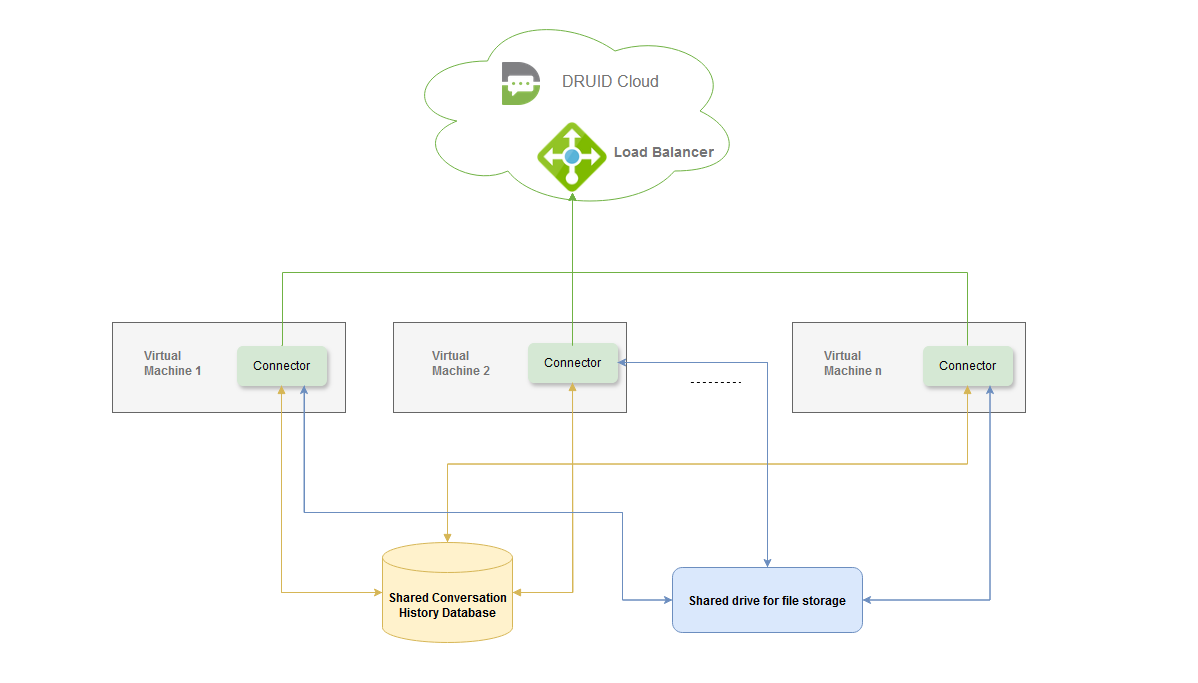
To install Connector Host in the high availability scenario (on multiple machines), follow these steps:
Step 1. Install the connector Host on premise on multiple machines
Install the Druid Connector Host on multiple machines following the installation procedure.
Step 2. Configure a shared storage in your network
Configure a shared storage in your network, {{SHARED- FOLDER}} which should be read and write available for all Linux machines.
Step 3. Configure the high availability setting
On each Linux machine, edit the file /opt/Druid/dc.files/docker-compose.yml as follows:
- Modify line
- CONNECTIONCONFIG DOCGENERATORCONNECTION ROOTFOLDER=/apps/Druidconnector/App_Data/filestorageand change to- CONNECTIONCONFIG DOCGENERATORCONNECTION ROOTFOLDER=/apps/Druidconnector/filestorage. - In section /services/Druidconnector/environment, add the line
- CONNECTOR_HOST_HA=1. - In section /services/Druidconnector/volumes, add the line
- {{SHARED-FOLDER}}:/apps/Druidconnector/filestorage:Z. - Recreate container:
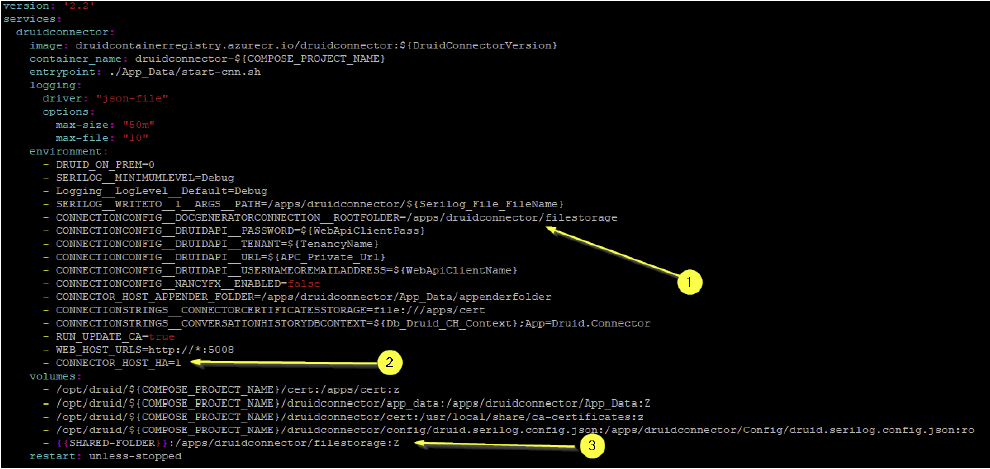
{{SHARED-FOLDER}} with its actual value.
On DEV environments
cd /opt/Druid/dc.files
docker-compose --env-file dev.env
down docker-compose --env-file dev.env up -d
On PROD environments
cd /opt/Druid/dc.files
docker-compose --env-file prod.env down
docker-compose --env-file prod.env up -d