Conversation History
The Conversation History section provides a comprehensive log of all interactions between users and AI Agents. This tool is essential for auditing conversations, troubleshooting flow logic, and gaining insights into user behavior.
Access Conversation History
To view the conversation history of an AI Agent:
- Select the AI Agent.
- From the History & Logs menu, click Conversation History. The Conversation History page appears.
Conversation History Overview
The Conversation History page displays a list of conversation sessions, which you can organize and filter to find specific data:
-
Filters. Narrow down the history by Date range, Activity Events (AE), Correlation Id, and Conversation Id. Click More filters to access advanced criteria like specific channels or users.
-
Group by Interaction. Bundles messages into distinct sessions based on user activity. Use it to view the Conversation transcript, the conversation path in a tree view and detailed conversation activity insights. Grouping activities by conversations enables you to view per conversation the start and end time of the conversation, duration time and how many turns (message exchanges) the conversation had. It also provides you with an overview of all activities registered throughout the conversation. This option allows debugging messages directly in the flow editor.
-
Show all Messages. Provides a flat list of every individual message sent within the selected parameters. Use it to debug the flows and flows steps in the Flow Diagram by clicking on the desired flow name or flow step name.
Filter conversation history data
Druid provides you with various filtering options. The following filters are available to debug your conversations:
When you access the Conversion History, only 4 filtering options are shown on the page.
|
Filter option |
Description |
|---|---|
|
Date range |
The time interval from which you want to show conversation history data. |
|
Activity Events (AE) |
This filter allows multiple selection. The following activity events are available:
If you want to select see all activity events, select All Activity events. NOTE: Connected with Agent and Transfer to agent failed are available only for activities grouped by conversations.
|
|
Correlation Identifier |
Each message sent by the AI Agent or by the user, has a corresponding correlation ID. You can use the correlation ID to debug a specific message. |
|
Conversation Id |
Shows details of the specific conversation associated with the provided Id. NOTE: On a conversation Id there can be more activity events.
|
 – There were no errors during the conversation.
 – The
– The  - The number of inputs that don't match the flow step validation criteria, hero or choice steps. The
  – The number of messages where inside a dialog the user input was not the one the
  – The client tried performing an action for specific permissions are required (e.g., a user who doesn’t have the Manager security role assigned tries accessing a flow which has set the Manager security role set).
 – The client connected with an
  – There were integration errors during the conversation.
 – During the conversation, transferring a waiting client to an
  - The message was sent outside working hours. This event is available in Druid 8.3 and higher.
To see more filtering options, click the More filtersbutton. The following additional filters appear:
|
Filter option |
Description |
|---|---|
|
User |
The name of the user. |
|
Flow |
The name of the flow. NOTE: You can filter the conversation history of a Druid Conductor by a specific flow that belongs to an orchestrated AI Agent, first select the child AI Agent from Orchestrated AI Agents and then, select the desired flow.
|
|
Channel |
The channel used by the user to AI Agent with the AI Agent. |
|
Agent Name |
The name of the agent. |
|
Context Data |
Filter by information stored in the entity [[ChatActivityData]]. This filter applies only to activities grouped by conversation. |
|
Origin URL |
The base URL of the webpage where the web chat is hosted. |
|
Analytics tag |
The tag set on a flow in section Analytics. |
|
Path Name |
The full path to the web page from which the user initiates the chat. |
| Connected AI Agents |
To debug only the conversations that were triggered from a Druid Conductor, from the Orchestrated AI Agents filter, select the Druid Conductor and click Apply. |
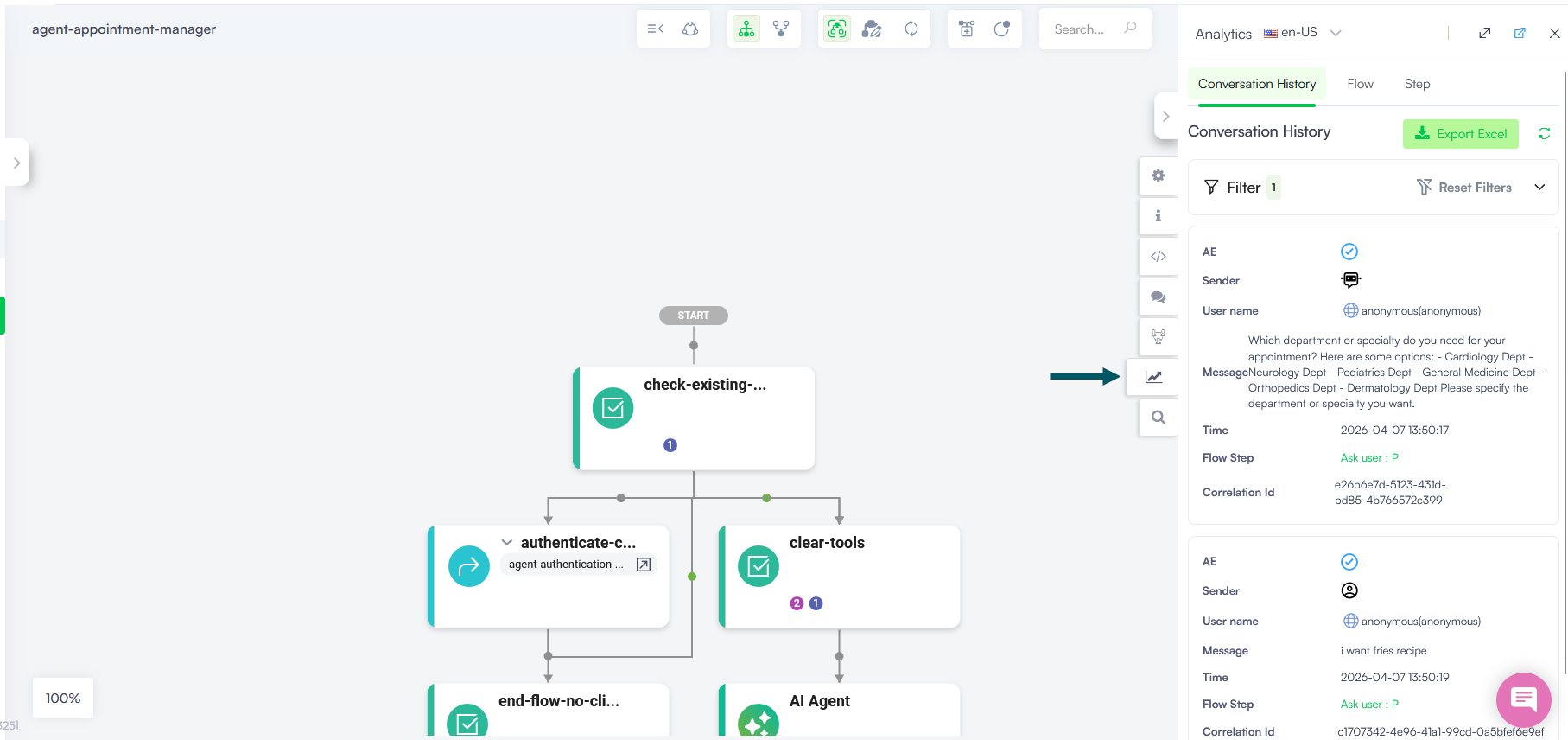
Flow-level Conversation History
In addition to the global conversation history, you can access logs specific to a single flow. This is particularly useful for analyzing how users interact with a specific piece of logic or identifying where a particular flow might be failing.
To access the conversation history from a flow:
-
Select the AI Agent and solution.
-
Go to Flows and select the specific flow in the Flow Designer (diagram view).
-
From the Actions menu, select Analytics.
The system will display the Conversation History filtered automatically for that specific flow, allowing you to see every interaction that triggered those specific steps.
Exporting Conversation History
You can extract conversation data for external analysis, reporting, or auditing by using the Export Excel button from both global and flow-level Conversation History.
To export the conversation history:
- Use the filters to isolate the data you wish to extract.
- Click the Export Excel button located at the top right of the page.
An Excel file containing the logs will be downloaded automatically to the default download folder on your PC.
The exported Excel file contains two sheets:
- The first sheet provides a granular view of the interaction data, including:
- AI Agent Name & User Name. Identifies the AI Agent involved and the user (e.g., admin or anonymous).
- Channel Id. Specifies the communication platform (e.g., directline, webchat).
- Message & Language. The exact user input and the NLU-detected language.
- Status & Score. Technical match details (e.g., SingleMatch) and the confidence score.
- Flow Details. Identification strings for the specific flows triggered (e.g., Flow1 Id, Flow1 Name).
- The second sheet provides details on who and when downloaded the log file, from which tenant and for AI Agent.
Exporting interaction
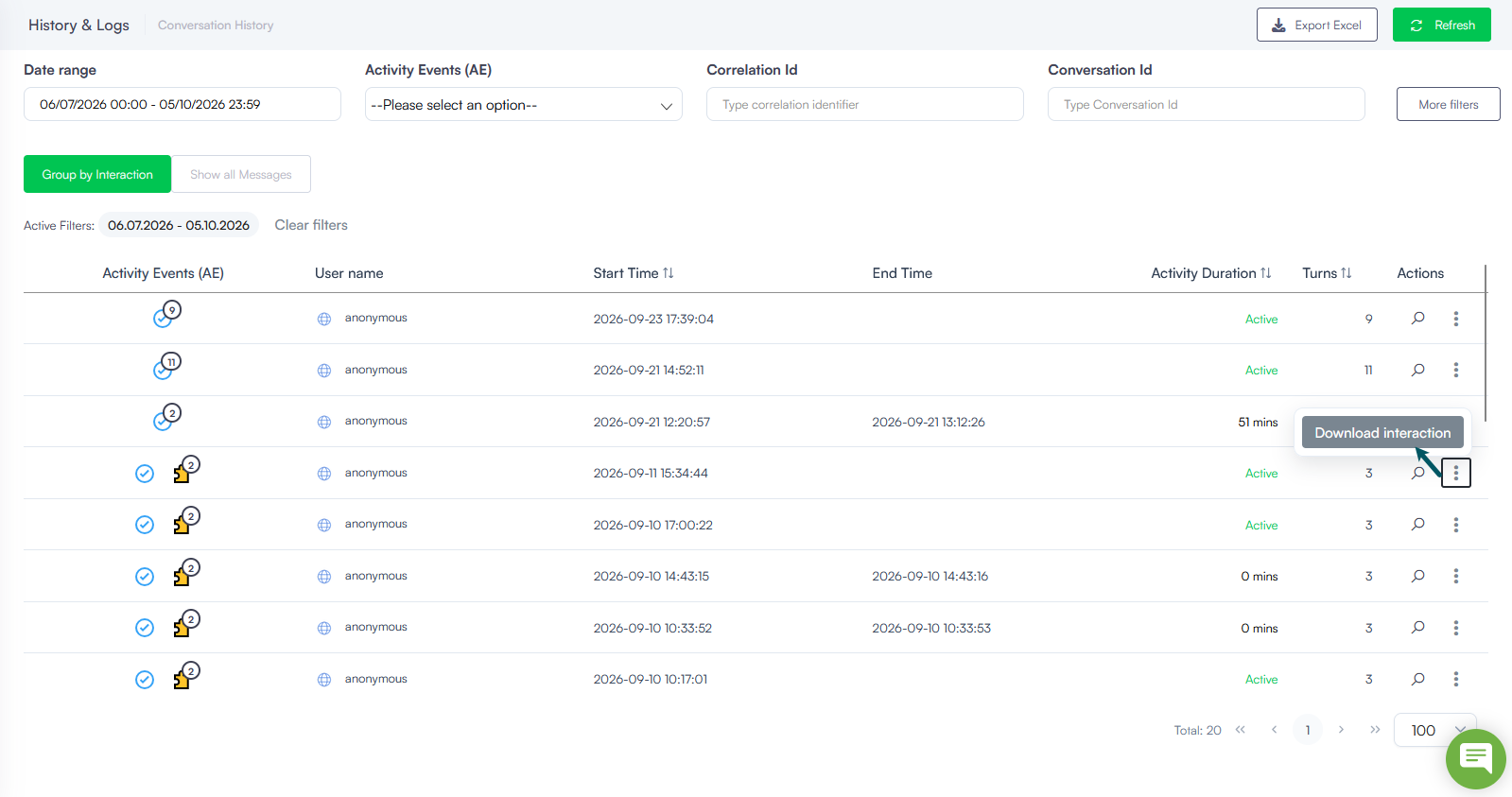
You have granular export controls on the conversation history when it is grouped by interaction. You can export the conversation history for a single interaction into an Excel file.
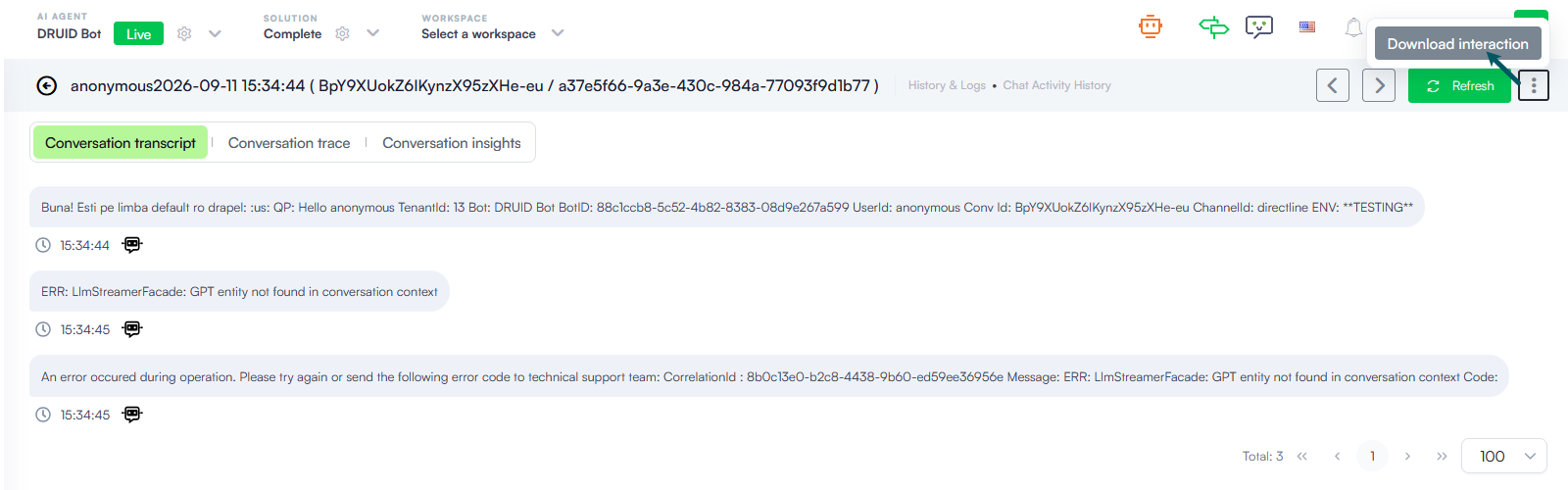
You can download an individual interaction in two ways:
- From the Conversation History page. Navigate to History & Logs > Conversation History, switch the view to Group by Interaction, locate the desired interaction, click the Actions icon in line with the entry, and select Download interaction.
- From the Conversation details page. Open a specific interaction's details view, click the Actions icon in the top right corner, and select Download interaction.
The downloaded Excel file contains the following sheets and data:
- Messages Sheet. Contains the granular transcript and metadata for each turn in the conversation, including columns such as:
- User Name, Bot Name, and Channel Id
- Conversation Id and Activity Id
- Date (timestamp of the message)
- Flow Name, Flow Step Name, and Flow Step Type
- Message text and Sender (User or Bot)
- Status (e.g., NoError, IntegrationError) and Correlation Id
- Tenant Name, User First Name, User Last Name, and User Email
- Information Sheet. Provides summary metadata about the export report itself, such as:
- Exported by (username and timestamp)
- Tenant, Bot, and Channel filters applied
- Conversation Id, Message Status, and the Date Range selected during export