Annotation Tool
DRUID Annotation Tool helps authors leverage the NLU model of their AI Agents based on real conversations with the users. This tool helps authors to use actual “real-life” AI Agent conversation as data source for improving the AI Agent NLU model, in a new single user-friendly interface.
IMPORTANT! This feature is available for DRUID Connectors v1.45 or above. If you have a hybrid or on premise DRUID deployment, install DRUID Connector Host version 1.45 or above.
The Annotation tool enables authors to:
- View the AI Agent conversation history in a specific date range.
- Filter the conversation history based on annotation statuses and accuracy scores.
- Get insights on the accuracy score for all messages in the conversation history.
- Use messages from Conversation History as training phrases on desired flows (new or existing ones) and add them to train or test sets.
How to use the Annotation Tool
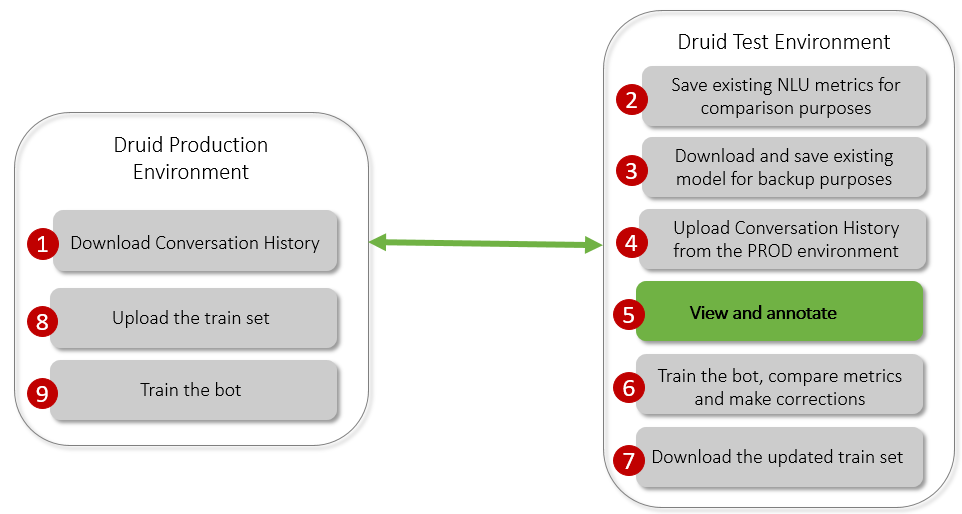
- Go to your DRUID production environment.
- Select the AI Agent and solution and from the main menu, click Evaluation. Click the Conversation History tab.
- Filter the conversation history. DRUID provides you with several options to filter the conversation history. For more information, see Viewing Conversation History.
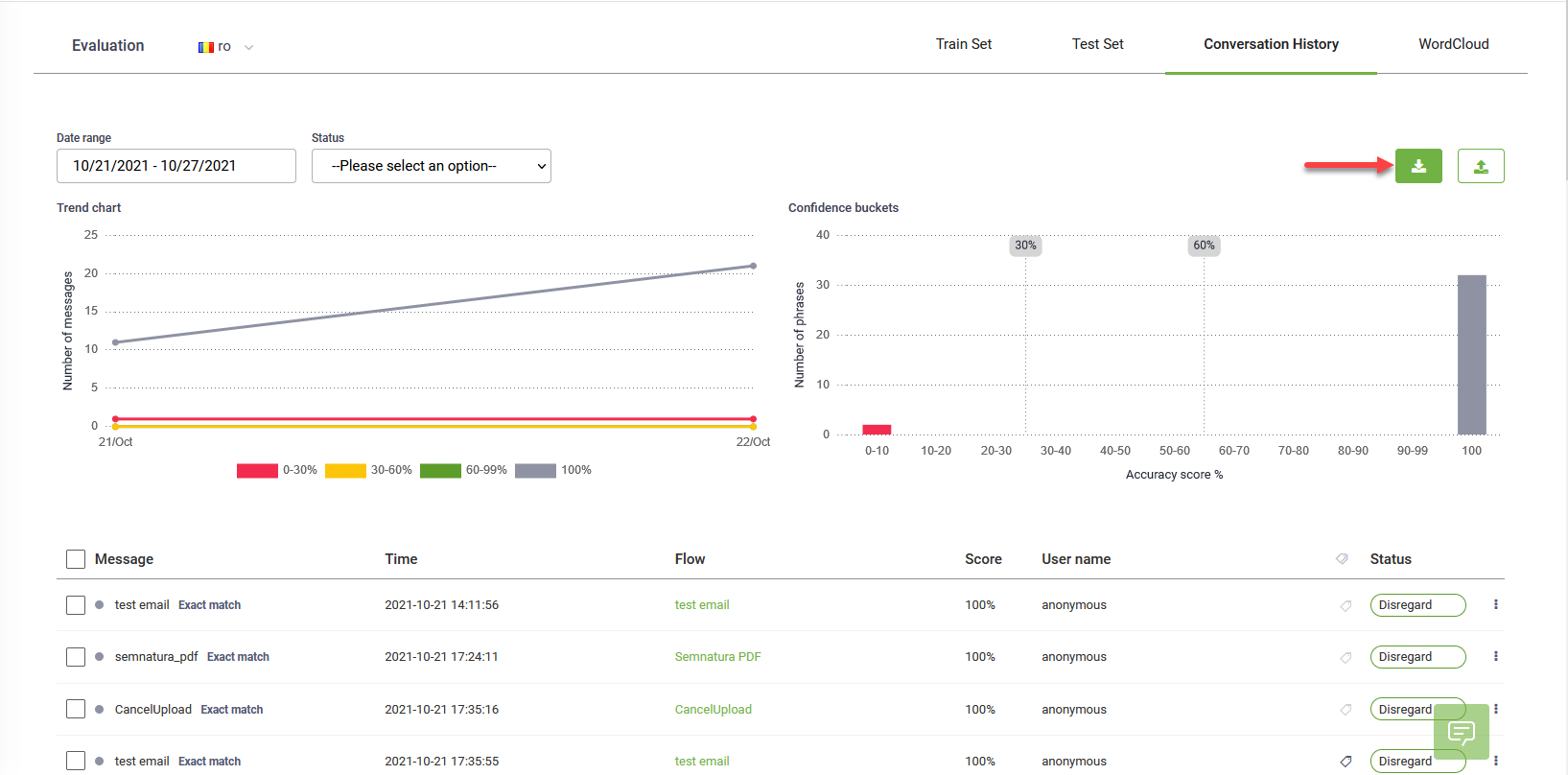
- At the top-right corner of the page, click the Download icon (
 ).
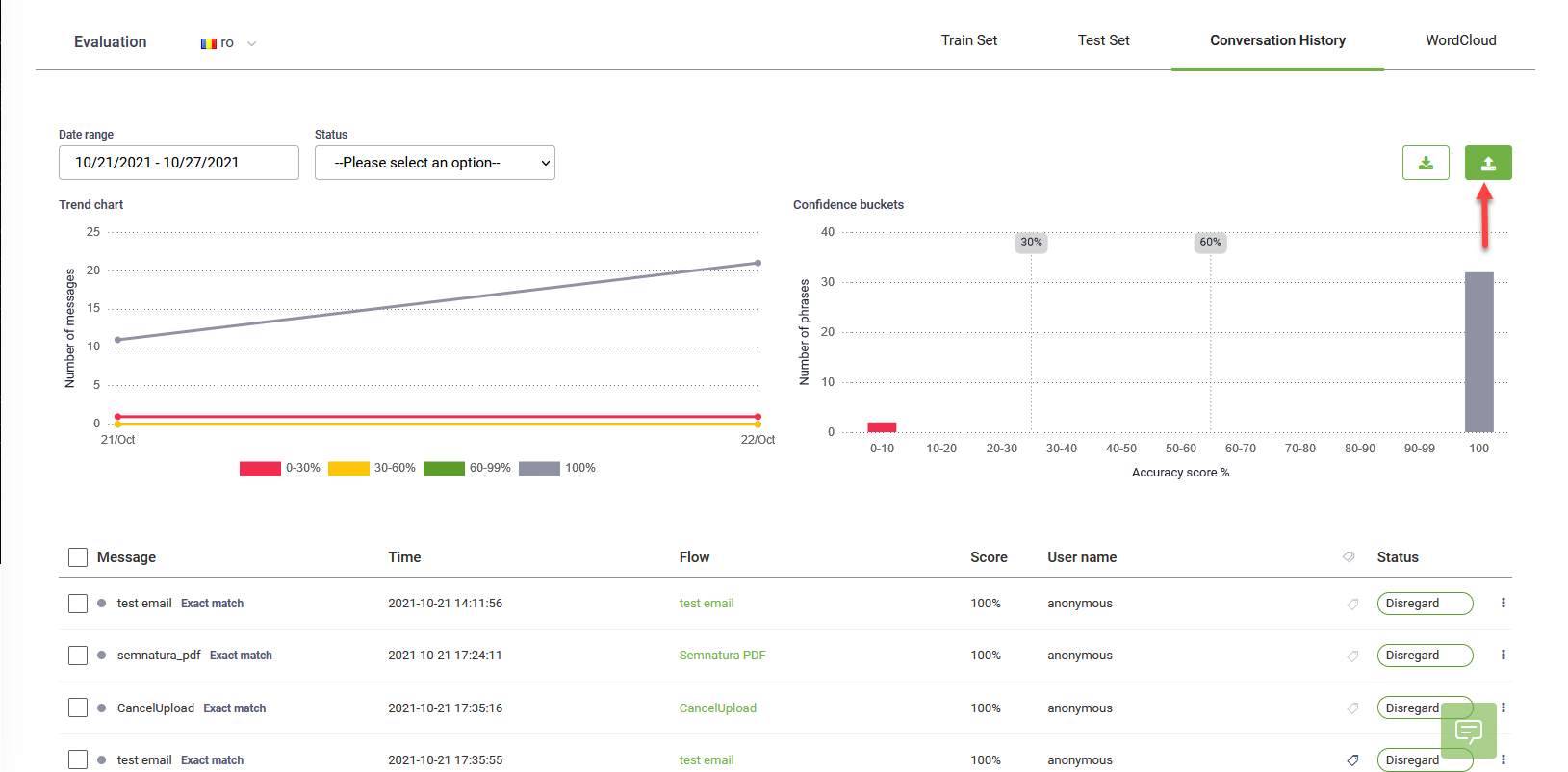
).
- On your DRUID test environment, select the AI Agent and solution and from the main menu, click Evaluation. In the Train Set tab, evaluate the existing general metrics of the AI Agent training model.
NOTE: For backup purposes, we recommend you to download the AI Agent train set.
- Click the Conversation History tab.
- Upload the conversation history file you downloaded from the production environment.
- Annotate the data based on your needs (add intents from conversation history as new training/test phrases). For more information on how to annotate messages in the Conversation History, see Viewing and Annotating.
- Click the Train Set tab and train the AI Agent by clicking the Train button.
- Compare the general metrics of the AI Agent training model with the ones prior the conversation history upload.
- Once the new metrics satisfy your needs, download the train set.
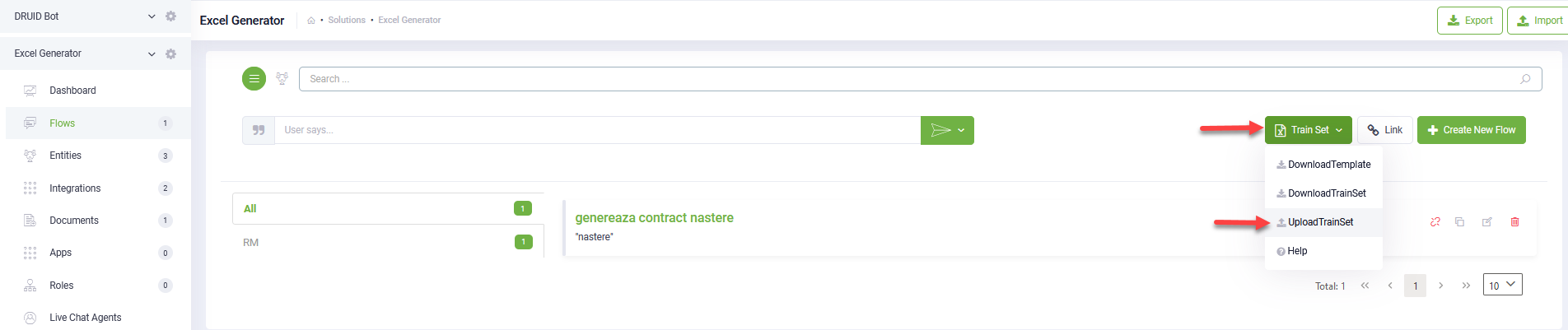
- Go back on the production environment and select your AI Agent and solution, click Flows and upload the train set.
- Train the AI Agent.
Info: If the new metrics are worse than the previous ones, make the necessary corrections using DRUID’s available evaluation tools.
 Related Topics