NLU Intents Classification
Configure how the system identifies user intents based on input text. You can choose between multiple classification models, depending on your use case and accuracy requirements.
Accessing Intent Classification Settings
- On the main menu, navigate to NLU > Configurations.
- Click the Intents tab.
- Click on NLU intent classification to expand the section.
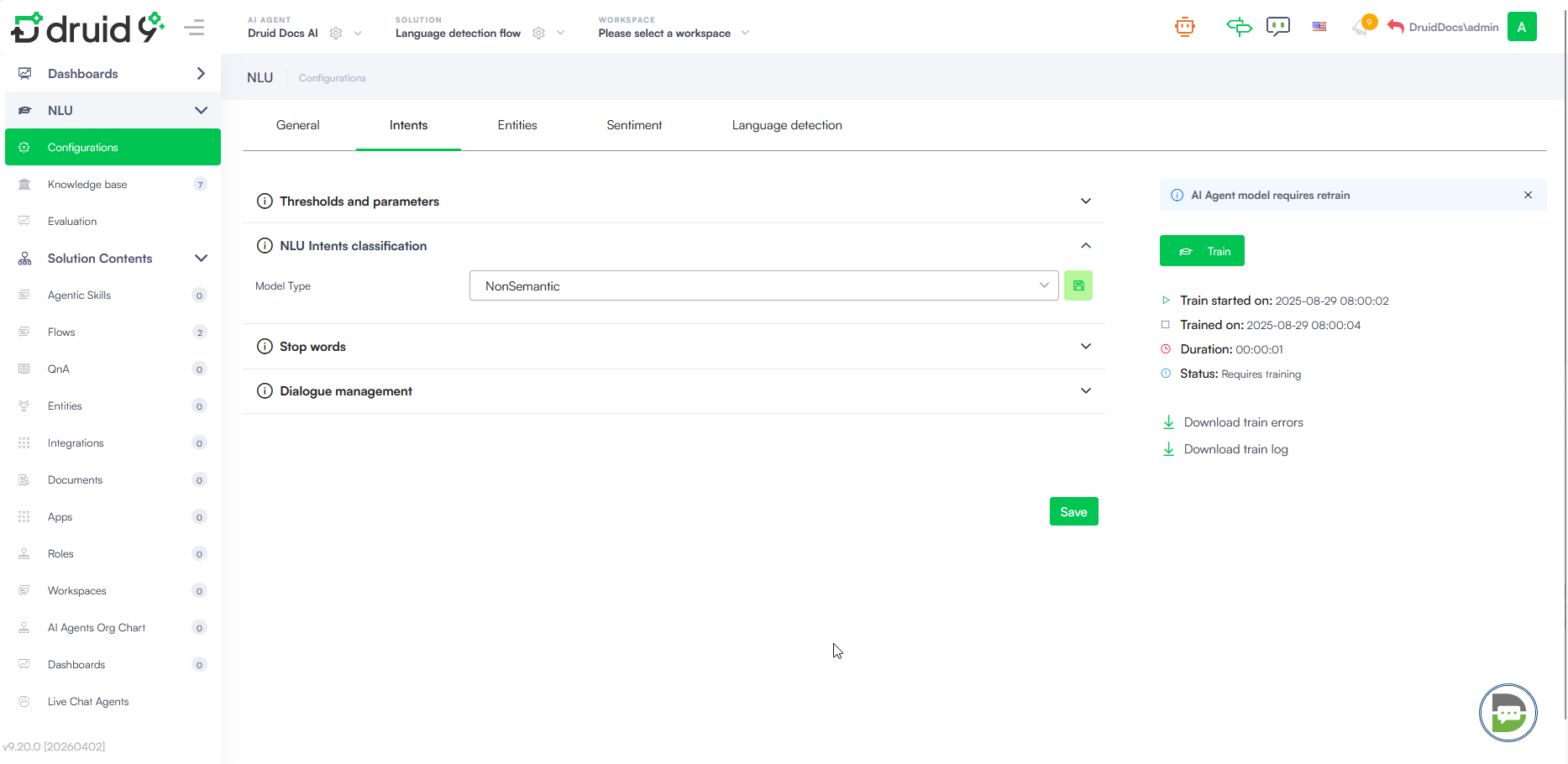
Model Type Selection
The Model Type dropdown allows you to choose the underlying engine for classifying user intents. The available options include:
- Non Semantic - A standard model that does not consider the semantic meaning of words. It uses traditional keyword and pattern matching.
- Semantic - Uses a pre-trained Transformers model that understands word meaning in context. This model offers higher accuracy and is ideal for large datasets. For more information, see Natural Language Understanding.
- Semantic Torch - An advanced semantic model optimized for specific NLP performance requirements.
- LLM - Leverages Large Language Models for high-accuracy intent recognition.
After you select the model, click the save icon next to the dropdown.
Configure LLM-based classification
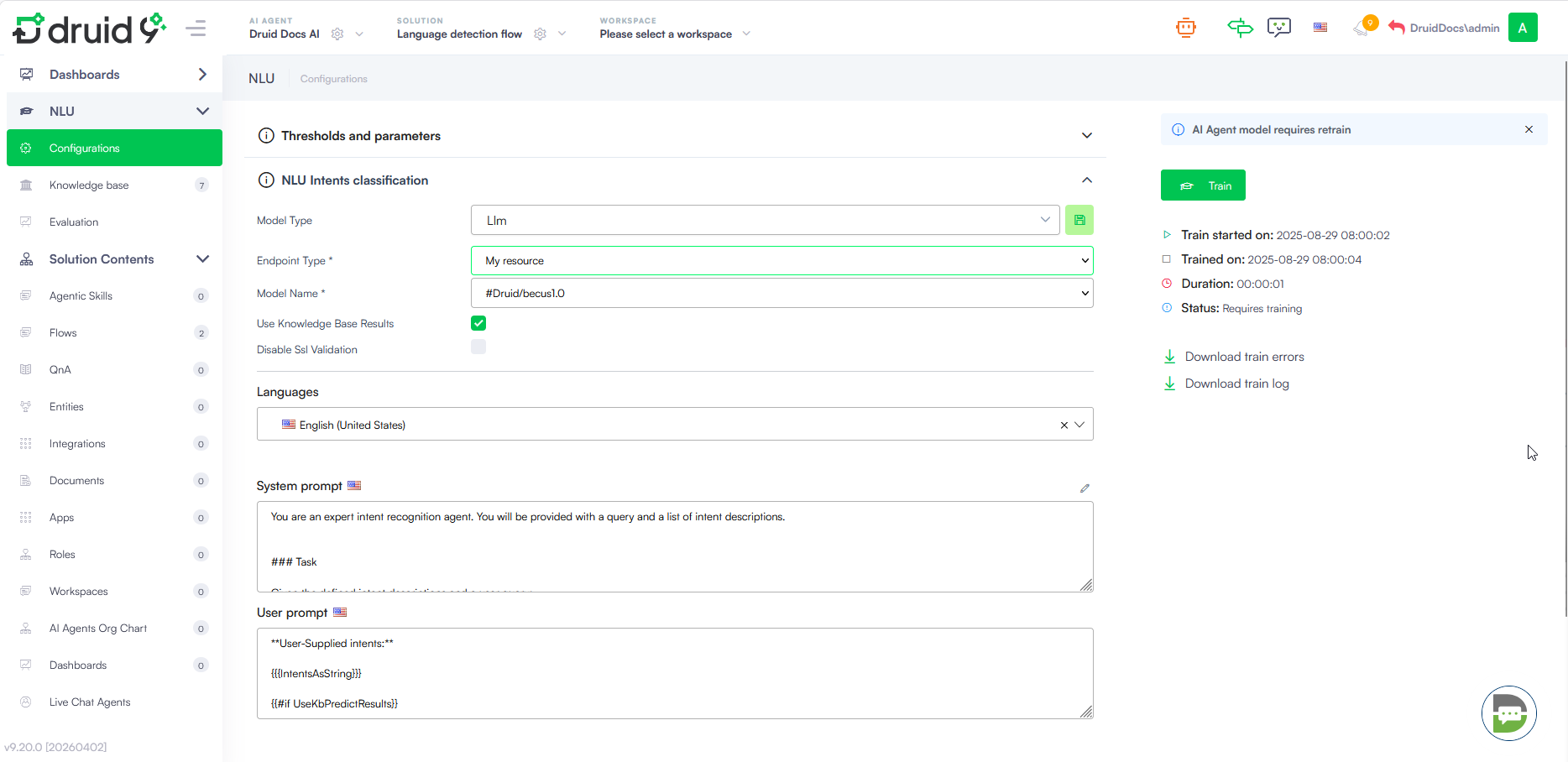
When you select Llm as Model Type, additional configuration fields appear to establish the connection with your LLM provider.
| Field | Description |
|---|---|
| Endpoint Type | Define the connection protocol (e.g., My resource). |
| Api Type | Select the API architecture (e.g., Chat Completions). |
| Client Type | Specify the provider (e.g., AzureOpenAi). |
| API Url | The endpoint URL provided by your LLM service. |
| API Key | The authentication key for the service. |
| Model Name | The specific deployment or model name (e.g., gpt-4). |
| Use Knowledge Base Results | Toggle to include internal knowledge base data in the classification context. |
| Disable Ssl Validation | Use only for specific internal testing environments where SSL certificates are not verified. |
How It Works
When NLU intents classification with LLM is configured, the system leverages a LLM for intent classification using two key prompts:
- System prompt: Instructs the LLM to classify a user query by scoring provided intents based on relevance, adhering to strict JSON formatting and predefined scoring rules while considering both user-supplied and system intents.
- User prompt: Provides the intent list and user query, ensuring the model has the necessary context for classification.
Instead of relying solely on manual rules, the LLM determines the correct user intent by analyzing three key flow components:
- Flow Name
- Description LLM (the technical instructions and context provided for the model)
- Training Phrases (the sample utterances mapped to the flow)
By automatically learning from these elements, the model reduces the manual classification effort while providing a more nuanced understanding of user queries.
Supported LLM providers
You can choose from the following large language model (LLM) providers:
- AzureOpenAI
- OpenAI
- Mistral
- Mesolitica – MaLLaM - This LLM provider is available in DRUID 9.1 and higher.
- AWS Bedrock - This LLM provider is available in DRUID 9.5 and higher. Contact your DRUID representative to activate it on your tenant.
DRUID-dedicated LLM resources
- Druid Becus 3.0 / 1.0 (Proprietary LLM)
- Azure OpenAI - gpt-4o-mini
-
AwsBedrock - mistral-large-2407-v1:0,
-
AwsBedrock - Claude 4.5 Haiku, Claude 4.5 & 4.6 Sonnet, Claude 4.6 Opus (Druid 9.20+)
- Google Vertex AI
If you want to use Druid-dedicated LLM resources, contact your sales representative to activate them for your tenant.
Configure NLU Intents Classification with LLM (previous versions)
 In Druid 9.11 to Druid 9.19
To configure NLU intents classification with LLM, follow these steps:
- Navigate to NLU > Configurations > Intents tab.
- Click on Thresholds and parameters.
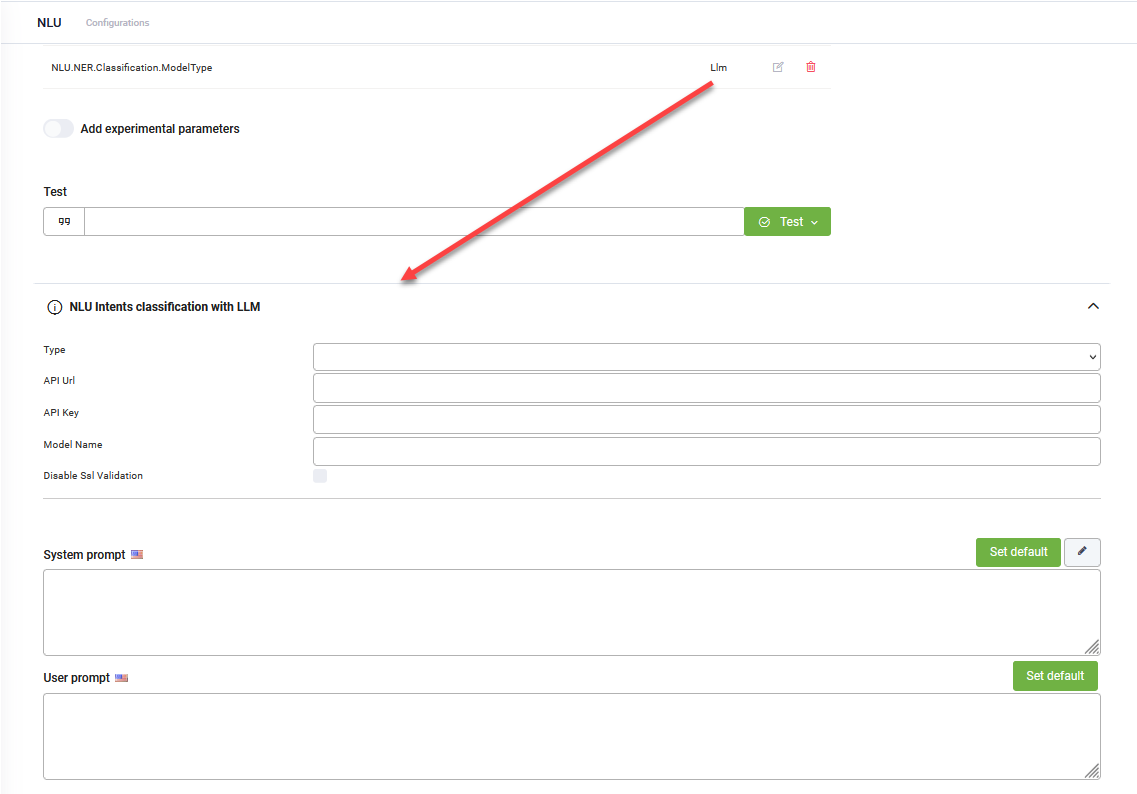
- Add the NLU.NER.Classification.ModelType parameter and set it to LLM.
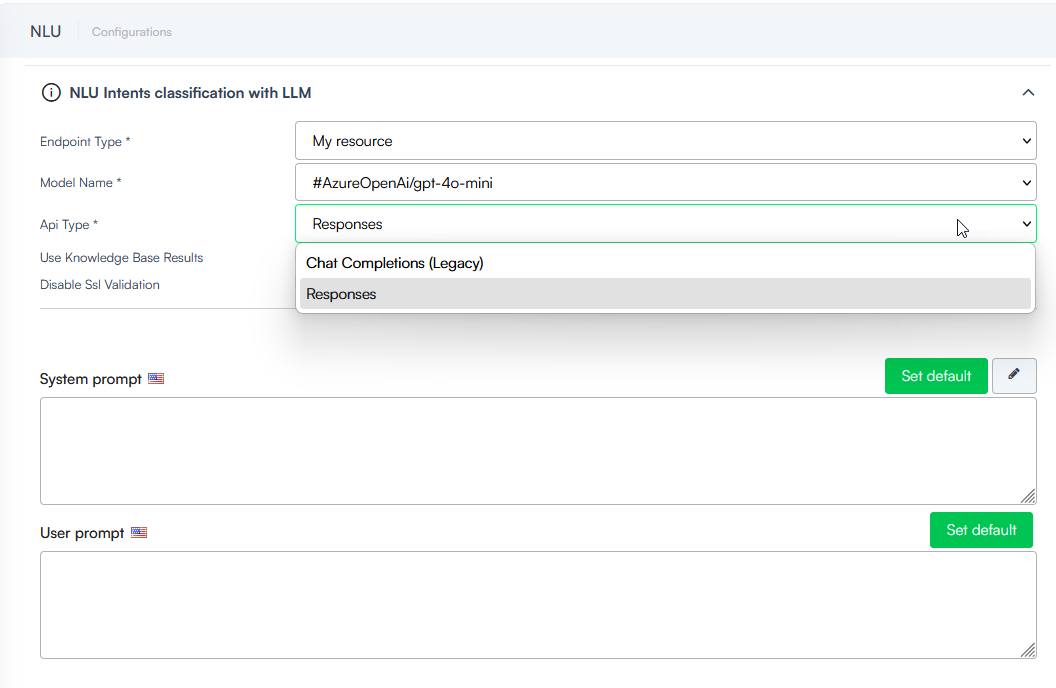
- From the Endpoint Type field, select one of the following options:
- Druid if you have an LLM subscription with Druid.
- My resource if you are using your own generative endpoint.
- Select the Model Name. In the dropdown, you will see all your resources created in Administration > LLM Resources.
- The Api Type field appears dynamically in Druid 9.19 and higher when an Azure OpenAI model is selected (e.g., AzureOpenAi/gpt-4o-mini). Select one of the following:
- Responses: Recommended for Azure OpenAI models. This is the preferred API for Azure OpenAI models, enabling better performance and more intelligent interactions.
- Chat Completions (Legacy): Use this for backward compatibility with existing configurations. Note that this endpoint is now considered legacy.
- Select Use Knowledge Base Results to allow the LLM to use Knowledge Base data for intent classification. When enabled, the system queries the Knowledge Base with the user message and provides the results to the LLM to help identify the most relevant intent.
- Select Disable Ssl Validation when you configure your own LLM resource and the endpoint uses a self-signed certificate.
- For both prompts, click the Set default button. The default Druid prompts will be automatically filled in.
- Click Save to apply the NLU configuration.
- Train the AI Agent.
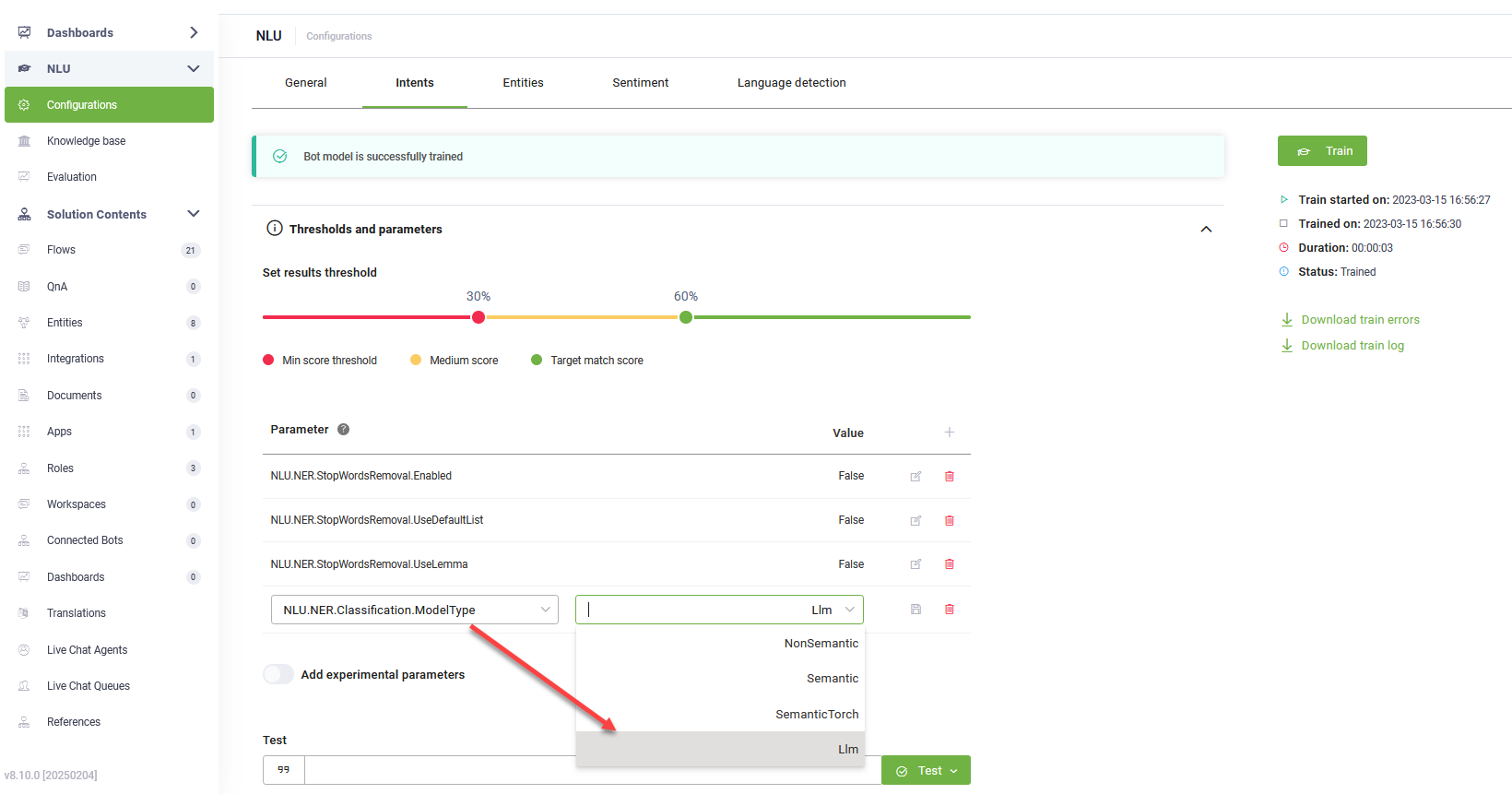
Click the link that appears in the message below the NLP parameters.
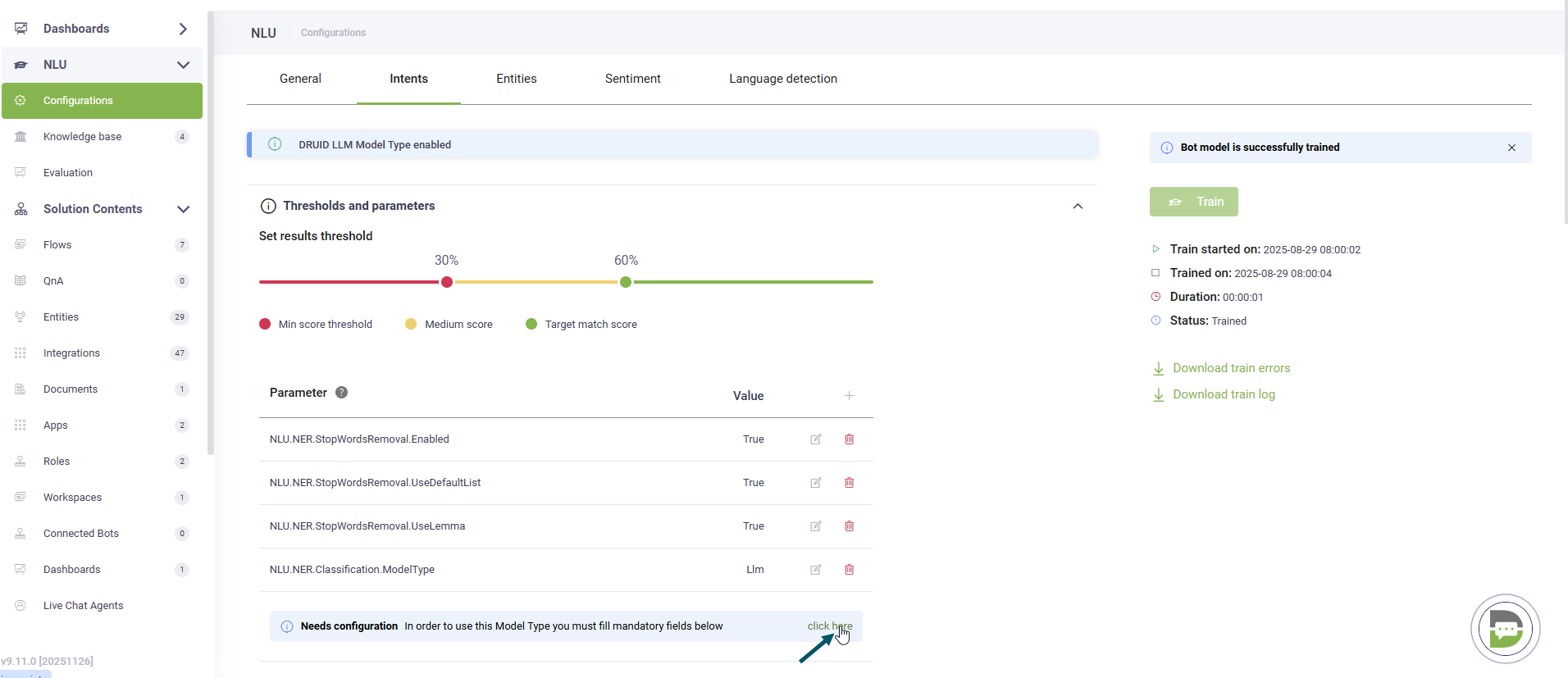
The NLU Intents Classification with LLM expands.
In Druid versions prior to 9.11
To configure NLU intents classification with LLM, follow these steps:
- Navigate to NLU > Configurations > Intents tab.
- Click on Thresholds and parameters.
- Add the NLU.NER.Classification.ModelType parameter and set it to LLM.
- From the Endpoint Type field, select Druid if you have a LLM subscription with DRUID or Custom if you're using your own generative endpoint.
- Select the Client Type.
- For custom endpoints, enter the URL of the generative API.
- Provide the secret key generated in your generative account.
- Specify the generative model name.
- If you selected Google as Client Type, enter the Location of the location for a Vertex AI and your Google Project Id.
- For both prompts, click the Set default button. The default DRUID prompts will be automatically filled in.
- Click Save to apply the NLU configuration.
- Train the AI Agent.
Click the link that appears in the message below the NLP parameters. The NLU Intents Classification with LLM expands.
Once configured, the model uses the two prompts to classify user intents automatically.