AI Agent Interaction With Web Forms
This topic describes how DRUID enables real-time communication between an AI Agent embedded in a web form and the form itself. Through backchannel events, the AI Agent can perform dynamic actions that immediately affect the form, without requiring manual page refreshes.
By interacting with the AI Agent using natural language, users can trigger automated actions that update data, switch records, or refresh the form while staying in the same context.
When chat is enabled on a form, the AI Agent can perform the following actions in real time while staying in the same context:
- Update form fields and automatically save the changes.
- Load a different record by changing which record is displayed on the form.
- Refresh or reload the form to synchronize the latest data.
Setup overview
To enable real-time interaction between the AI Agent and a web form, complete the following steps:
- Create flows with dedicated backchannel flow steps. These steps act as the communication bridge between the AI Agent and the form. For details, see subsequent sections for creating dedicated flow.
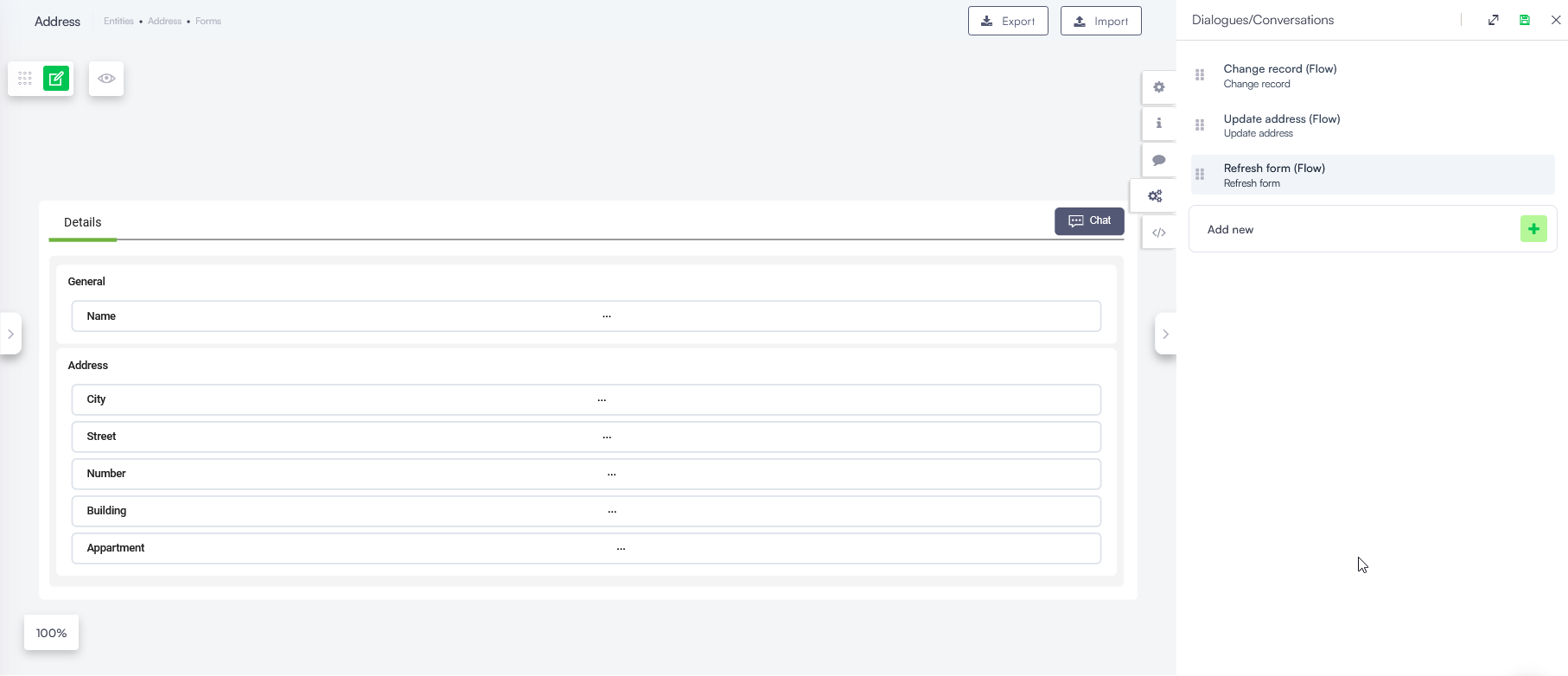
- Recommend the flows on your forms so the AI Agent can execute them during conversations. For more information, see Recommend automations on forms.
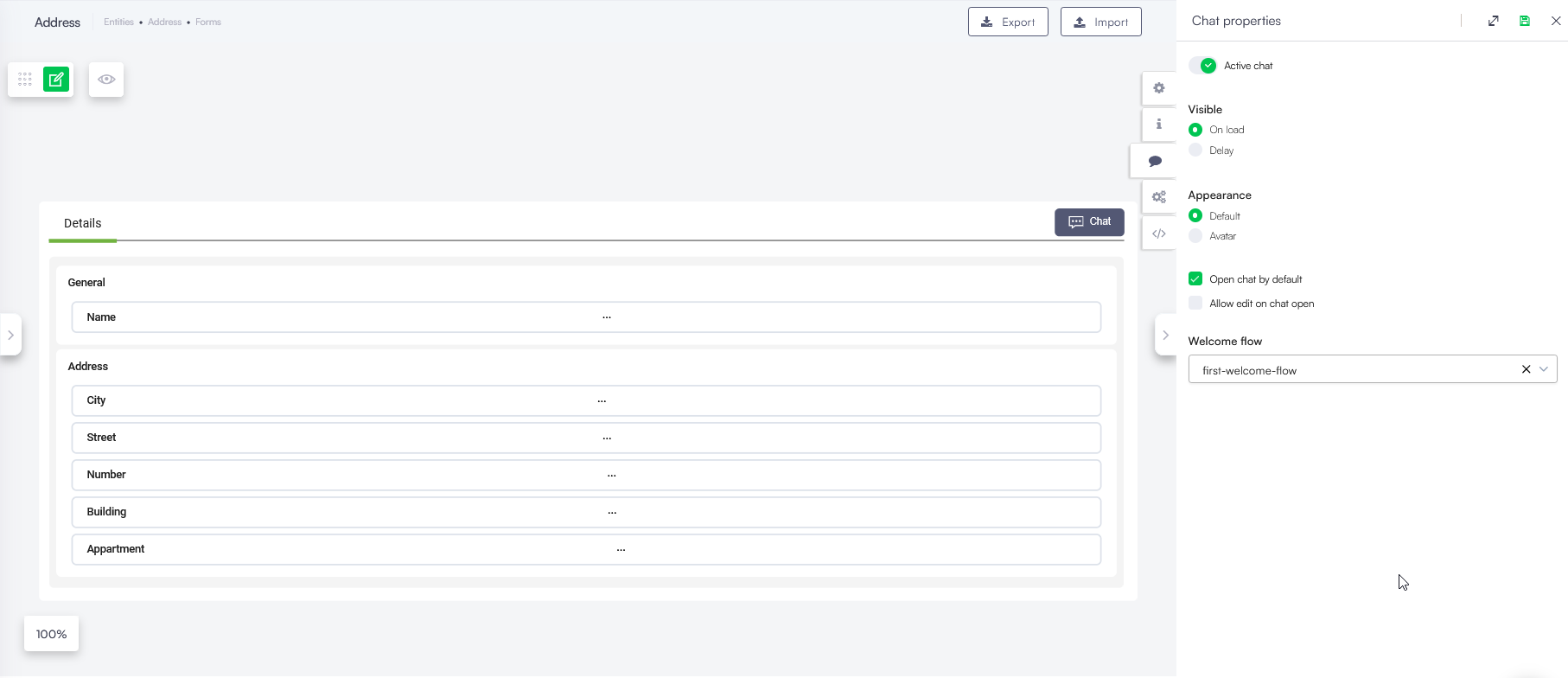
- Enable the chat on the form. Once enabled, users can interact with the AI Agent directly from the form using natural language. For more information, see Enable chat in forms.
Create a flow to update form data and save
To create a flow that allows the AI Agent to modify specific fields on the form and save changes automatically:
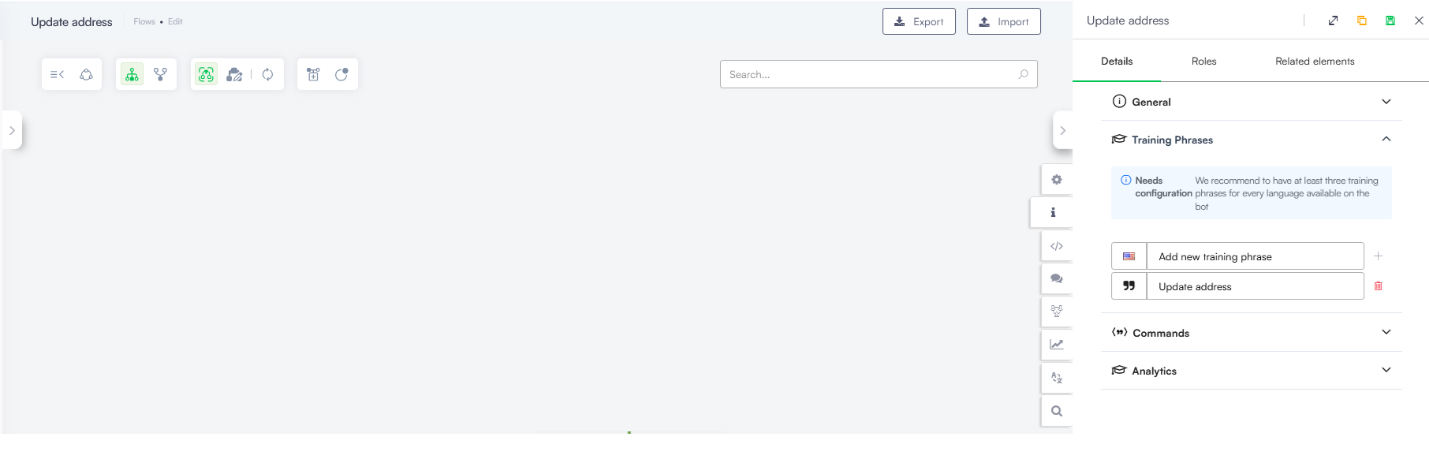
- Create a new flow and add relevant training phrases. At runtime, the user triggers the automation by typing one of these phrases in the chat.
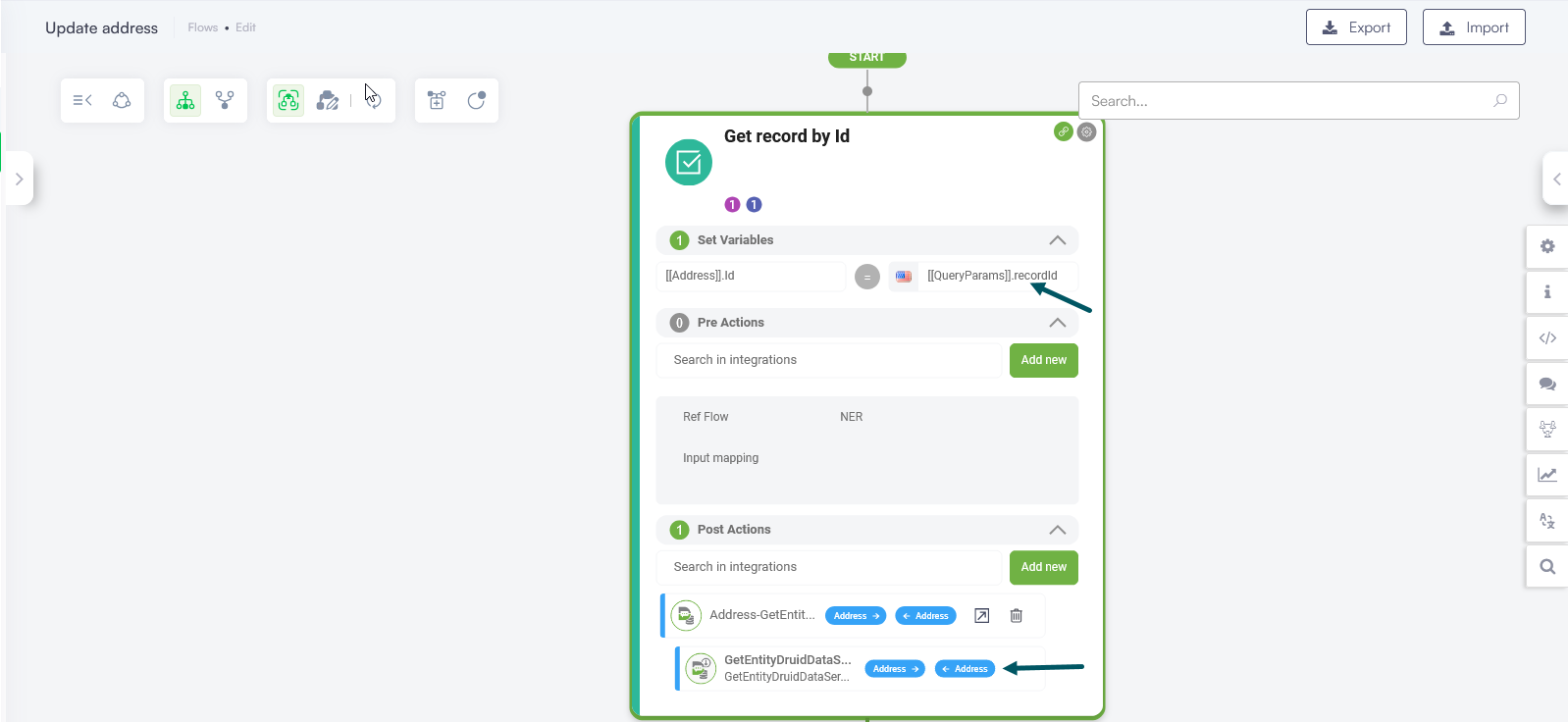
- Add an action step to retrieve the current form record data:
- In Set Variables, set the entity ID to [[QueryParams]].recordId. When an automation is opened from a form, the form record ID is passed through [[QueryParams]]. Retrieving the full record ensures that only selected fields are updated and existing data is not overwritten or lost.
- Select a GetEntity Druid Data Service integration to the step. This retrieves all data for the current form record. Use the CRUD template integration for the entity to automatically create the GetEntity integration if it doen't exist.
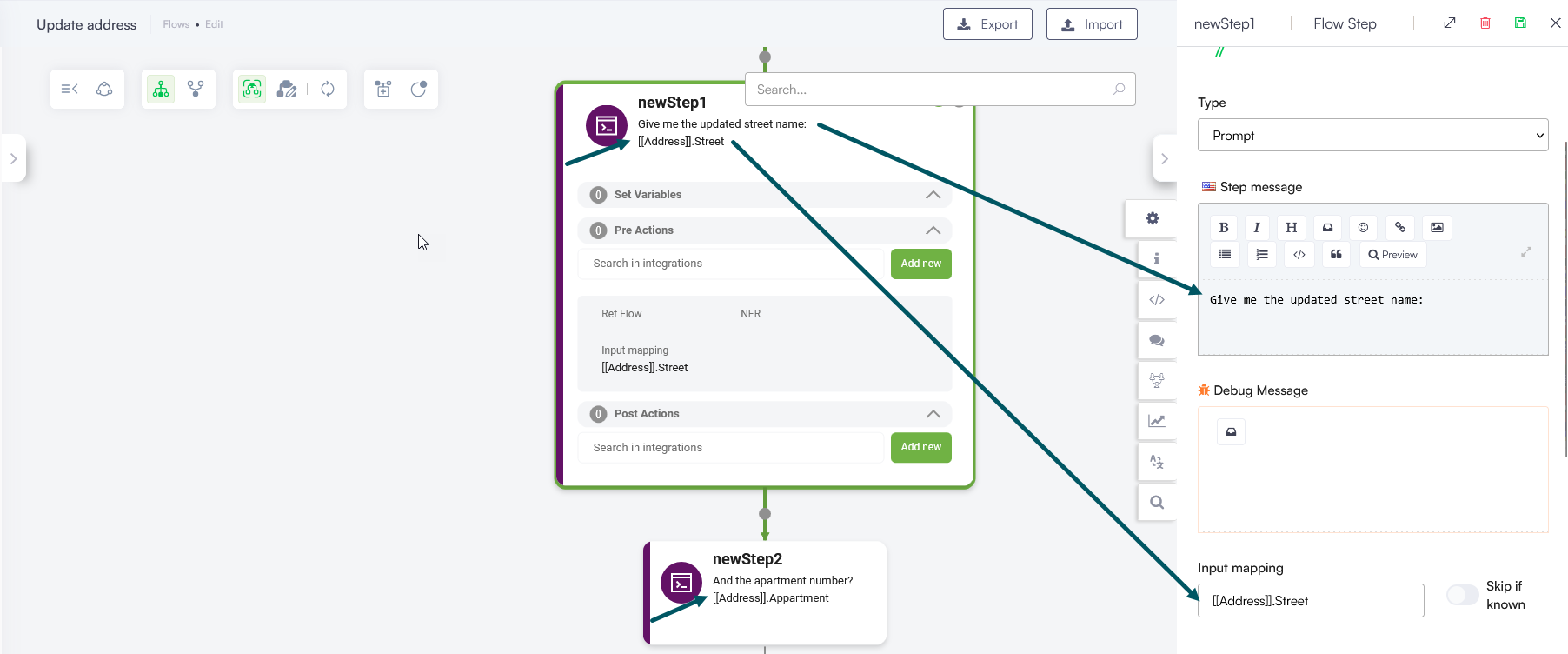
- Add steps to collect the new values from the user:
- Ask the user for the data they want to update.
- Store the values in the appropriate entity fields using Input mapping.
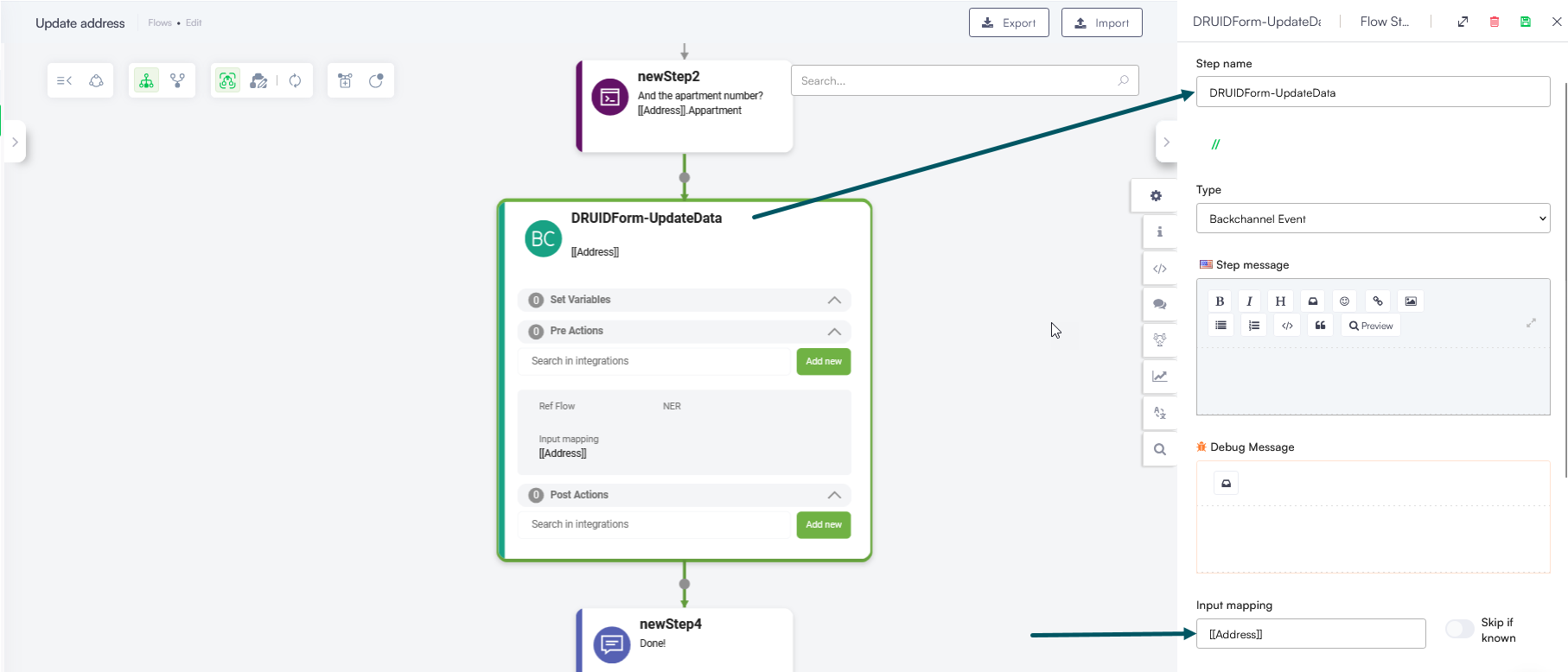
- Add a backchannel step with the following configuration:
- Name: DRUIDForm-UpdateData. The name must match exactly. Any other name will cause the form update to fail.
- Input mapping: Enter the entity.
- (Optional) Add a message step to confirm that the data was updated. The user can also see the changes directly on the form.
Create a flow to load another record on the form
To create a flow that allows the AI Agent to load a different record on the form, replacing the current data with new record information:
- Create a new flow and add relevant training phrases. At runtime, the user triggers the automation by typing one of these phrases in the chat.
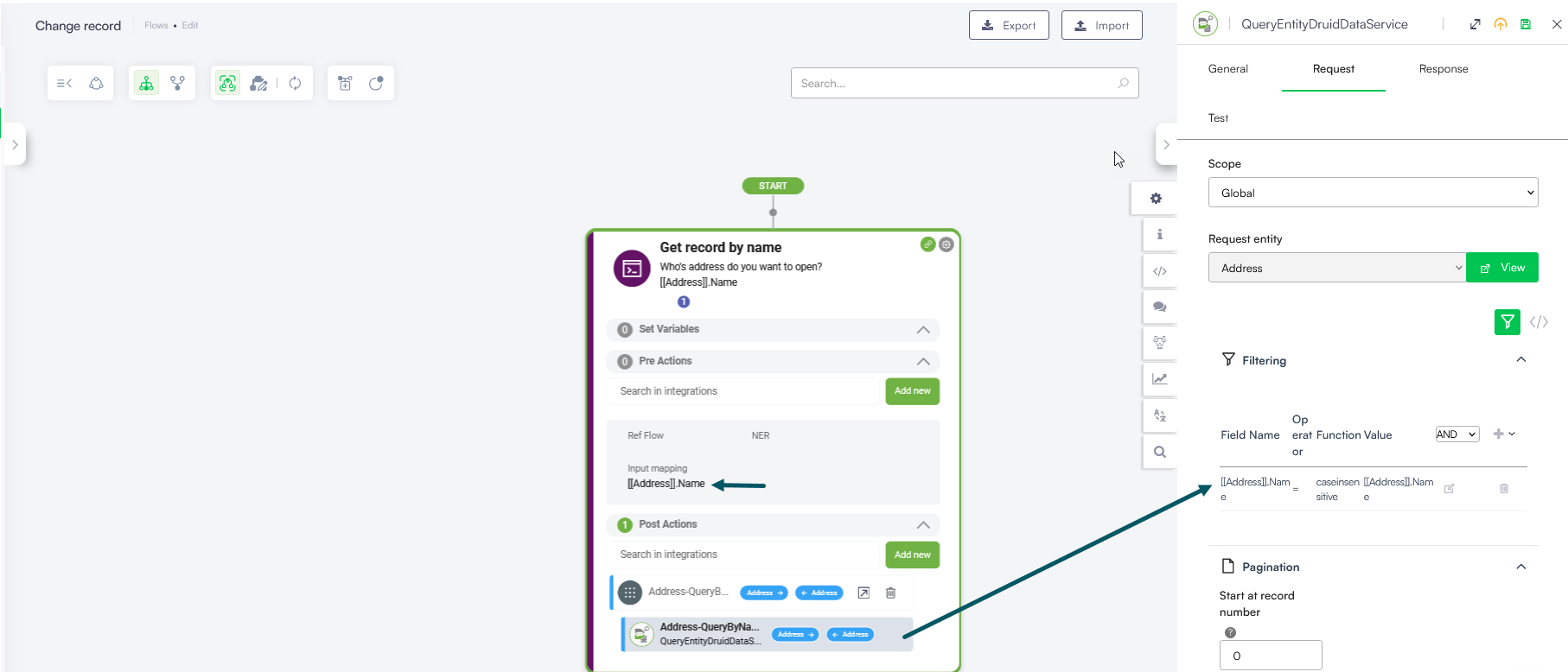
- Add a step to ask the user which record to load:
- In Input mapping, enter the entity field used to identify the record (for example, [[Address]].Name).
- In Post Actions, add a QueryEntity Druid Data Service integration. Filter the query by the field used to identify the record (e.g., [[Address]].Name).
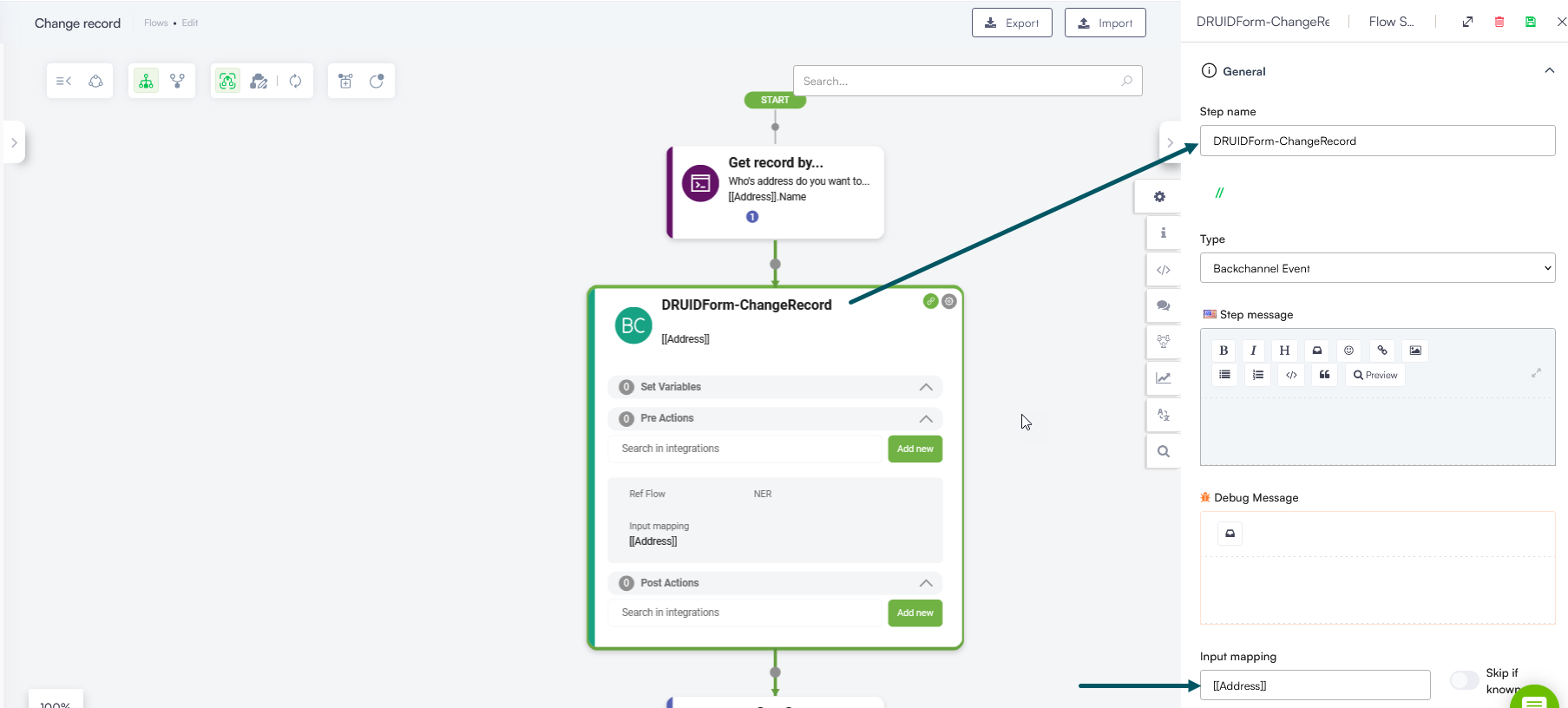
- Add a backchannel step with the following configuration:
- Name: DRUIDForm-ChangeRecord. The name must match exactly. Any other name will cause the record load to fail.
- Input mapping: Enter the entity.
- (Optional) Add a message step to inform the user that the new record has been loaded. The updated data is immediately visible on the form.
Create a flow to refresh the form
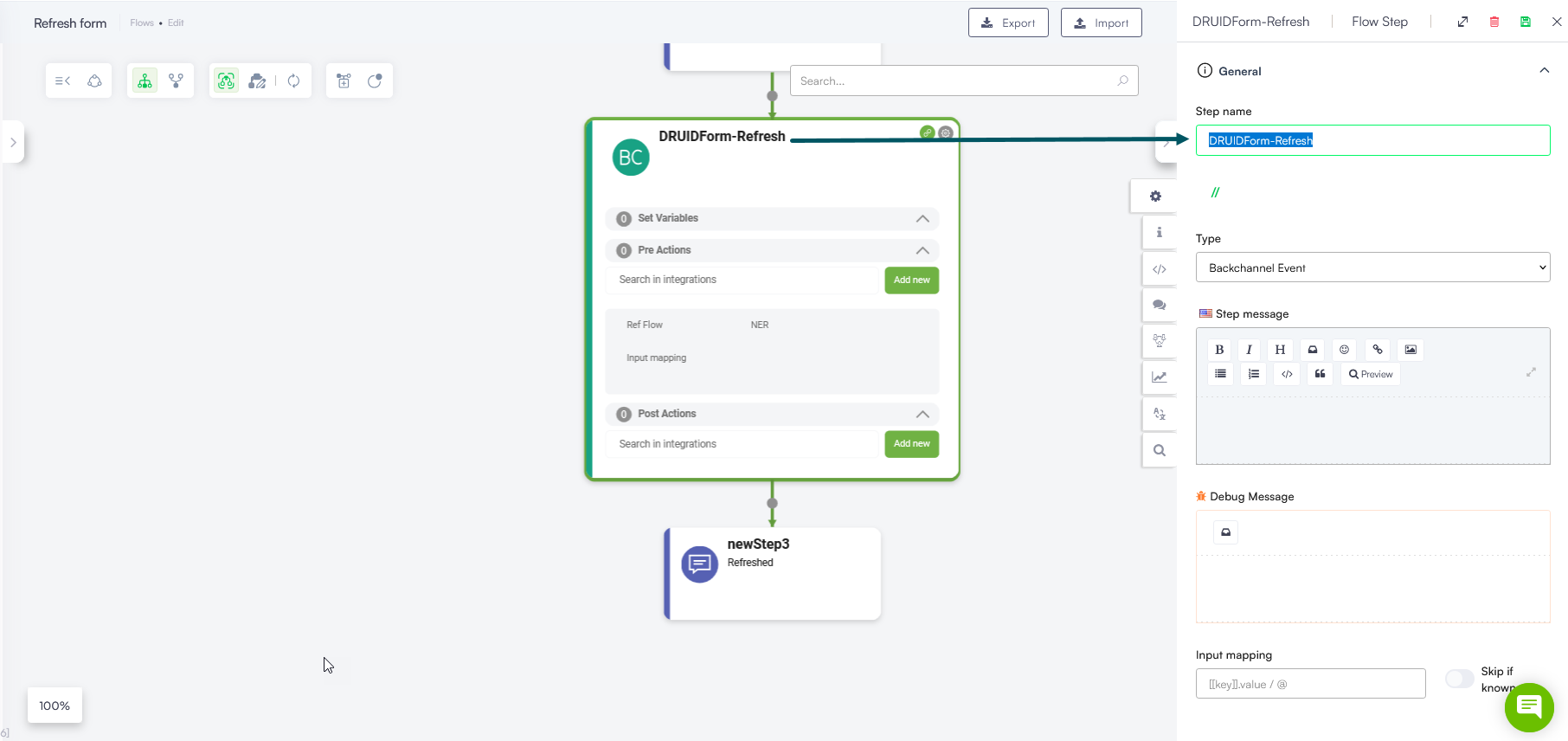
To create a flow that allows the AI Agent to refresh the form and sync it with the latest data from the database:
- Create a new flow and add relevant training phrases. At runtime, the user triggers the automation by typing one of these phrases in the chat.
- Add a backchannel step and set its name exactly to: DRUIDForm-Refresh.
- (Optional) Add a message step to inform the user that the form has been refreshed.