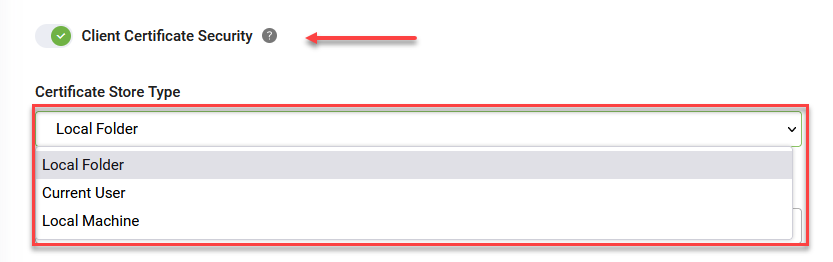
Client Certificate Security
You can now integrate AI Agents with third party tools, which expose REST APIs that use a security certificate for authentication.
Install that security certificate on the machine where the Druid Connector Host is installed.
You have three options to store the security certificate:
- Current User – install the certificate on the current user in Windows > User Certificates.
- Local Machine – install the certificate on the machine in Windows > Computer certificates.
- Local Folder – store the security certificate in a shared location on the machine.
NOTE: You need to install the certificate on the same system user under which the Druid Connector Host Service is running; otherwise Druid and your apps will not be able to communicate.
Based on the security certificate issuing party, the certificate might contain either a serial number or a thumbprint. Go to the certificate details and get the serial number / thumbprint, you will need it to configure the REST connector in Druid.
To set the security certificate authentication on a Druid REST Connector, follow these steps:
- On the REST connector configuration page, tap on Client Certificate Security.
- Select the Certificate Store Type. Select the option you have chosen to store the security certificate on the machine where the Druid Connector Host is installed.
- Specific credentials are required based on the selected Certificate Store Type, as follows:
- For Current User or Local Machine, enter the certificate Serial number or the Thumbprint.
- For Local Folder, upload the certificate and enter the Password needed to access that location. The File Name field is automatically filled in with the name of the certificate file you uploaded.
Info: If you upload the certificate, the Certificate Store Type is also automatically set to Local Folder. - Click the Save & Close button to save the REST connector configuration.