Creating the BluePrism Connection Strings
The BluePrism connector allows integration with the BluePrism Orchestrator, to serve the BluePrism connector action with the credentials needed to perform the required tasks. Thus, the BluePrism connector app only stores access credentials to the BluePrism Orchestrator.
To define a BluePrism connection string for the AI Agent within the selected solution, on the main menu click Apps. The Apps page appears listing the connection strings created for the selected solution. At the top-right corner of the page, click CreateConnector and select BluePrism.
In the Code field, enter a name for the UiPath connector.
Optionally, from the Icon field, select BluePrism to help you easily identify the app in the list of apps. If no icon is selected, DRUID default icon per selected app type will be shown in the apps list.
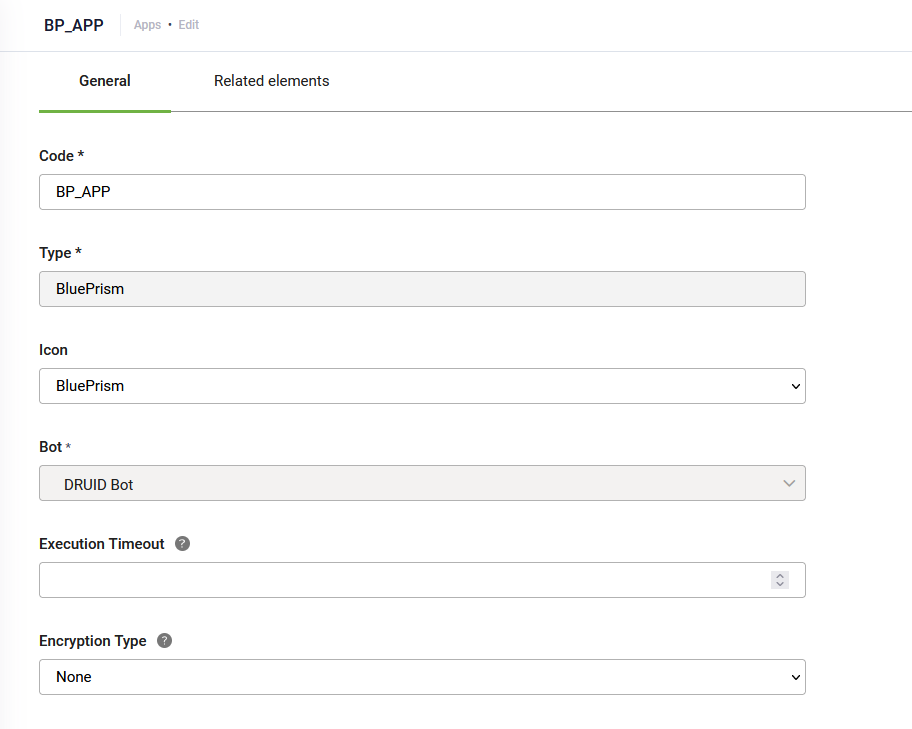
In the Execution Timeout field, enter the maximum number of seconds a request is allowed to execute. By default, the timeout for all connector integrations is 60 seconds. This setting will apply to all connector tasks which use this app.
If you want to encrypt the data on the connector, from the Encryption Type drop-down, select AESCGM.
Encryption Type enables data encryption on the connector using the AES CGM encryption algorithm and allows authors to encrypt specific data before sending it to BuePrism, by using the Encrypt Data integration task as first task in the desired connector action.
When you select AES CGM encryption algorithm (the only one currently available), two new options are available:
- Encryption Key – click the Generate button to generate the key, which will be used by the Encrypt Data task to encrypt the data and by the client / 3rd party application to decrypt the data and use it further.
- Secure encryption with salt – adds a random 64-bits salt to the data before encrypting it.
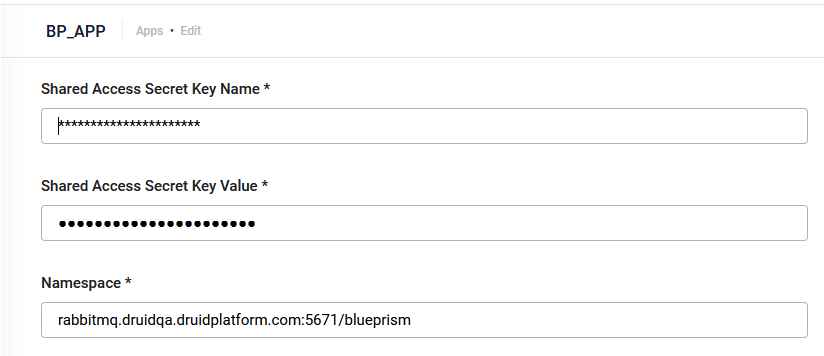
Set the RabbitMQ details:
| Parameter | Description |
|---|---|
| Shared Access Secret Key Name | |
| Shared Access Secret Key Value | |
| Namespace |
The host name of the RabbitMQ instance or the host name of the virtual host (if any) in the following format: {HostName}:{port}/{VirtualNostName}. NOTE: For RabbitMQ on premise installations, make sure that you allow incoming calls from DRUID.
|
Save the connector app.