Step 1. Create AD App
Creating an AD app means defining your AD connection string for the bot within the selected solution.
The connection string is a list of key/value pairs that the Connection object will parse; it will use the information to find the domain root and domain address, authenticate, and establish a connection.
To create an AD app:
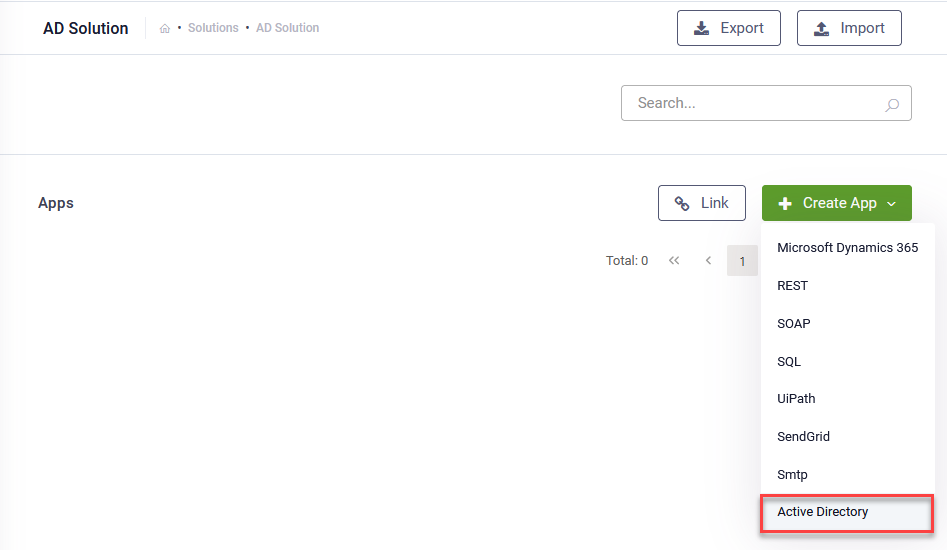
- From the solution menu, click Apps. The Apps page appears listing the connection strings created for the selected solution.
- Place the cursor at the top-right corner of the page on CreateConnector. A drop-down appears.
- Click Active Directory.
- Provide the details listed in the table below.
- Encryption Key – click the Generate button to generate the key, which will be used by the Encrypt Data task to encrypt the data and by the client / 3rd party application to decrypt the data and use it further.
- Secure encryption with salt – adds a random 64-bits salt to the data before encrypting it. Please note that using this feature requires the client to develop code for data decryption.
- Click Save and Close.
The Edit Connector page appears.
|
Field |
Description |
|---|---|
|
Code |
Unique name to identify the App. You will reference in each Integration you call from this AD App. The field is mandatory. |
|
Type |
The field automatically filled in with Active Directory. It is non-editable. |
| Icon |
Select the icon that best describes the app. It helps you easily identify the app in the list of apps. If no icon is selected, DRUID default icon per selected app type will be shown in the apps list. NOTE: This field is available in DRUID version 1.71 an higher.
|
|
Bot |
The field is automatically filled in with the name of the bot on which you’re creating the AD app. It is non-editable. |
| Execution Time |
The maximum number of seconds a request is allowed to execute. By default, the timeout for all connector integrations is 60 seconds. This setting will apply to all connector tasks which use this app. NOTE: This field is available for DRUID version 1.60 or higher and requires Connector Host upgrade.
IMPORTANT! To avoid long execution time for an integration with many tasks, in DRUID 5.4 and higher, the maximum sum of all timeouts configured on an integration is 250 seconds. Whenever this maximum is reached, the execution of the currently running integration task is interrupted and any subsequent integration tasks are no longer executed.
|
| Encryption Type |
NOTE: This feature is available in DRUID version 1.61 or higher and requires Connector Host upgrade.
Enables data encryption on the connector using the AES CGM encryption algorithm and allows bot authors to encrypt specific data before sending it to external AD apps, by using the Encrypt Data integration task as first task in the desired connector action. When you select AES CGM encryption algorithm (the only one currently available), two new options are available: For more information, see Encrypt Data. |
| Domain Root |
The root domain in your company’s AD domain namespace hierarchy. Example: |
| ClientType | The only Active Directory type available in DRUID is Basic. Select it. |
| Domain Address | The IP address or the DN of the DNS host name. |
| Port | Port 389 is filled in when selecting the ClientType. UDP Port 389 for LDAP network port is used to handle normal authentication queries from DRUID. |
| User Distinguished Name |
The full LDAP distinguished name of the domain admin you are using to authenticate to the AD. This is the user name in the traditional LDAP format. Example:
For the complete list of relative distinguished names RDN attribute types, see Microsoft documentation. |
| Password | The password of your AD domain admin account. |