Defining the Dialog
A dialog in the Druid AI Platform is a structured conversation that outlines responses to defined intents. It consists of one or multiple flow steps, each contributing to the overall interaction between the user and the AI Agent.
Dialogs are crucial for AI Agent functionality, as they dictate how the AI Agent interprets user input and executes responses. To define a dialog effectively, it's essential to grasp how the AI Agent processes user input and how the Flow Engine executes flow steps.
Follow these steps to define a dialog using the Flow Designer:
Step 1. Add the first flow step
- Access the Flow Palette and select the desired flow step type from the appropriate category.
- Drag the selected flow step type into the working area to add it as the first step.
- Customize the flow step based on your requirements using the Flow Step Editor. To configure the flow step, click on it and on the Actions menu, click the settings icon (
 ). In the Flow Step Editor make the desired flow step configuration. For information on how to configure flow steps, see Generic Flow Step Configuration Settings and Flow Step Types.
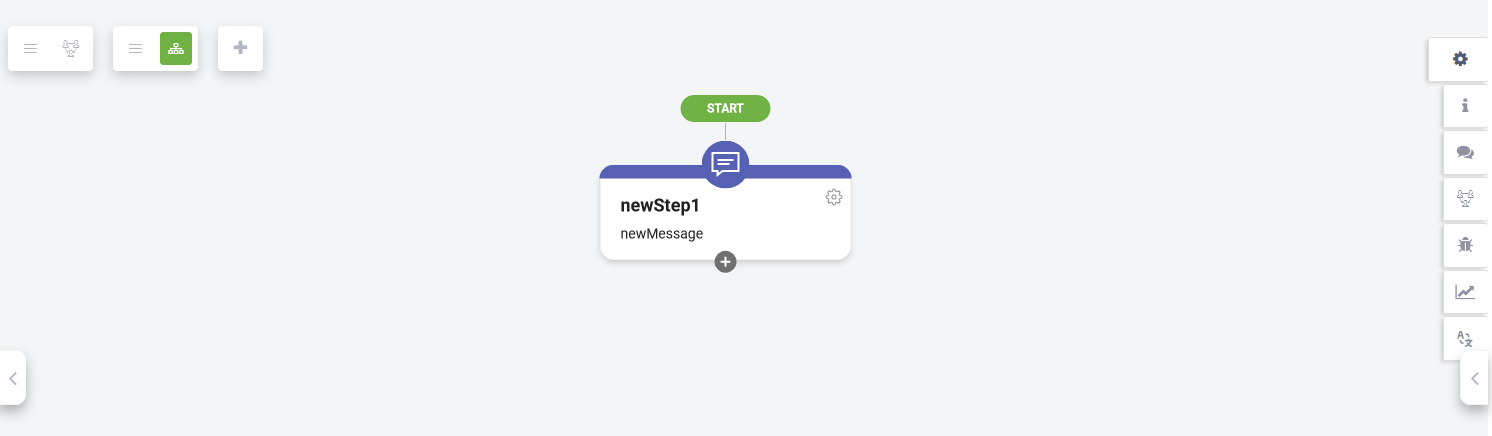
Step 2. Add subsequent flow steps
For complex AI Agent designs requiring multiple steps and nested structures, add subsequent flow steps.
You can add steps using two primary methods:
- The Add step icon: Click the Add step icon located at the bottom of an existing step. When the step types toolbar appears, select the desired step type to establish it as a child of the original step.
- The Flow Palette: Open the Flow Palette and drag a predefined step directly onto an existing step within the diagram. This ensures the new step is correctly nested under its parent.
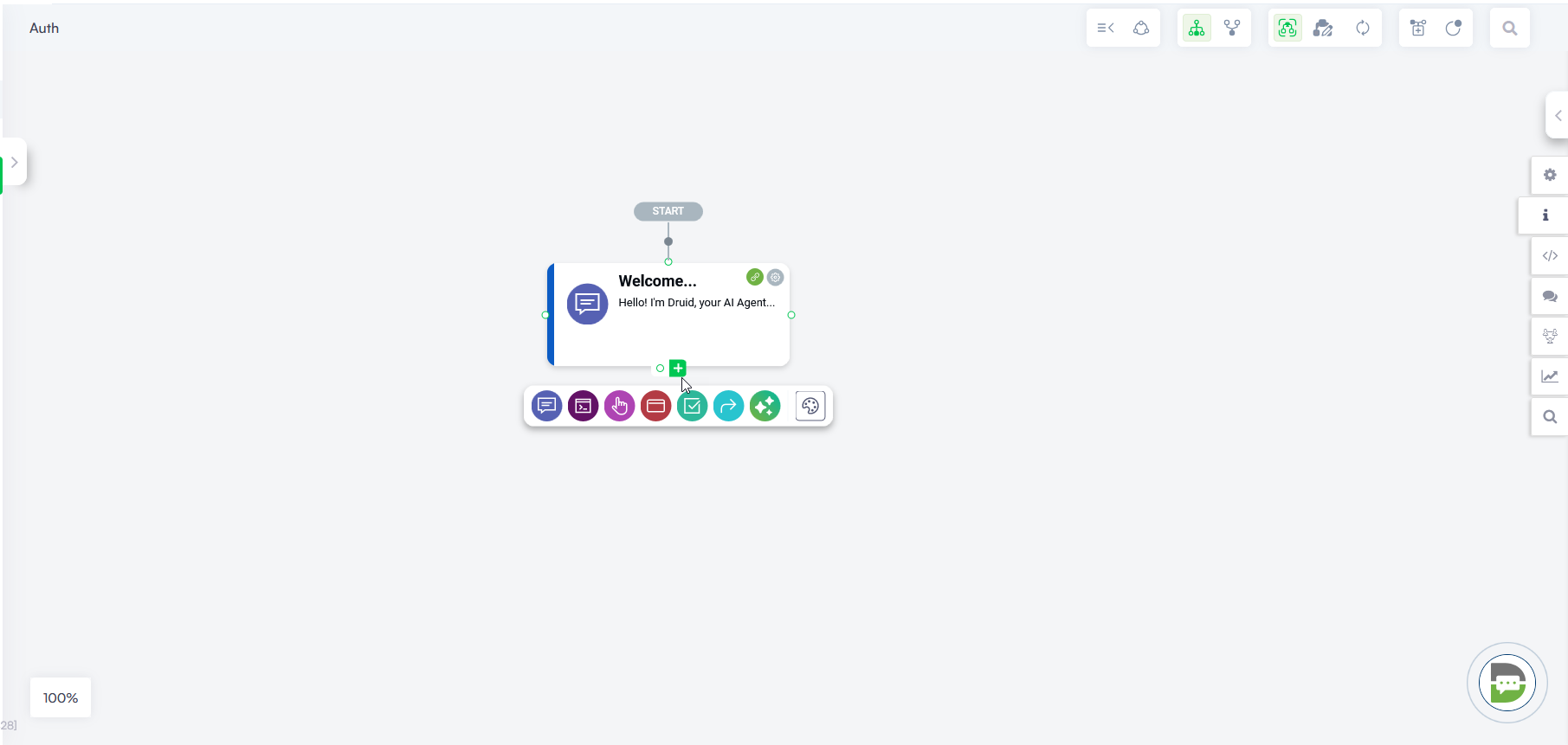
The system automatically connects these steps with arrows to form a tree structure.
Step 3. Fine-tune the dialog with extensive configurations
Druid offers extensive configurations to tailor dialogs to your AI Agent requirements:
- Set up conditions on steps to execute child steps selectively. For more information, see Setting Up Conditions on Steps.
- Link steps to jump to other points in the dialog based on specified conditions. For more information, see Linking Two Steps.
- Rearrange flow steps, adjust their order, or delete unnecessary steps as needed. For more information, see Moving Steps, Changing the Steps Order and Deleting Steps.
- Configure flow steps to store user input in entities, execute internal actions, and more.