Authoring Time Translation
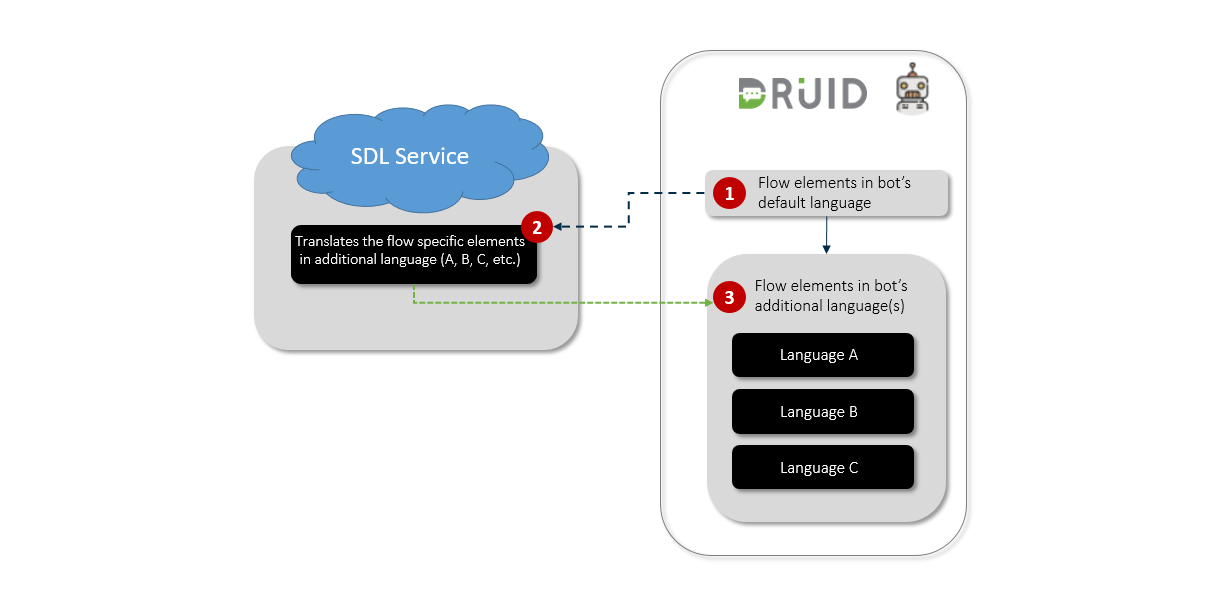
Authoring Time Translation provides a cost-effective solution for building multi-language AI Agents that require 24/7 activity. This feature uses machine translation services to translate specific elements of the AI Agent flow into additional languages during the authoring phase.
By leveraging Authoring Time Translation, you can significantly reduce ongoing translation costs because the AI Agent is trained in multiple languages, allowing Druid NLP to operate directly in each language during a chat session, rather than relying on machine translation for every single chat message throughout the AI Agent lifespan.
How Authoring Time Translation Works
The process involves up-front translation during development, which allows the AI Agent to handle user input directly in the configured languages:
- Authoring in Default Language: The author develops and trains the AI Agent in the default language.
- Automatic Translation: The Druid AI Platform automatically translates the default language content into all configured additional languages using the selected machine translation service.
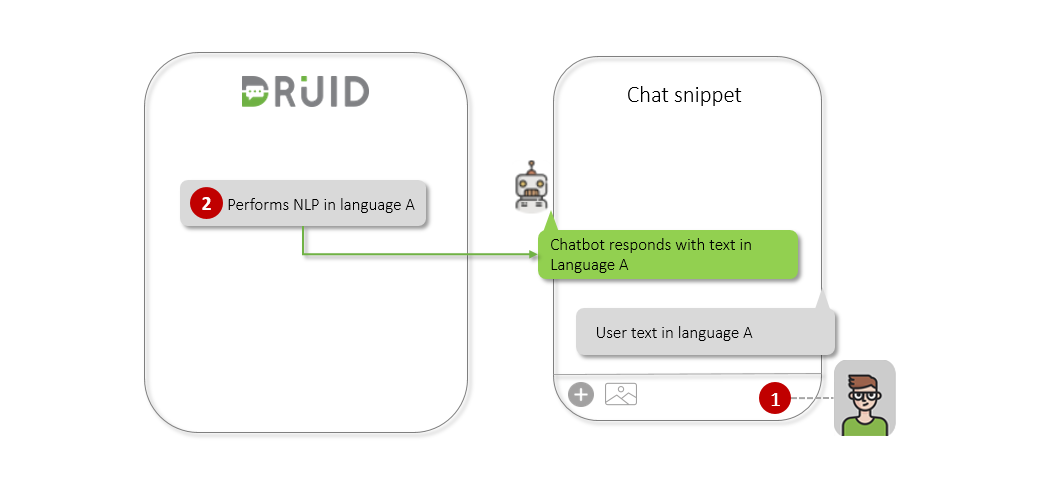
- User Interaction: Users interact with the AI Agent by writing text in a specified language (Language A).
- Native NLP: Natural Language Processing (NLP) is performed directly in Language A, as the AI Agent has already been trained and configured in that language.
- AI Agent Response: The AI Agent responds with text in Language A.
Flow Elements Translated by Machine Translation
When you author flows and steps in the AI Agent default language and save them, the Druid AI Platform calls the configured machine translation service (SDL or Azure Translator) to translate the following elements into the AI Agent additional languages:
- Step messages
- Choice and Hero Card buttons / thumbnails
- Flow description
- Training phrases
Flow Editor Display Options
After saving a flow / step configuration, the Flow Editor initially displays only the default language. You can use the language filtering options to view translations:
- All: See the message / element in all AI Agent authoring languages.
- Custom: See the message / element in languages where the author has manually customized the machine translation.
- Machine Translated: See the translation provided automatically by the machine translation service.
Translation Particularities
- Upon saving flow steps, Druid copies variables and conditions from the default language to all additional languages.
- Hard-coded messages within variables and conditions are excluded from this copy / translation process and require manual translation.
- Avoid using HTML or XML code sequences in flow steps (e.g., in hero cards or messages), as the machine translation service may not properly translate them.
Customizing Translated Messages
AI Agent authors have the flexibility to customize machine-translated content. Customized messages are saved as custom translations and are excluded from all future automatic translation processes.
Customizing a Translation
By default, all machine-translated messages are read-only to prevent accidental changes.
To customize a translation:
- Next to the desired additional language, click the Edit icon to switch to custom translation mode.
- The messages in the selected additional language become editable.
- Customize the desired message / element and save the flow / step / condition.
- On save, the custom message is flagged as a custom translation and will be skipped in subsequent automatic translation processes for that element.
Restoring to Machine Translation
You have the option to revert a custom message back to the machine-translated version:
- Click the Restore icon displayed in line with the language.
- The message becomes read-only again in that language.
- On flow / step save, the message will be automatically translated by the machine translation service and will overwrite the custom translation.
AI Agent Bulk Translation
While machine translation typically occurs when saving individual flow steps, authors can perform a bulk translation for all flows in a single language, or across all languages, using the Translate button.
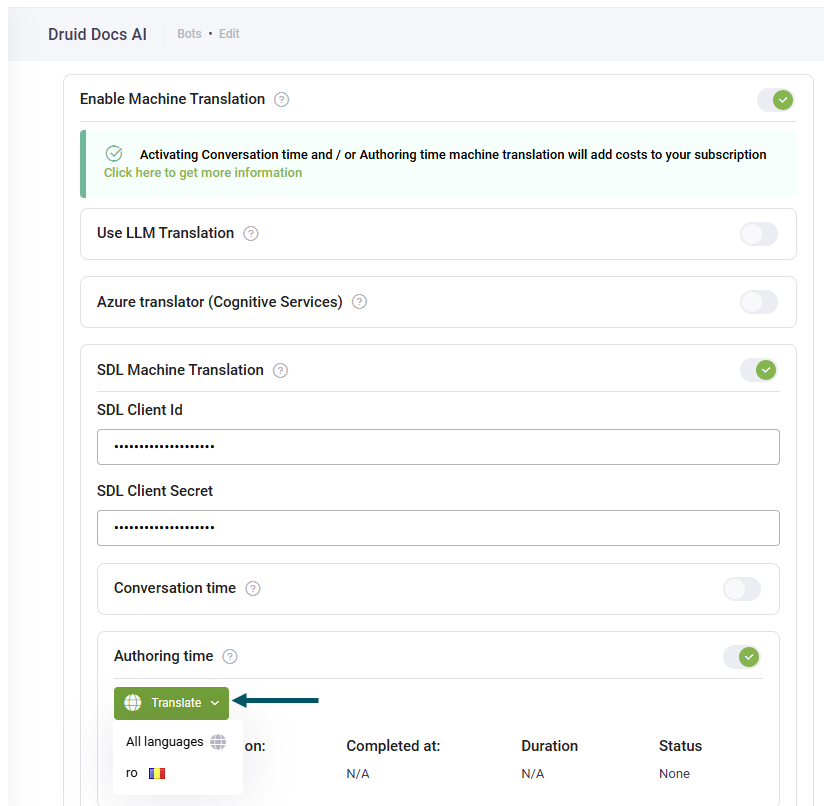
This feature is an efficient way to ensure translation cost savings across complex AI Agents by translating a large amount of content at once. The process runs asynchronously and its duration depends on the AI Agent complexity (number of flows, steps, and configuration). You must wait until the process completes, indicated by a "Success" status.
- The machine translation services do not translate custom messages or flow elements that have been manually customized.
- If the process encounters errors, it stops immediately, and an error message appears. Any subsequent bulk translation attempt will restart from the beginning and will not continue from the point of the previous error.